
Last updated August 24, 2026 · Editorially reviewed by CanzarTV
Practical Guide to Low-Latency Settings for Live Sports and Gaming on TVs
Watching live sports or playing cloud games on a large TV is thrilling — until a laggy picture or delayed controls spoil the experience. This guide explains practical, model-agnostic ways to reduce latency and input lag on modern smart TVs so you get smoother live sports, faster cloud gaming responses, and clearer timing for fast action.
We focus on settings and habits that commonly help across brands and platforms, explain the difference between input lag and streaming latency, and provide checklists and step-by-step options you can try at home. Manufacturer menus and feature names can vary, so verify the exact labels and availability for your TV and devices.
Why latency matters for sports and cloud gaming
- Live sports: Small delays between the live action and what you see or hear can affect real-time commentary, betting apps, or simply the thrill of following the play. Reducing latency improves perceived responsiveness when switching camera angles or using second-screen apps.
- Cloud gaming and remote play: Cloud streaming services and consoles require both low network latency and low display input lag. If the TV adds delay, controller inputs feel sluggish even when your internet is fast.
Two concepts are often confused:
- Input lag: the delay between a controller/keyboard/mouse input (or on-screen action from a connected source) and the TV updating the displayed image. This comes from the TV’s processing pipeline and is measured in milliseconds.
- Streaming/network latency: the time for data to travel from the live source or game server to the TV or streaming device. Network conditions, server location, and streaming service processing contribute to this.
Both matter. This article focuses on reducing the TV and local-device portion (input lag and display processing) while mentioning steps that affect streaming latency.
Core TV settings to reduce latency
Below are the most effective settings you’ll encounter on most modern TVs. Names vary between manufacturers; check your TV’s manual or online support for exact menu locations.
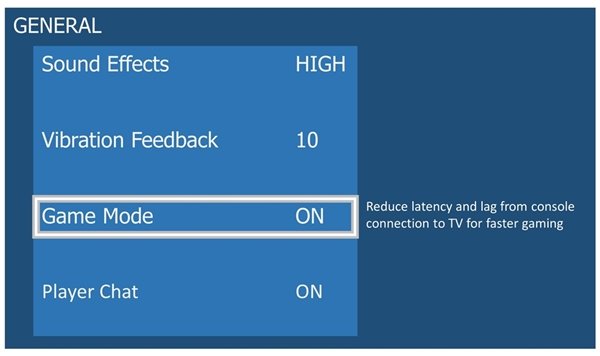
1) Enable Game Mode or Low-Latency Mode
What it does: Switches off many post-processing features (motion interpolation, frame generation, noise reduction) that add delay.
How to use it:
1. Open Settings → Picture or General → look for “Game Mode,” “Low Latency Mode,” or “PC Mode.”
2. Turn it on for any input where you want minimal delay.
3. If your console or streaming device supports Auto Low Latency Mode (ALLM), enable ALLM on the source and allow the TV to switch automatically.
Notes: Game Mode is appropriate for cloud gaming and often for live sports if latency is a priority over motion smoothing. If you watch sports with a lot of camera pans, you may prefer a compromise where some processing is left on — test both.
2) Use Auto Low Latency Mode (ALLM) when available
What it does: Allows compatible sources (consoles, streaming boxes) to tell the TV to enable low-latency settings automatically.
How to use it:
– On the source device (e.g., a console or compatible streaming player), enable ALLM in its HDMI or video output settings.
– On the TV, enable HDMI features such as “Auto Low Latency Mode” or “HDMI Device Link.”
ALLM support varies by device and TV model; consult manufacturer documentation.
3) Turn off motion interpolation and frame generation
What it does: Features with names like MotionFlow, TruMotion, Auto Motion Plus, or Motion Smoothing attempt to reduce blur by creating or interpolating frames, but they add latency and can introduce artifacts.
Recommendation: Set these to Off (or to Low if you can’t disable entirely) when you want the fastest response. For some viewers, this makes fast pans look less smooth; weigh responsiveness vs. visual preference.
4) Disable noise reduction, sharpness processing, and dynamic contrast
What it does: Per-frame denoising and dynamic adjustments help picture quality for movies but introduce processing time.
Recommendation: Turn these features Off when prioritizing latency.
5) Use the right HDMI input settings
- Label the HDMI input as “PC” or “Game” when the TV supports special behavior for inputs.
- If your TV has enhanced HDMI features for 4K/120 or deep color, enable them only if needed; sometimes enabling high-bandwidth modes changes how the TV handles color and processing. Test whether these affect latency on your specific set.
6) Reduce frame conversion and scaling
If your source and TV frame rates match (e.g., 60 Hz input to a 60 Hz mode on the TV), the TV has less work to do. Try these steps:
- Use a compatible resolution and refresh rate from your source device (settings on consoles/streaming players/PCs).
- If your TV has a 120 Hz panel and your source is 60 Hz, check whether the TV performs simple duplication vs. complex interpolation and whether that increases lag.
7) Consider Variable Refresh Rate (VRR)
What it does: VRR helps with stuttering in games by matching the TV’s refresh rate to what the source outputs. It’s useful for consoles and PC gaming; it does not itself reduce input lag but can improve perceived responsiveness and reduce tearing.
Support varies; if using VRR, enable it on both TV and source when available.
Steps for cloud gaming and live sports viewers (quick checklist)
- Identify the source: smart TV app, streaming stick/box, console, or PC.
- On the TV: enable Game Mode / Low-Latency Mode for the input in use.
- On the source: enable ALLM or set output to a compatible resolution/refresh rate.
- Turn off motion interpolation, noise reduction, dynamic contrast, and extra sharpening.
- Use a wired Ethernet connection for streaming devices and consoles where possible to reduce network latency and jitter.
- If using Wi‑Fi, use 5 GHz with a strong signal and avoid congested channels.
- If watching live TV via cable/satellite set-top box, enable game/low latency mode for that HDMI input as well; many boxes benefit from it.
- Test switching Game Mode on/off during a match or session to confirm your preferred balance of smoothness vs. responsiveness.
How to enable Game Mode and related settings — general steps
Because TV menu systems differ, these are generic steps you can adapt:
- Press the TV’s Settings or Menu button.
- Go to Picture settings (sometimes under Advanced Picture Settings).
- Look for a “Picture Mode” option and select “Game,” “PC,” or a low-latency preset. If none exists, find an option labeled “Game Mode” and turn it On.
- Locate Motion/Processing settings — turn off Motion Interpolation, Frame Interpolation, or equivalent.
- Turn Off Noise Reduction, MPEG Noise Reduction, and Dynamic Contrast.
- If available, enable Auto Low Latency Mode (ALLM) or HDMI-CEC features that advertise auto mode switching.
- Save or exit settings; test with a fast-moving live sport or a cloud gaming session.
If any step is unclear on your model, consult your TV’s online support or user manual for exact menu names and navigation.
Practical examples: TV + source combinations
- Smart TV app streams: If you use a TV’s built-in app for sports, enabling the TV’s Game/Low-Latency mode will cut display processing delay. Note that streaming app encoding and network latency remain separate issues.
- Streaming stick or box (Roku/Fire TV/Apple TV/etc.): Enable Game Mode on the TV. On some devices you can also select low-latency or higher frame-rate modes in the device’s settings.
- Console (Xbox/PlayStation): Enable Game Mode on the TV or use ALLM; ensure the console output matches the TV’s preferred resolution/refresh rate.
- Cloud gaming (stadia-like/GeForce Now/xCloud/console remote): Combine Game Mode with a wired or high-quality Wi‑Fi connection. Even with perfect TV settings, network latency can dominate the experience.
Balancing picture quality and latency
Turning off processing will reduce latency but may change how motion and detail look on-screen. For many sports viewers the motion smoothing effects are unwanted — but others prefer the “soap opera” look for certain sports broadcasts.
Try this process to find your preference:
- Start with Game Mode on and motion smoothing off.
- Watch a short clip of your sport or play a short cloud game session.
- Switch Game Mode off and re-enable one processing feature at a time (e.g., Turn on Motion Smoothing on “Low”) and compare.
- Stick with the configuration that minimizes perceived lag while delivering an acceptable picture.
Network and streaming tips that affect latency
Although TV display settings are critical, network and service choices also matter for live events and cloud gaming:
- Use Ethernet for any fixed device (streaming box, console). Wired is usually lower-latency and more stable than Wi‑Fi.
- If using Wi‑Fi, place the router close to the TV/console, use a 5 GHz network, and minimize interference from other devices.
- Choose a streaming service or game server region that offers low-latency options when possible (some services provide low-latency modes or dedicated streaming tiers).
- For cloud gaming, prioritize services that advertise low-latency or use a stadium/edge server near your region.
Troubleshooting common issues
- Problem: Motion looks choppy after enabling Game Mode.
- Cause: Game Mode disables motion smoothing which can make panning look less fluid.
Fix: Try turning on a low level of motion smoothing, or enable it only for non-gaming inputs.
Problem: Sports app still feels delayed after TV optimizations.
- Cause: Streaming service encoding and network delays add latency that TV settings can’t fix.
Fix: Try a wired connection, use a lower-latency streaming provider (if available), or check for app updates. Some apps offer a “low latency” or “live” mode in settings.
Problem: ALLM doesn’t switch TV into low-latency mode automatically.
- Cause: Either the source or TV may not fully support the ALLM handshake, or HDMI-CEC is disabled.
- Fix: Enable HDMI-CEC on both devices and check for firmware updates. If still unsuccessful, manually enable Game Mode for that input.
Quick comparison table: common features and their effect on latency
| Feature | Typical effect on latency | Recommendation for sports/gaming |
|---|---|---|
| Game Mode / Low Latency Mode | Reduces TV processing delay significantly | Enable |
| ALLM (Auto Low Latency Mode) | Automatic switching to low latency if supported | Enable on both TV and source if available |
| Motion Smoothing / Frame Interpolation | Adds latency; improves perceived smoothness | Disable for lowest latency |
| Noise reduction / Dynamic contrast | Adds processing time | Disable when latency is priority |
| VRR (Variable Refresh Rate) | Helps reduce tearing/stutter; not a latency panacea | Enable for gaming if supported |
| Wired Ethernet | Reduces streaming/network latency and jitter | Use when possible |
FAQ
Q: Will enabling Game Mode hurt picture quality?
A: Game Mode reduces or disables some processing that can create smoother or sharper images, so you may notice differences in motion handling and some visual enhancements. For many viewers, the trade-off is acceptable for the responsiveness gain. You can test both modes and pick the best balance for your viewing habits.
Q: Does every TV have a Game Mode or ALLM?
A: Most modern TVs include some low-latency or Game Mode option, and many mid- to high-end sets support ALLM. Names and locations in menus vary; consult your TV’s documentation. Some older models may not have these features.
Q: What’s the difference between input lag and streaming latency?
A: Input lag is the delay introduced by the TV and display processing when updating the image after an input. Streaming latency (network latency) is the time taken for data to traverse the internet from server to your device or app. Both add up to your perceived delay; lowering display input lag won’t change the network segment.
Q: Will enabling ALLM automatically reduce latency for a live TV broadcast from a cable box?
A: Only if the cable/satellite box supports ALLM or if you manually enable Game Mode on the TV for that HDMI input. Many set-top boxes don’t use ALLM, so manual Game Mode activation is often required.
Q: Are firmware updates important for low-latency operation?
A: Yes. Firmware updates can add or improve features like ALLM, VRR, and general performance. Check your TV and streaming device for updates, and verify any changes in manufacturer documentation.
Conclusion
Reducing latency for live sports and cloud gaming on TVs is usually a combination of turning off time-consuming post-processing (Game Mode, motion interpolation, noise reduction), enabling automatic low-latency features like ALLM where supported, and minimizing network-induced delays through wired connections or better Wi‑Fi. Because feature names and behavior vary by manufacturer, always verify settings and test them with your preferred apps and sources to find the best balance between picture quality and responsiveness.
Disclosure: Settings, feature names, and compatibility differ by TV model, connected device, operating system, region, and firmware version. Always consult your TV and device manufacturer documentation for precise instructions and the most current information.
Related reading: check our setup tips in Devices & Setup and live-streaming suggestions in Streaming Guides. For live event coverage best practices, see Sports & Live TV.

Canzar
Ready to stream? Pick your plan
Live TV, movies, sports and 10,000+ channels on any device — Firestick, Android TV, Smart TV, phone.
View Subscription Plans Compare Pricing
Moderation: Comments are reviewed before publishing. Be respectful and on-topic.
Guidelines: Share streaming tips, device help, or content recommendations. No spam, no promotions, no off-topic links.