
Last updated August 24, 2026 · Editorially reviewed by CanzarTV
Configuring Multiple Audio Outputs: TV, Soundbar, and Bluetooth Headphones
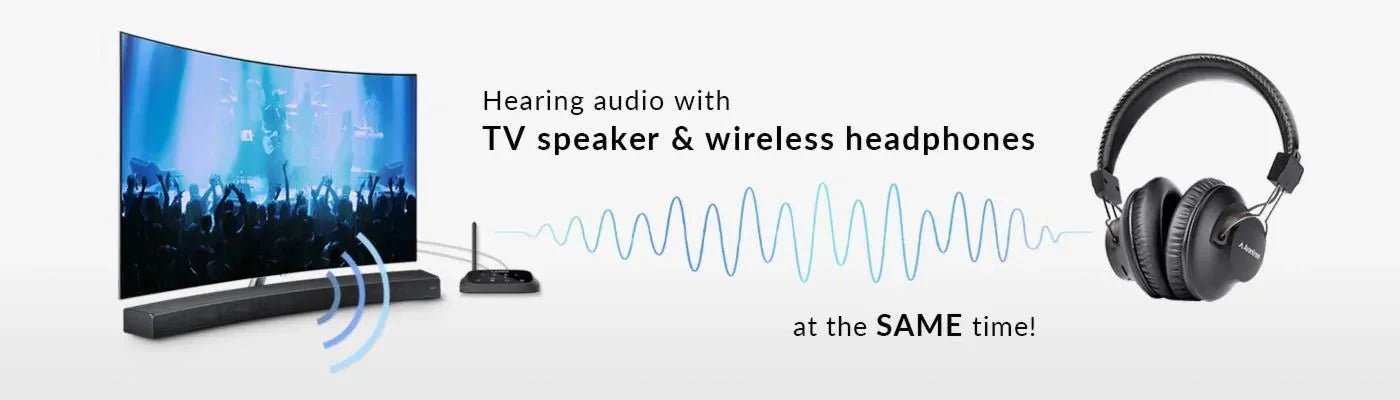
Watching TV while someone else listens privately on Bluetooth headphones is a common household need. This guide explains realistic ways to use TV, soundbar, and Bluetooth headphones simultaneously, what usually works (and why), and practical troubleshooting tips. Where behavior varies by model or firmware, I note that you should check your device documentation.
Quick overview: What’s possible and what’s not
- Some modern smart TVs let you output audio to the TV speakers (or an attached soundbar) and a Bluetooth headset at the same time. Others limit you to one active audio output at once.
- Soundbars sometimes provide their own Bluetooth transmitter/receiver. If a soundbar supports Bluetooth headphones and your TV also outputs to the soundbar, you may be able to route audio to both the soundbar and headphones—but again, that depends on the hardware and settings.
- Hardware solutions such as an external Bluetooth transmitter (plugged into the TV’s optical or analog output), AV receivers with multi-zone audio, or soundbars with “party” or multi-output modes are common workarounds when your TV doesn’t support dual outputs.
Because features vary widely by brand and firmware, verify the current manufacturer documentation for your TV, soundbar, or receiver before buying equipment.
Core concepts to understand
Audio outputs vs. audio routing
- “Audio output” is the physical or wireless endpoint (HDMI eARC, optical/TOSLINK, analog AUX, Bluetooth).
- “Audio routing” is the TV/receiver/software decision about which output(s) are active. Many devices give only one active route at a time.
Latency and synchronization
Bluetooth and some wireless connections add latency. If you route the same program audio to both a wired/ARC soundbar and Bluetooth headphones, you may notice lip‑sync issues unless the system compensates.
Audio format compatibility
Some outputs (HDMI eARC) support high-quality multichannel formats (Dolby Atmos, DTS). Bluetooth headphones usually accept stereo PCM or compressed formats; surround formats may be downmixed by the TV or transmitter.
Common setups and step‑by‑step instructions
Below are practical approaches ranked from simplest (if supported by your TV) to more flexible hardware workarounds.
1) Native TV dual‑output (if your TV supports it)
Many TVs offer a setting that lets you enable TV speakers plus Bluetooth headphones, or a separate Bluetooth/dual audio mode. If yours does, this is the simplest solution.
Steps:
1. Open your TV Settings -> Sound or Audio.
2. Look for an option such as “Dual Audio”, “Audio Out”, “Multi-output”, or “Speaker / Headphones”.
3. Select the desired simultaneous outputs (for example, “TV Speaker + Bluetooth”).
4. Pair your Bluetooth headphones through Settings -> Bluetooth -> Add device.
5. Play content and verify sync. If there’s latency, look for a “lip sync” or “audio delay” setting to adjust.
Notes:
– Menu labels and availability differ by brand and model. If you don’t see dual‑output options, your TV may not support simultaneous outputs.
– Use the manufacturer’s support pages for precise menu names and steps.
2) Soundbar + TV + Bluetooth headphones when the soundbar can pair with headphones
Some soundbars include Bluetooth and may be able to stream audio to headphones while also producing sound from the bar itself (party mode). If the soundbar handles Bluetooth and your TV sends audio to the soundbar via HDMI ARC/eARC or optical, the soundbar is the routing point.
Steps:
1. Connect the soundbar to the TV via HDMI ARC/eARC or optical and set the TV audio output to the soundbar.
2. Put the soundbar into Bluetooth pairing mode and pair the headphones (refer to the soundbar manual).
3. Check whether the soundbar offers an option to output both its speakers and Bluetooth headphones simultaneously (some call this “dual audio” or “party mode”).
4. If available, enable that mode; otherwise the soundbar may mute its speakers when headphones are connected.
Notes:
– Soundbar features vary; some sacrifice speaker output while streaming to headphones.
– If the soundbar lacks this feature, see the external transmitter option below.
3) External Bluetooth transmitter attached to the TV (most reliable workaround)
If your TV does not support simultaneous outputs or your soundbar won’t share audio, an external Bluetooth transmitter is a flexible option. Connect it to the TV’s optical (TOSLINK), 3.5mm, or RCA analog output. Some transmitters support two headphones at once, and some support low‑latency codecs.
Steps:
1. Identify a convenient audio output on your TV (optical, 3.5 mm AUX, or RCA). Optical preserves digital audio but may be limited to stereo or require the TV to downmix surround formats—check your TV settings.
2. Buy a transmitter that supports the codec and multi‑pairing you need. Look for explicit support for “dual headphone” or “multipoint” and low‑latency codecs if latency matters.
3. Plug the transmitter into the TV audio output and power it (USB or included adapter).
4. Pair your Bluetooth headphones to the transmitter per the transmitter instructions.
5. Optionally, pair a second set of headphones if the transmitter supports it.
Pros:
– Works independently of TV OS or soundbar behavior.
– Many models support two headphones simultaneously.
Cons:
– Additional device and cable management.
– Some audio formats may be downmixed by the TV to stereo before reaching the transmitter.
4) AV receiver or multi‑zone amplifier (best for complex home theaters)
An AV receiver with a second zone (Zone 2) or dedicated headphone outputs can feed a second audio path while Zone 1 drives the main speakers or soundbar. This is ideal for dedicated setups.
Steps:
1. Confirm your receiver supports Zone 2 or multi‑zone audio.
2. Connect TV and sources to the receiver and route the front zone to your soundbar/TV speakers.
3. Use the receiver’s Zone 2 outputs or headphone output and connect a Bluetooth transmitter or wired headphones.
4. Configure the receiver’s menu to enable simultaneous zone playback.
Notes:
– Receivers offer advanced audio routing but are costlier and more complex to install.
Comparison table: Methods at a glance
| Method | Ease | Cost | Latency | Typical simultaneous support |
|---|---|---|---|---|
| Native TV dual‑output | Easy | Low | Varies | Yes (if TV supports) |
| Soundbar with Bluetooth | Medium | Low–Medium | Varies | Sometimes (depends on model) |
| External Bluetooth transmitter | Medium | Low–Medium | Depends on codec | Yes (if transmitter supports multipoint) |
| AV receiver / Zone 2 | Harder | High | Low (wired) | Yes (designed for multi‑zone) |
Practical tips and troubleshooting
- Latency: If you hear an echo or lip‑sync delay, try enabling the TV or soundbar audio delay / lip‑sync setting. If possible, use a low‑latency Bluetooth codec on both transmitter and headphones (support depends on the devices).
- Volume control: When using separate devices (soundbar + Bluetooth transmitter), volume may need to be adjusted independently. Look for volume sync settings or use remote programmable volume controls.
- Losing surround: If you plan to preserve multichannel audio, know that Bluetooth headphones and many transmitters receive stereo. The TV or transmitter may downmix surround audio—check audio format settings (PCM/stereo) on the TV or source device.
- HDMI passthrough / eARC: When using HDMI ARC/eARC to send audio to a soundbar, some TVs will route Bluetooth headset audio separately; others will switch outputs. Test your specific combination.
- Firmware and OS updates: Some TVs occasionally add features such as simultaneous audio in firmware updates. If you’re missing a feature, check for software updates and the manufacturer’s support resources.
Device‑specific notes (general guidance)
- Android TV / Google TV: Menus often list Bluetooth under Settings -> Remotes & Accessories. Some models allow sound out selections for multiple devices, but it varies.
- Roku TV / Roku devices: Roku typically lets you select one audio output; Roku TV models differ. Roku’s private listening feature (for headphones using the remote or mobile app) is an alternative that doesn’t always output to TV speakers.
- Samsung (Tizen) and LG (webOS): Both OEMs have introduced multi‑audio or Bluetooth pairing features on newer models, but availability depends on model year and firmware.
- Apple TV: Apple TV supports Bluetooth headsets and has audio routing options, but routing to both TV speakers and Bluetooth at once is model‑dependent.
Always consult your device’s support pages for exact menu names and steps.
When to choose which solution
- Minimal fuss, no extra hardware: Try native TV dual‑output first.
- Want a portable, plug‑and‑play option: External Bluetooth transmitter.
- Building a dedicated home theater with multiple zones: AV receiver/Zone 2.
- If your soundbar explicitly supports headphone sharing: Use the soundbar’s Bluetooth.
FAQ
Q: Can I use TV speakers, a soundbar, and Bluetooth headphones all at once?
A: Sometimes. Whether you can use all three simultaneously depends on the TV and soundbar capabilities. Some TVs will allow TV speakers and Bluetooth headphones at once; some soundbars can play speakers and Bluetooth at the same time. If native support isn’t present, an external transmitter or AV receiver is usually the workaround.
Q: Will surround sound be preserved on headphones?
A: Most Bluetooth headphones receive stereo or a virtualized surround mix. True multichannel formats may be downmixed before transmission. If maintaining lossless or object‑based audio is critical, wired solutions or specialized wireless systems are preferable.
Q: Can I connect two Bluetooth headphones to one TV?
A: Some TVs and many modern Bluetooth transmitters support dual pairing. The exact capability depends on the TV or transmitter. Check your device specifications and user manual.
Q: Why is audio delayed on the headphones compared with the TV speakers?
A: Bluetooth introduces latency. TVs and soundbars sometimes have lip‑sync adjustments to compensate. Use low‑latency codecs and devices that support them if possible.
Q: Will the TV remote control headphone volume?
A: Not always. When using an external transmitter or a soundbar that handles Bluetooth, volume control may be on the transmitter/soundbar or on the headphones. Some systems provide integrated volume control via CEC or manufacturer integration.
Q: Any privacy or security concerns?
A: Standard Bluetooth connections are encrypted, but you should still pair in a private environment and follow the usual security practices. If using a shared Bluetooth transmitter, unpair devices you no longer use.
Example troubleshooting checklist
- Verify which audio output is active in the TV sound settings.
- Confirm whether the soundbar is set to passthrough, ARC, or HDMI input—this affects routing.
- If using optical out, confirm the TV can downmix surround to stereo for the transmitter.
- Test with a wired headphone (if possible) to check whether the TV audio is properly routed first.
- Update firmware on TV, soundbar, and headphones.
- Try an external Bluetooth transmitter if the TV or soundbar can’t do simultaneous outputs.
Disclosure
Settings and compatibility can differ by TV model, soundbar, operating system, region, and firmware version. The steps and menu names in this article are general guidelines—always verify the current manufacturer documentation for your specific equipment.
Further reading and resources
If you want to dive deeper into device specifics and advanced options, check the manufacturer support pages for your TV, soundbar, or receiver. For general standards and tech: HDMI specifications (eARC/ARC) and Bluetooth codec support documentation provide useful background.
Relevant internal resources: Devices & Setup, Streaming Guides, Tech & Security, Blog
Conclusion
Using a TV, soundbar, and Bluetooth headphones simultaneously is often possible but depends on how each component handles audio routing. Start with native TV or soundbar features; if those don’t work, an external Bluetooth transmitter or an AV receiver with multi‑zone capability is a reliable workaround. Pay attention to latency and format limitations, and consult device documentation for model‑specific guidance.
If you need help with a particular TV or soundbar model, tell me the brand and model and I can outline more targeted steps and likely limitations.

Canzar
Ready to stream? Pick your plan
Live TV, movies, sports and 10,000+ channels on any device — Firestick, Android TV, Smart TV, phone.
View Subscription Plans Compare Pricing
Moderation: Comments are reviewed before publishing. Be respectful and on-topic.
Guidelines: Share streaming tips, device help, or content recommendations. No spam, no promotions, no off-topic links.