
Last updated August 26, 2026 · Editorially reviewed by CanzarTV
What Bufferbloat Is and Why It Breaks Streaming
Bufferbloat is a common but under-recognized network problem that adds large, variable delays to internet traffic. For streaming video and live TV, those delays show up as rebuffering, lag, choppy audio, and poor responsiveness when switching channels or calling up menus. This article explains bufferbloat in plain language, shows how to detect it, compares mitigation options, and gives practical steps you can take at home to improve streaming quality.
Quick summary
- Bufferbloat happens when network devices hold too much data in queues, increasing latency.
- High latency and jitter from bufferbloat harm adaptive streaming and interactive video (live sports, video calls, low-latency streams).
- Fixes include enabling smart queue management (SQM) like FQ-CoDel/Cake, reducing competing uploads, using wired connections, and updating router firmware or replacing older hardware.
What is bufferbloat? (bufferbloat explained)
Routers, modems, switches and network interface chips use memory buffers to store packets when the outgoing link is busy. Those buffers smooth bursts of traffic and prevent dropped packets—useful in moderation. Bufferbloat occurs when buffers are too large or managed poorly, so packets queue up for a long time instead of being dropped or fairly scheduled. The result is high and variable latency: packets sit in a queue for tens or hundreds of milliseconds (sometimes more) before being transmitted.
Bufferbloat is not about raw bandwidth. Even fast connections suffer if queueing is excessive. For streaming, the timing of packet delivery matters: adaptive bitrate (ABR) algorithms, player buffers, and live synchronization expect predictable round-trip times. When latency jumps unpredictably, players misjudge available capacity, causing lower-quality streams, stalls, or overshooting bitrates.
Why bufferbloat hurts streaming
Streaming depends on two main things: throughput (how much data per second) and timely packet delivery (latency and jitter). Bufferbloat damages the second, with several concrete effects:
- Rebuffering and stalls: When upload-heavy activity (cloud backup, torrenting, file uploads) fills an ISP modem or router buffer, new control and playback data gets delayed. Players may run out of playable video and pause to rebuffer.
- Reduced adaptive-bitrate responsiveness: ABR players probe network conditions to decide bitrate. Excessive buffering can mask packet loss while increasing delay; players then select inappropriate bitrates and may take longer to switch to the right quality.
- Live/interactive lag: Live streams, sports, and low-latency modes rely on small RTTs. Bufferbloat increases end-to-end delay, causing audio/video desync, late reactions for live commentary, and poor experience in watch parties or interactive overlays.
- Choppy audio and lip-sync issues: Jitter and late arrivals interfere with audio playout buffers, especially on low-delay streams.
In short: you might have enough Mbps on paper, but bufferbloat turns your connection into a high-latency, high-variance pipe that streaming players and live protocols struggle to use effectively.
How to tell if bufferbloat is affecting your streaming
You don’t need specialized lab gear. Use simple tests and observations.
Symptom checklist
– Video pauses or quality drops while other devices upload or backup.
– High ping and jitter numbers during heavy use (e.g., online game ping spikes while uploading a file).
– Live streams show obvious delay or stutter when your network is busy.Quick, practical tests
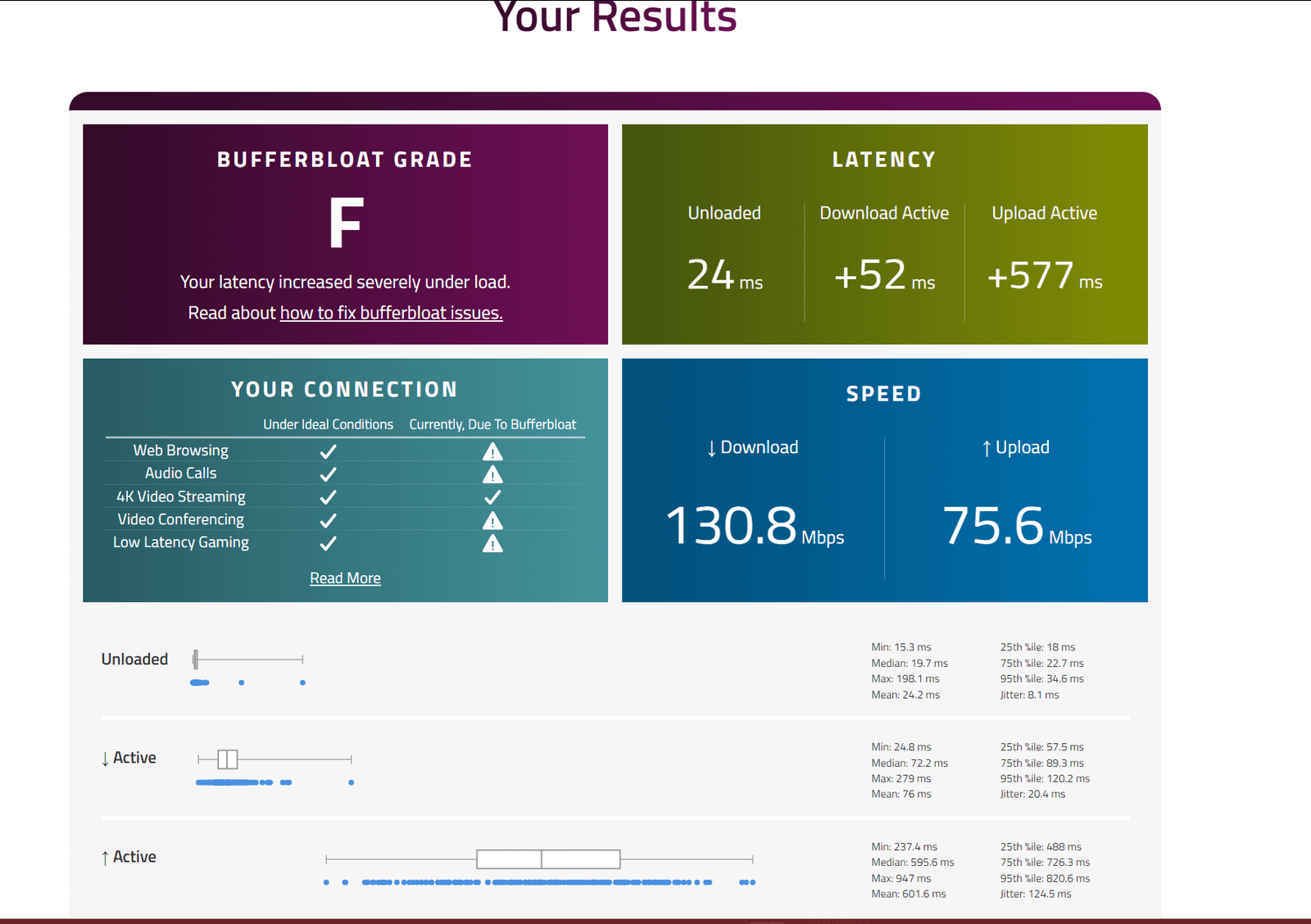
– Ping test while downloading: From a laptop on the same network, ping a stable server (ping -c 100 8.8.8.8 on macOS/Linux or ping -n 100 8.8.8.8 on Windows). Start a large upload or download (for example, cloud backup or file transfer). If ping latency climbs from single-digit ms to hundreds of ms while throughput stays high, bufferbloat is likely.
– Speed test with active upload: Run a normal speed test to measure throughput, then immediately run another test while uploading to see if latency spikes. Many broadband test sites also report jitter and bufferbloat-like metrics.
– Use network measurement tools: iperf3, Flent, or network diagnostic utilities can show one-way delay and queueing effects. These are more advanced but informative if you want precise numbers.Where to look
– Home router / ISP gateway: consumer gateways with minimal QoS or old firmware are common culprits.
– Wireless vs wired: Wi‑Fi adds its own variability, but bufferbloat can exist on wired links as well—especially at the ISP modem or on uplinks shared among multiple users.
Mitigation options: what works and when
There are several complementary approaches. The right combination depends on your skill level, hardware, and whether you control your router or must rely on ISP-supplied equipment.
- Smart Queue Management (SQM)
- What it is: SQM algorithms like FQ-CoDel and Cake limit queues in a fair and latency-aware way, preventing single flows (big uploads) from filling buffers and creating long delays.
- Why it helps streaming: SQM keeps latency low even when the link is saturated, so ABR players and live streams get steady, timely packet flow.
- How to get it: Some modern routers include SQM options in their firmware settings. If your router doesn’t expose SQM, third-party firmware such as OpenWrt, or dedicated devices or appliances, may offer it. If you’re on an ISP-supplied gateway, ask the provider whether fair-queueing or SQM is available or if they can enable it.
- Prioritization and QoS
- Basic QoS: Prioritizing streaming traffic (by port, protocol, or device) can help when properly configured.
- Caveats: Many consumer QoS implementations are primitive and may make things worse if misconfigured. SQM (which combines fairness and small queuing) is usually a safer, more automatic choice.
- Reduce competing traffic
- Manual steps: Pause or schedule large uploads and backups during off-peak times, disable torrenting during streaming sessions, and limit simultaneous high-bandwidth cloud syncs.
- Network device settings: Many apps let you set upload limits (e.g., cloud backup clients, torrent apps). Reducing upload rate to a fraction of your available uplink makes a big difference.
- Use wired connections when possible
- Ethernet avoids Wi‑Fi retransmissions and some variability. For fixed streaming devices (TV, set-top boxes), a wired link is often the most reliable path.
- Upgrade or modify routing gear
- Newer consumer routers often include better queue management and faster CPUs needed for SQM.
- Third-party firmware (OpenWrt, DD-WRT, Tomato) can add SQM features and more granular QoS, but flashing firmware requires technical comfort and voids warranties for some devices.
- Talk to your ISP
- In some cases bufferbloat exists on the ISP’s modem or in the access network. If you’ve tried local fixes without success, ask the ISP to check the modem firmware or their edge queueing behavior.
Comparison: Common queue management approaches
| Approach | How it works | Typical pros | Typical cons |
|---|---|---|---|
| Drop-tail (large buffers) | Packets queue until buffer full | Simple, avoids early drops | Causes bufferbloat and high latency |
| CoDel | Drops packets when sojourn time too high | Reduces latency automatically | Works well for some workloads, less fair across flows |
| FQ-CoDel | Combines fair queueing with CoDel | Low latency and fair to flows | Slightly more complex; needs kernel support |
| Cake | Advanced SQM: flow isolation, prioritization, shaping | Excellent for home networks, robust | Implementation depends on router firmware |
Note: availability and behavior depend on the router’s software and hardware capabilities. Verify features in your device documentation before making changes.
Step-by-step: a practical checklist to reduce bufferbloat for streaming
- Identify the problem
– Run a simple ping test while starting an upload. If latency spikes, continue. - Try quick fixes first
– Pause or throttle uploads and background cloud syncs while watching live or high-quality streams.
– Use a wired Ethernet connection for the streaming device if possible. - Check router settings
– Look for settings labeled SQM, Smart Queue, FQ-CoDel, Cake, or QoS. If present, enable SQM and set upload/download rates slightly below your measured ISP speeds (e.g., 90%) to allow headroom. - Update firmware
– Update your router and modem firmware via the manufacturer or ISP, and check changelogs for queue management improvements. - Consider third-party firmware or a replacement router
– If your router lacks SQM and you’re comfortable with advanced steps, consider OpenWrt or a router that explicitly supports Cake or FQ-CoDel. - Contact your ISP
– If you can’t reduce latency with local changes, ask the ISP whether they support latency-aware queueing or if their gateway is causing the issue.
Always test after each change: repeat the ping-and-upload test and check streaming behavior to verify improvement.
Practical settings examples (non-exhaustive, verify device docs)
- SQM: enable FQ-CoDel or Cake, set WAN upload and download to 85–95% of measured capacity to leave headroom.
- QoS: if using priority rules, prioritize RTP/UDP and common streaming ports used by your streaming app, or prioritize the streaming device by IP/MAC.
Do not assume default settings are optimal—many consumer gateways ship with large default buffers intended to improve throughput but that increase latency under load.
When bufferbloat isn’t the problem
Not all streaming issues are bufferbloat. Check these possibilities too:
- Insufficient overall bandwidth for the chosen bitrate.
- Server-side congestion or CDN issues affecting the streaming provider.
- Wi‑Fi interference or weak signal causing packet loss.
- Device performance constraints (CPU limits or underpowered streaming client).
If you suspect these, test with another device, try a different Wi‑Fi channel, or run a speed test and compare results at different times.
FAQ
Q: Can my ISP fix bufferbloat for me?
A: Sometimes. Many ISPs deploy queueing on their networks; others prioritize throughput over latency. If the bottleneck is your ISP modem or their access network, only the ISP can change it. Ask support whether they offer latency-aware queueing or can provision alternative equipment.
Q: Will switching to a faster plan eliminate bufferbloat?
A: Not necessarily. Higher bandwidth helps throughput but bufferbloat is about how queues are managed. Without proper queue management, faster links can still show latency spikes under load.
Q: Is bufferbloat the same as packet loss?
A: No. Bufferbloat is excessive queueing and long delays; packet loss is when packets are dropped. Both can harm streaming, but solutions differ. Good SQM aims to keep queues short and drop early to avoid long delays.
Q: Is SQM safe to enable on any router?
A: SQM is safe conceptually, but not every router has the processing power needed to run complex queueing at full line rates. Check your router documentation and test performance. If your router is CPU-limited, consider a more capable model.
Q: Will lowering video resolution prevent bufferbloat?
A: Lowering resolution reduces required throughput and may mask symptoms, but it doesn’t address the root cause. Proper queue management and reducing competing uploads are better long-term fixes.
Q: Are there streaming apps that are immune to bufferbloat?
A: No app is immune. Some streaming systems and codecs are better at adapting to variable conditions, but bufferbloat affects the underlying network behavior that all apps rely on.
Conclusion
Bufferbloat is a subtle but powerful reason streaming quality can feel worse than your raw bandwidth numbers suggest. Because it’s about latency and queue management rather than simple Mbps, it often goes unnoticed. Start with simple tests (ping during uploads) and low-friction fixes (pause uploads, use Ethernet). If the problem persists, enable SQM, update firmware, or consider upgrading hardware. If you don’t control the gateway, talk to your ISP about latency-aware queueing.
Addressing bufferbloat can make streams more stable, reduce rebuffering, and keep live and interactive content responsive—often without changing your subscription tier or streaming service.
Disclosure: Router settings, feature names, menu locations, firmware behavior and compatibility vary by TV, device, operating system, region, and firmware version. Verify current manufacturer documentation and ISP guidance before making changes.
For deeper reading and related guides, see our posts in Streaming Guides and Tech & Security, and check the Blog for practical walkthroughs on router setup and SQM configuration.

Canzar
Ready to stream? Pick your plan
Live TV, movies, sports and 10,000+ channels on any device — Firestick, Android TV, Smart TV, phone.
View Subscription Plans Compare Pricing
Moderation: Comments are reviewed before publishing. Be respectful and on-topic.
Guidelines: Share streaming tips, device help, or content recommendations. No spam, no promotions, no off-topic links.