
Last updated August 25, 2026 · Editorially reviewed by CanzarTV
Configuring Picture-in-Picture and Multi-Input Views on Modern TVs
Introduction
Watching two inputs at once — a live sports feed while keeping an eye on a streaming app, or monitoring a security camera next to TV audio — is much easier when your TV can run picture-in-picture (PIP) or a multi-input/multi-view mode. Modern televisions and connected devices support several ways to show more than one source at once, but the exact steps and available features vary by brand, model, and firmware. This guide explains what multi-view and PIP are, how to prepare, step-by-step setup approaches for common platforms, a comparison of options, troubleshooting tips, and a concise FAQ to help you get the most from split-screen viewing.
Note: menus, names, and capabilities differ between manufacturers and regions. Always verify current instructions in your TV or device documentation before changing settings.
What are Picture-in-Picture and Multi-View?
- Picture-in-picture (PIP): A small second window overlays the main program. Commonly used to keep a secondary source visible without splitting the screen evenly.
- Multi-view / Split-screen: The screen is divided into multiple zones (often two or more), each showing a different input. Some brands call this Multi-View, Multi-Window, or Split View.
- App-level PIP (streaming apps or mobile casting): Some streaming apps and operating systems provide PIP for app content (e.g., a floating video window) — this is different from multi-input TV-level features because it usually only works for app content, not multiple HDMI inputs.
These modes let you watch two live sources, compare camera feeds, or keep a scoreboard visible while following a main program.
Which TVs and devices support multi-view or PIP?
Support varies widely. Many modern smart TVs include PIP or a multi-view mode in their menus, but feature names and limits (time, size, audio behavior) differ. Examples of common differences:
- Some manufacturers include a native Multi-View mode that accepts two HDMI inputs or an HDMI + TV tuner input.
- Other TVs offer PIP for internal tuner + external HDMI only, or app-level PIP for streaming apps but not for HDMI sources.
- Set-top boxes, satellite receivers, and some cable boxes may provide dual-tuner split-screen modes independently of the TV.
- External hardware (AV receivers, HDMI scalers, or professional multiviewers) can combine multiple HDMI inputs into a single output that the TV displays.
Because names and limits change by model and firmware, check your TV’s online support pages or manual for the term used on your model.
When to use PIP or multi-view
- Sports: watch two games at once or keep a picture-in-picture of a penalty monitor and the main match.
- News & live events: monitor a live feed while watching commentary.
- Gaming + guide/chat: play full-screen with a small walkthrough or stream in the corner.
- Home monitoring: keep a security camera feed visible while using the TV for other content.
- Comparing sources: check picture settings across devices without switching HDMI cables.
Preparation: what you’ll need
- A TV with a built-in PIP or Multi-View option (or an external multiview device/receiver that supports multiple inputs).
- Two or more source devices (set-top box, Blu-ray, game console, HDMI streamer, antenna connection). For live TV + HDMI, you may need a tuner input or a device with a second tuner.
- Sufficient HDMI cables and available HDMI ports.
- The TV remote and, when relevant, remotes for connected devices.
- Up-to-date firmware on your TV and connected devices (PIP/Multi-View behavior can change with firmware).
How to enable picture-in-picture and multi-input views: practical steps
Below are generic steps that map to most manufacturers. Replace menu names with the labels your TV uses and consult the TV manual if a menu item isn’t present.
General TV-level multi-view/PIP steps (generic)
- Connect both sources to the TV. For example, HDMI1 = streaming device; HDMI2 = cable box or antenna.
- Power on the TV and both source devices.
- Open the TV Settings or Home menu and look for: Picture, Multiview, Multi-Window, PIP, or Screen Split.
- Choose Multi-View / PIP and select which inputs to use for the main picture and the secondary picture.
- Adjust the secondary window size and position if the feature allows.
- Set audio focus: decide whether audio follows the main window or the secondary window when switching.
- Save or exit the menu.
If your TV has a dedicated quick key for multi-view on the remote, pressing it when multiple inputs are active will often toggle the feature.
Platform-specific notes (common patterns)
Samsung (Tizen) Multi View: Samsung TVs often have a Multi View or Multi-Window option in the settings or quick panel. The TV may allow one app + one HDMI source or two HDMI inputs depending on the model. Check the on-screen Multi View controls to swap main/secondary windows and to select audio.
LG (webOS) Multi-view: LG may label the feature Multi-view, PIP, or Screen Split. Some webOS models allow app + HDMI or two HDMI sources. Use the settings gear near the Picture menu or a dedicated Remote button for multi-view.
Android TV / Google TV: System-level PIP on Android TV is usually for apps and doesn’t mean the TV can show two HDMI devices simultaneously. If you need two separate HDMI inputs visible, look for TV-level multi-view or use an external multiviewer.
Roku, Amazon Fire TV: Most streaming sticks and Roku boxes provide app-level PIP (where supported) but not multi-HDMI input mixing. If you rely on two HDMI devices, the TV must support multi-input display natively or you’ll need external hardware.
Using a cable or satellite box with multi-view
Some set-top boxes include dual-tuner features that can show two live channels. Typically these options are controlled from the receiver’s menu and do not require the TV to have PIP. Consult your provider’s support pages for instructions specific to your receiver model.
Using external hardware (AV receivers or HDMI multiviewers)
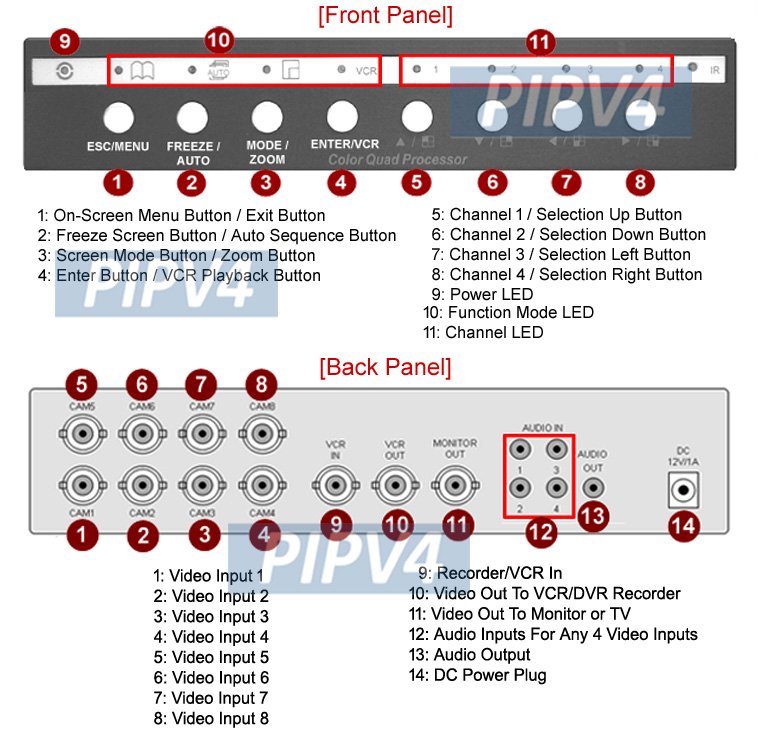
If your TV doesn’t support multi-input natively, pro-grade HDMI multiviewers (also called scalers/switchers with multiview) or some AV receivers can composite multiple HDMI inputs into one output that the TV will show as a single source. This is a common approach for video walls, monitoring, or advanced home-theater setups. These devices vary in capability and cost — review specs and documentation before purchase.
Comparison: built-in PIP vs app/system PIP vs external hardware
| Feature | TV built-in PIP / Multi-View | App-level PIP (OS/app) | External multiview hardware |
|---|---|---|---|
| Shows multiple HDMI sources | Often yes (model-dependent) | No | Yes |
| Works with TV tuner + HDMI | Often yes | No | Yes |
| Works for streaming apps (app content) | Typically yes | Yes | Yes (as one input) |
| Audio selection | Usually selectable | App-dependent | Depends on device |
| Latency / scaling control | Manufacturer-dependent | Generally low | High control on pro units |
| Cost | Included with TV | Included | Extra cost |
Choose the option that matches the sources you need to see simultaneously and how much control you want over layout and audio.
Troubleshooting common issues
- No PIP or Multi-View option visible: Check your TV manual and firmware. The feature may be limited to certain HDMI ports or disabled by default. Some models require the tuner to be active for PIP.
- Secondary window black or frozen: Verify the source device is powered and set to the correct output. Some apps or devices block PIP due to DRM/HDCP restrictions.
- Audio won’t switch or only one source outputs audio: Look for an Audio Focus or Sound setting in the Multi-View/PIP menu. If the TV doesn’t support audio switching, mute one source and use the other’s audio device.
- Resolution or aspect ratio mismatch: The TV or external scaler may crop or scale the secondary input. Check picture size options in the Multi-View menu or use an external scaler with greater control.
- Remote control doesn’t affect the secondary device: Some TVs let you control only the active/main window via the TV remote. Use the source device’s remote to control the secondary feed.
- Lag between windows (notably with live feeds and gaming): High frame rate differences or wireless inputs can cause perceived lag. For gaming, prefer a wired HDMI feed directly to the TV’s main input.
If problems persist, check for firmware updates for the TV and connected devices, and consult the manufacturer support pages for model-specific steps.
Tips for best experience
- Use wired HDMI connections when possible to reduce latency and avoid wireless casting restrictions.
- If you plan to watch two live broadcasts, ensure each source has its own tuner or is a separate device; some TVs can only show a tuner + HDMI input, not two tuner channels.
- Keep source devices on and set to the correct HDMI output before enabling multi-view.
- If audio is important, decide in advance which window will carry sound and how you’ll switch it (TV menu or remote).
- For streaming app PIP, check app settings — not all services allow backgrounds or PIP while switching away from the app.
FAQ
Q: Can every TV show two HDMI inputs at once?
A: No. Many modern TVs can, but support is model-dependent. Some TVs only allow tuner + HDMI or app + HDMI. Check your TV’s manual and support pages.
Q: Does PIP work with streaming apps like Netflix or Prime Video?
A: App-level PIP is supported only where the app and TV OS allow it. Some apps block PIP or have restrictions due to DRM. For true multi-input (two HDMI sources), you need a TV feature that accepts both inputs.
Q: Will multi-view reduce picture quality?
A: Multi-view typically scales and compresses the secondary window; the main window usually remains full quality. Exact behavior depends on the TV or external device. If quality matters, compare results on your model.
Q: Can I change which window plays sound?
A: Many TVs provide an audio focus or selection option in the Multi-View menu. If not, you may need to mute one source or change audio output on the source device.
Q: Is this the same as Android/Google TV picture-in-picture?
A: Not always. Android/Google TV PIP often refers to app-level floating windows and generally won’t show two separate HDMI devices simultaneously. TV-level multi-view is a separate feature.
Q: My TV doesn’t support multi-view. Are there other options?
A: Yes. External multiview HDMI scalers or AV receivers with multiview capabilities can combine inputs for you. Some receivers also provide picture-in-picture features.
Q: Will HDMI copy protection (HDCP) stop PIP?
A: Some content or devices may restrict PIP due to DRM or HDCP. If you see a blank secondary window or an error, DRM may be blocking the signal. Verify device documentation.
Q: Is multi-view available on projectors too?
A: Some professional or high-end projectors support multi-image modes, but most consumer projectors do not. Check your projector’s manual if you need this feature.
Conclusion
Picture-in-picture and multi-input views are useful for sports, monitoring, and multitasking. Modern TVs provide several ways to show more than one source, but capabilities differ by manufacturer, model, and firmware. If your TV lacks the built-in feature, external multiview hardware or a receiver can often provide the capability at additional cost. Before you change settings, confirm the menu names and limits for your specific TV and devices.
Disclosure: Settings and compatibility can differ by TV model, connected device, operating system, region, and firmware version; always verify current manufacturer documentation for precise instructions.
For more on setup and troubleshooting, see our related posts in Devices & Setup and tips for live events in Sports & Live TV. If you want broader app or tool advice, check Apps & Tools and our general Blog for more coverage.

Canzar
Ready to stream? Pick your plan
Live TV, movies, sports and 10,000+ channels on any device — Firestick, Android TV, Smart TV, phone.
View Subscription Plans Compare Pricing
Moderation: Comments are reviewed before publishing. Be respectful and on-topic.
Guidelines: Share streaming tips, device help, or content recommendations. No spam, no promotions, no off-topic links.