
Last updated August 26, 2026 · Editorially reviewed by CanzarTV
Balance Gaming and Streaming on the Same Network Without Lag
Modern homes often need to support low-latency online gaming and high-bandwidth video streaming at the same time. When both activities run together, you can see higher latency (lag) for games and buffering or quality drops for streams. This guide explains how to prioritize gaming vs streaming on the same network in practical, model-agnostic ways so you can reduce lag while keeping video quality high.
In short: prioritize latency-sensitive traffic (gaming, voice) over bandwidth-hungry but tolerant traffic (4K streams, downloads) using router features, wiring choices, and device settings. Below are clear steps, comparisons, troubleshooting tips, and an FAQ to help you get started.
How networks create the conflict: latency vs bandwidth
Gaming is mainly sensitive to latency (ping) and jitter. A single small packet delay or reordering can produce a noticeable stall or rubber-banding. Streaming video, especially adaptive streaming (HLS/DASH), is more about sustained throughput — it buffers ahead and adjusts bitrate if bandwidth drops.
When devices share an uplink (especially for games that send input to a server), upload congestion is often the culprit. Common causes:
- Multiple devices uploading (cloud backups, game streaming, large file syncs).
- One device saturating the connection (a 4K upload or backup).
- Wi‑Fi contention or poor signal increasing retransmissions and latency.
- Router settings that treat all traffic the same.
Understanding which traffic needs low latency vs sustained throughput lets you make practical prioritization decisions.
Key concepts (plain language)
- Quality of Service (QoS): Router features that let you assign priority to types of traffic, devices, or ports.
- Traffic shaping / rate limiting: Intentionally capping speeds for some traffic so critical flows get room (helps on slow links).
- DSCP / packet marking: Network-level tags some apps use to indicate priority. Routers can honor these tags if supported.
- Upload vs download: Upload congestion often causes gaming lag even if your download seems fine.
- Wired vs wireless: Ethernet reduces latency and interference — always the best choice for competitive play.
Quick checklist: 7 steps to reduce gaming lag while streaming
- Plug the gaming PC or console into Ethernet if possible.
- Pause or schedule large uploads and cloud syncs while gaming.
- Enable QoS or traffic shaping on your router and prioritize your gaming device or traffic type.
- Put streaming devices on a separate SSID or guest network, or on a different radio band (2.4 GHz vs 5/6 GHz) where possible.
- Limit background app updates (set consoles/PCs to manual updates) and close upload-heavy apps.
- Use connection testing tools (ping, traceroute, speedtest, iperf) to verify improvements.
- If your ISP link is the bottleneck, consider upgrading or enabling upload shaping to leave headroom for gaming.
Router settings: how to prioritize gaming vs streaming (step-by-step, generic)
Different routers use different UIs and terminology. Below are general steps you can follow; consult your router’s manual for specifics.
- Access the router admin page (often via 192.168.0.1 or 192.168.1.1, or the vendor app). Verify you are using a secure admin password.
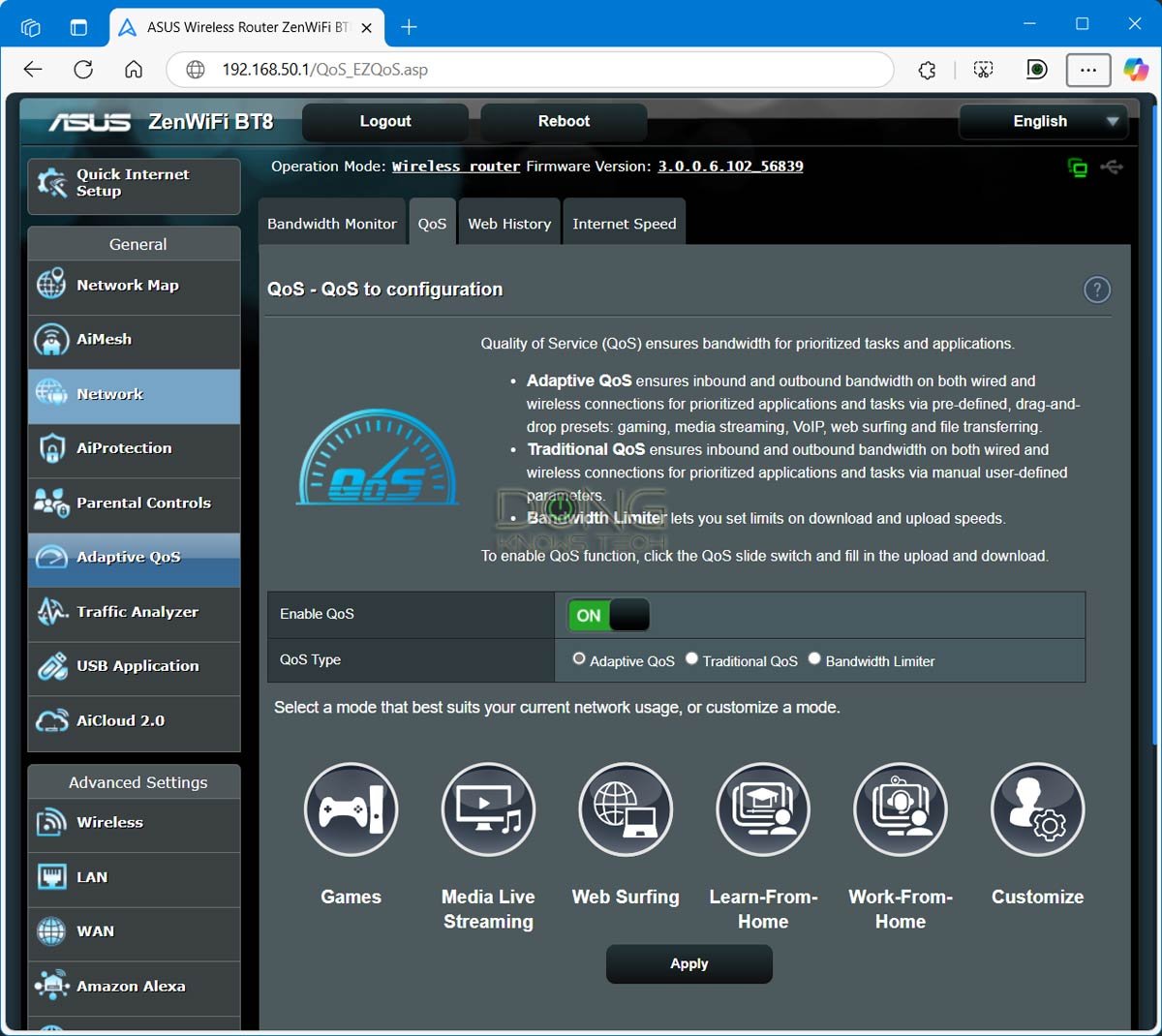
- Find QoS, Traffic Control, or Bandwidth Control. Some routers have “Gaming Mode” shortcuts.
- Choose a prioritization method:
– Device-based: Select your gaming PC/console by MAC address or IP and mark it as High Priority.
– Application/port-based: Prioritize ports and protocols used by games (some routers have presets for Fortnite, Steam, Xbox Live, etc., but these vary by model).
– Bandwidth allocation / rate shaping: Reserve a portion of upstream bandwidth for high-priority devices so uploads can’t saturate the link. - If available, enable Smart Queue Management (SQM) or similar — it helps reduce bufferbloat by controlling queueing delays on congested links.
- Save and apply. Reboot devices if instructed.
Notes:
– If your router supports DSCP, leaving markings intact may help for well-behaved apps, but device-level QoS rules are usually simpler to manage.
– If you see an option for “Gaming Priority” vs “Streaming Priority,” choose Gaming Priority for low-latency play and test.
Wired vs Wi‑Fi: when to prefer one over the other
Comparison table:
| Factor | Ethernet | Wi‑Fi |
|---|---|---|
| Latency | Lowest and most consistent | Higher and more variable (interference matters) |
| Throughput | Typically stable and higher for same cost | Can be high on modern bands but fluctuates |
| Setup convenience | Requires cable or powerline adapters | Easy for multiple devices and mobility |
| Best use case | Competitive gaming, streaming from single device | Casual gaming, TVs, mobile streaming |
If you can, plug the gaming device into Ethernet. If wiring isn’t feasible, place the console or PC close to the access point, use the 5 GHz or 6 GHz band when possible, and reduce nearby interference (microwaves, cordless phones, neighboring networks).
Practical network configurations for common scenarios
Scenario A — One gamer, multiple 4K streams
– Prioritize the gaming device with device-based QoS at High.
– Give streaming devices Medium priority or place them on a separate SSID/guest network to isolate management.
– Enable SQM or limit upload to 90–95% of your ISP’s upload speed so small bursts for gaming don’t queue behind large uploads.
Scenario B — Multiple gamers and streaming viewers
– Use wired connections for each gamer where possible.
– If multiple gamers share a limited link, consider either increasing your ISP plan or using strict bandwidth allocation (e.g., cap each streaming device to a bitrate that leaves headroom).
– Consider VLANs or separate SSIDs mapped to different radio bands to separate device types.
Scenario C — Streaming your gameplay while playing
– Streaming gameplay is both latency-sensitive and bandwidth-heavy. Prioritize outgoing game input/packets only if possible, but expect tradeoffs: streaming will increase upload usage and can add latency.
– Lower stream bitrate or resolution slightly to reduce upload burden, and use a dedicated streaming PC if available so traffic can be prioritized separately.
How to measure and verify improvements
- Ping: From the gaming device, run repeated ping tests to the game server or a reliable endpoint (e.g., 8.8.8.8) and watch for consistently low latency and low jitter.
- Speedtest: Check base download and upload speeds before and after changes.
- Bufferbloat test: Use tools that measure latency under load (e.g., DSLReports or any speedtest providing bufferbloat results). SQM aims to reduce bufferbloat.
- In-game testing: Play during peak activity times at home and note whether stutters and rubber-banding reduce.
Useful tools: speedtest.net, Fast.com, iperf3 (for LAN testing), ping/traceroute commands.
Tips for consoles and PCs
- Consoles (PlayStation, Xbox, Switch): Enable wired Ethernet or prioritize the console by its MAC address in the router. Turn off auto-updates or schedule updates for off hours.
- Windows PC: Disable or pause cloud backup apps (OneDrive, Google Drive) while gaming. Use Task Manager or Resource Monitor to see network usage.
- macOS: Pause Time Machine backups while gaming. In system preferences, manage app permissions for network access where possible.
- Streaming apps (Netflix, YouTube, Twitch): If you control the streaming bitrate (e.g., when broadcasting), try slightly lower bitrates to reduce upload demands.
When QoS won’t fully solve the problem
- Very slow ISP uplinks: If your upload speed is tiny (e.g., <5 Mbps) and you stream or upload large files, QoS can help but only to a point. Upgrading the service may be necessary.
- Poor Wi‑Fi coverage: No amount of QoS fixes poor physical layer performance; move devices closer or add APs/mesh nodes.
- Misconfigured routers: Some consumer routers have limited QoS that doesn’t properly manage bufferbloat; firmware upgrades or third-party firmware (where supported) can offer better features. Verify compatibility and vendor recommendations before making changes.
Security and privacy notes
Avoid exposing your router admin to the public internet. Keep firmware updated following manufacturer guidance, and use strong, unique passwords. If you consider third-party firmware or advanced configurations, check compatibility and risks carefully.
Common troubleshooting checklist
- Confirm the gaming device is on the prioritized list (if device-based QoS is used).
- Test latency with and without other devices streaming to isolate the effect.
- Reboot the router after major QoS changes.
- Temporarily disable any VPNs to see if they add latency (VPNs can affect routing and ping).
- Check for automatic background updates on all devices and schedule them for off-peak hours.
FAQ
Q: Will enabling QoS always remove gaming lag?
A: No. QoS can reduce lag caused by local network congestion and bufferbloat, but it cannot fix high latency to the game server caused by your ISP routing, overloaded game servers, or physical distance.
Q: Should I prioritize gaming over streaming or the other way around?
A: Prioritize gaming when you need low latency (competitive play). If you’re primarily watching live events that require minimal buffering (e.g., live sports), you may choose to prioritize those streams instead. Choose per-session settings if your router supports profiles.
Q: Can I prioritize specific games automatically?
A: Some routers offer app or gaming profiles that recognize common game traffic. Model support varies; check your router’s documentation for a list of recognizable services.
Q: Is upgrading my ISP plan the only fix for consistent lag?
A: Not the only fix, but if upload bandwidth is chronically saturated, an upgrade will help. Also consider better Wi‑Fi coverage, wired connections, and QoS before upgrading.
Q: Do VPNs impact gaming latency?
A: Often yes. VPNs add routing overhead and can increase ping. If you must use one, try servers closer to the game region and test performance.
Conclusion
Balancing gaming and streaming on the same network is largely about understanding which traffic needs low latency and which needs sustained bandwidth. Use wired connections for gamers where possible, enable QoS or rate management on your router, separate streaming devices when practical, and run simple tests to verify improvements. If your ISP link is the bottleneck, combine these steps with an appropriate plan upgrade.
A few small changes — prioritizing the gaming device, pausing uploads, enabling SQM, and placing streaming devices on separate SSIDs — can make a big difference without needing new hardware.
Disclosure: Settings, terminology, and compatibility vary by router, TV, console, operating system, firmware version, and region. Always verify steps against your device manufacturer’s documentation.
For more setup tips and deeper dives into router features, see our Devices & Setup category. For security considerations when adjusting network settings, visit Tech & Security. If you want other practical how-tos, check our Blog.

Canzar
Ready to stream? Pick your plan
Live TV, movies, sports and 10,000+ channels on any device — Firestick, Android TV, Smart TV, phone.
View Subscription Plans Compare Pricing
Moderation: Comments are reviewed before publishing. Be respectful and on-topic.
Guidelines: Share streaming tips, device help, or content recommendations. No spam, no promotions, no off-topic links.