
Last updated August 27, 2026 · Editorially reviewed by CanzarTV
Practical Audio Settings to Improve Dialogue Without Losing HDR Impact
HDR picture processing can give movies and shows stunning highlights and deeper contrast — but it can also change the way mixes feel. A common complaint: dialogue that was clear in SDR or in a theatrical mix suddenly feels buried under booming effects, music or reverb when you’re watching HDR. The good news: with a few practical audio adjustments on your TV, soundbar or AVR (and some simple habits), you can restore dialogue clarity without compromising HDR’s visual advantages.
This guide explains why HDR mixes can mask speech, what audio settings and playback modes matter, and step-by-step tweaks for common devices. It keeps recommendations model-agnostic — always check your manufacturer’s documentation and firmware notes since labels and features vary.
Why HDR mixes sometimes make dialogue harder to hear
- HDR is about the picture, but contemporary mixes often pair HDR grading with different mastering choices for dynamics and reverb. That can push sound effects and ambience forward relative to speech.
- Wide dynamic range and more impactful low-frequency content (think explosions, synth bass or heavy atmospheres) can mask midrange frequencies where the human voice lives.
- Some TV and device default audio modes prioritize cinema-like immersion and preserve the original mix; that can be great for fidelity but not for everyday dialogue clarity.
Being aware of these tendencies helps you choose settings that target voice frequencies and perceived loudness without permanently altering the creative intent of the soundtrack.
Key audio settings and what they do
H2 Quick glossary of common controls (labels vary by brand):
- Dialogue/Voice Enhancement (or Clear Voice): Boosts midrange bands where speech sits, or uses processing to separate vocals from background.
- Center Channel Level (AVR/3.1+ systems): Controls how loud the center speaker (main dialogue channel) is relative to others.
- Dynamic Range Compression (DRC) / Night Mode / Volume Leveling: Reduces loud peaks and raises low-level sounds to compress dynamic range.
- Audio Mode / Sound Mode (Movie/Cinema, Standard, Sports, Music, Game): Preset EQ and processing profiles that shift balance between immersion and clarity.
- Bass Management / Subwoofer Level: Changes low-frequency energy that can mask dialogue; lowering bass can improve perceived clarity.
- Lip-Sync / AV Sync: Ensures audio and video timing match; perceptions of clarity suffer if sync is off.
A practical, device-by-device approach
Below are step-by-step workflows for the most common setups. You don’t need all changes — start with the one that applies to your system.
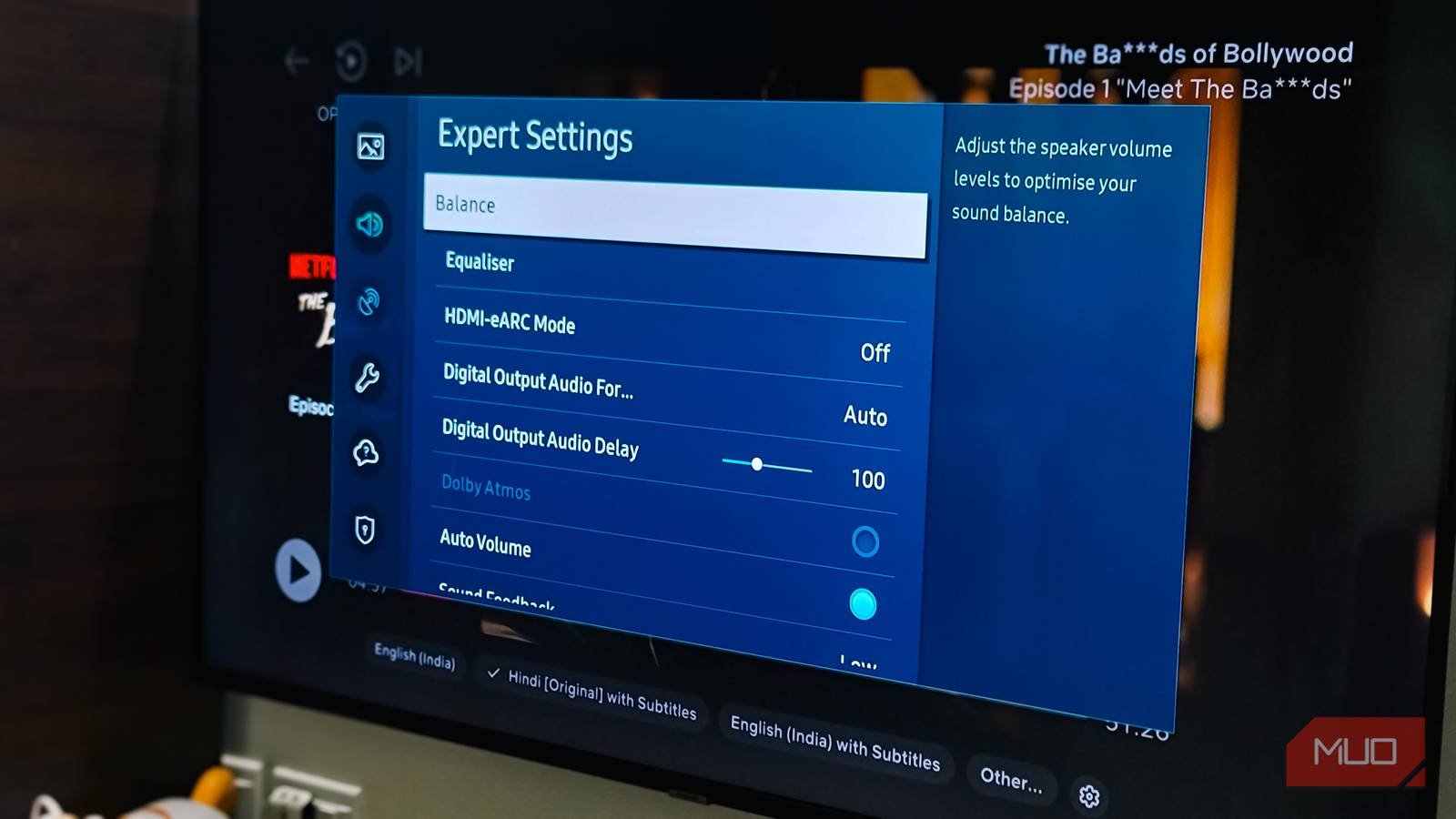
On modern smart TVs
- Choose the right audio mode — start with “Standard” or any mode labeled “Voice”/”Clear Voice”. Avoid immersive presets that emphasize surround reverberation when your priority is dialogue.
- Enable Dialogue Enhancement if available. It typically applies a midrange lift or spectral processing to make vocals pop.
- Turn off excessive surround virtualization for two-channel listening if it reduces center presence.
- If there’s a bass/subwoofer level control, reduce it slightly (2–4 dB) to keep low-frequency weight from masking speech.
- If HDR content triggers a different audio path (some TVs attach different DSP to HDR inputs), repeat the checks while playing HDR material — labels, routing or HDMI settings may differ.
Tip: Many TVs offer a “Night” or “Dynamic Range Compression” option. Use it if late-night viewing is needed, but expect some loss of impact in explosive scenes.
On soundbars and soundbases
- Set the soundbar to a “Dialogue” or “Clear” preset if present. Many modern soundbars include a dedicated voice-enhance button.
- If you have a center channel emulation, prioritize a setting that anchors the center image. Some soundbars let you increase “Center” level or alter “Vocal” balance.
- Reduce bass/sub levels if the soundtrack feels boomy.
- For HDR content streamed through an app device, test both the TV app and external streaming box outputs — some soundbars respond differently depending on whether Dolby Atmos passthrough is enabled.
On AV receivers and multi‑speaker systems
- Use a test scene with clear dialogue (a familiar TV show or film scene works best).
- Access speaker levels and increase the center channel relative to left/right by small increments (1–2 dB) until speech is comfortably clear.
- Enable “Dialogue Enhancement” or similar if your AVR supports it. If not, consider raising the center channel EQ in the midrange (if your AVR has parametric EQ).
- Use an automated room-calibration microphone (e.g., Audyssey, YPAO, MCACC) as a starting point, then manually tweak center and bass levels afterward — automated calibration prioritizes a flat response, but personal preference for dialogue clarity may require small adjustments.
- Keep Dynamic Range Compression off for cinematic viewing; turn it on for late-night listening.
On streaming devices and apps
- Check audio output settings: prefer passthrough/bitstream for surround tracks if your AVR handles decoding. If you stream stereo to a soundbar, try changing formats to PCM or enabling a “dialogue” setting within the app when available.
- Some apps include built-in audio options (e.g., alternate audio tracks or “Audio Description” tracks that sometimes isolate or clarify voice — but availability varies by title and region). Verify current options in the app.
- If using a TV’s internal app, compare results with an external streaming stick/box — either path can produce different audio processing.
Quick comparison: common audio modes and their typical effects on dialogue vs. HDR experience
| Mode (typical label) | Dialogue clarity | HDR/immersion impact | Best use case |
|---|---|---|---|
| Movie / Cinema | Medium — preserves creative blend | High — best fidelity | When you want original mix and picture impact |
| Standard / Direct | High | Medium — less processing | Everyday viewing when clarity matters |
| Voice / News / Dialogue | Very High | Low — reduces ambience | Talk shows, news, poorly mixed tracks |
| Sports | High (mid emphasis) | Medium — prioritizes commentary | Live sports with announcers |
| Night / DRC | High for quiet scenes | Low — compresses dynamics | Late-night watching; neighbors-sensitive times |
These are general tendencies; exact behavior depends on brand and model.
Step-by-step calibrated workflow you can complete in 10–20 minutes
- Prepare: pick an HDR title with a scene you know well that includes intelligible dialogue and a variety of effects.
- Reset to the TV/sound device’s default audio mode so you start from a known baseline.
- Try the “Dialogue” or “Voice” preset first. If not available, try “Standard”.
- While playing the scene, slowly raise the center/channel-level (AVR) or the device’s vocal/dialogue parameter until speech is clear without sounding unnatural.
- If bass overwhelms speech, lower the subwoofer or bass level by 2–4 dB.
- Toggle DRC/night mode to test clarity in quiet scenes; keep it off for daytime cinematic watching.
- Compare with the Movie/Cinema preset; revert if you prefer the original mix. Small center-level increases (1–3 dB) can keep fidelity while improving clarity.
- Save a custom preset if your device supports it so you can switch quickly between “HDR Cinematic” and “Clear Dialogue” modes.
Room and source considerations
- Room acoustics: reflective rooms and hard surfaces increase reverberation, which blurs speech. Carpets, curtains and soft furniture help. Consider acoustic panels if you’re serious about clarity.
- Source mix: some HDR titles are simply mixed with heavier ambience; no amount of EQ will make dialogue perfectly isolated without sounding processed. In those cases, subtitles or the app’s alternate audio options may be the best solution.
- Firmware and label differences: manufacturers use different terminology and signal paths for HDR audio. Always check current documentation for your model.
When to use subtitles, alternate audio or accessibility tracks
Subtitles are not a failure — they are an effective, non-destructive solution for tricky mixes. Many services and apps also include audio description or alternate mixes; availability varies by title and region.
Use subtitles when:
– Dialogue remains unclear after reasonable adjustments.
– You’re in a noisy environment or watching with people who prefer clarity.
Check the streaming app’s audio tracks for “Stereo” vs. “Surround” options and try both — some stereo tracks can be clearer on smaller speakers.
Troubleshooting: common problems and fixes
- Dialogue sounds hollow or unnatural: you may have overused a dialogue enhancement algorithm. Reduce the effect or switch to a neutral preset.
- Explosions drown out speech: lower your subwoofer/bass and reduce surround levels; consider turning on DRC for late-night use.
- Lip-sync looks off after switching modes: run your device’s lip-sync/AV sync adjustment.
- HDR picture appears to change when changing audio modes: some TVs apply different processing chains for certain audio modes — check your manual and test while playing HDR content to confirm behavior.
Small gear changes that help without breaking the bank
- A compact center speaker (for stereo setups) can dramatically improve dialogue for two-channel systems.
- A modest soundbar with a dedicated center-voice mode often improves clarity over tiny TV speakers.
- A subwoofer with a level control helps you reduce masking LF energy when needed.
Always verify compatibility: features and connectivity (e.g., passthrough, Atmos, Dolby Digital Plus) depend on specific models, firmware and region.
FAQ
Q: Will turning on “Night Mode” preserve HDR picture quality?
A: Night modes affect audio dynamics only. Picture HDR behavior is typically independent, but some TVs route HDR audio differently; verify on your device and consult the manual.
Q: Does increasing center channel level damage the soundtrack’s artistic intent?
A: Small adjustments (1–3 dB) are common and generally keep the spirit of the mix while improving intelligibility for home listening conditions. If you want a fidelity-first experience, switch back to the original preset for critical listening.
Q: Is dialogue enhancement compatible with Dolby Atmos / object-based mixes?
A: It depends on the processor. Some devices apply voice-masking reduction or dialogue lift even with object-based streams; others may not alter object mixes. Check your device’s documentation.
Q: My streaming app has an “Audio Description” track — will that help?
A: Audio Description is primarily for visually impaired users and contains narration of visual elements. It can make spoken dialogue clearer in some mixes, but it’s not a replacement for a clean stereo dialogue track.
Q: Are there apps that help tune dialogue levels?
A: Manufacturer apps sometimes offer remote control and preset management, but exact features vary. Third-party apps can help with test tones and level checks; confirm compatibility with your device.
Conclusion
You don’t need to sacrifice HDR impact to hear dialogue. Start by choosing neutral or voice-focused audio modes, make conservative center-channel and bass adjustments, and use dynamic range options selectively. Small, reversible tweaks preserve the cinematic experience while improving intelligibility for everyday viewing. When mixes are inherently problematic, subtitles or alternate audio tracks are practical, non-destructive solutions.
Disclosure: Settings, labels and compatibility vary by TV, soundbar, AVR, streaming device, operating system, region and firmware version. Always consult your device manual and current manufacturer documentation for model-specific details.
For more on setup and device choices, see our guides in Devices & Setup and practical tips in Streaming Guides. If you use apps or companion tools for tuning, check Apps & Tools.

Canzar
Ready to stream? Pick your plan
Live TV, movies, sports and 10,000+ channels on any device — Firestick, Android TV, Smart TV, phone.
View Subscription Plans Compare Pricing
Moderation: Comments are reviewed before publishing. Be respectful and on-topic.
Guidelines: Share streaming tips, device help, or content recommendations. No spam, no promotions, no off-topic links.