
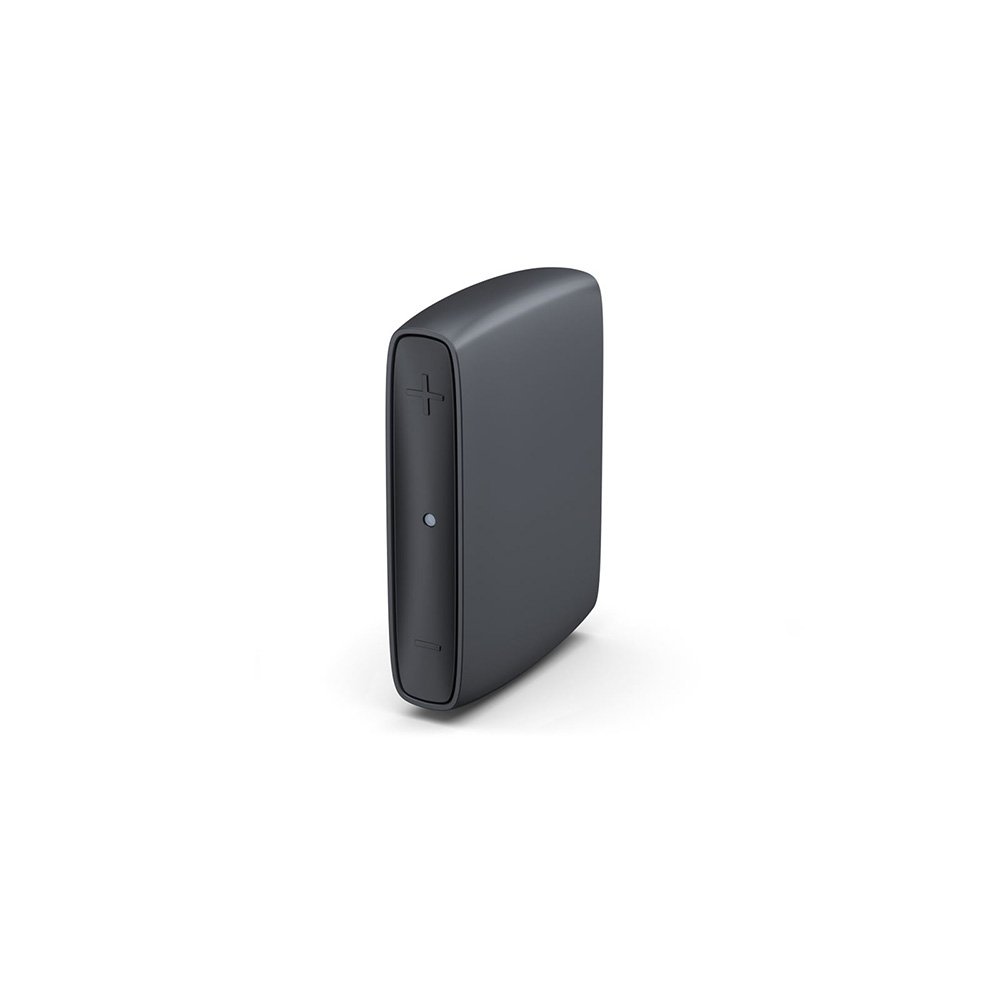
Last updated August 25, 2026 · Editorially reviewed by CanzarTV
Setting Up a Hearing Loop or TV Streamer for Hearing Aids
Watching TV should be comfortable and inclusive. For people who use hearing aids, two common ways to improve TV audio clarity are hearing loops (telecoil/T-coil systems) and dedicated TV streamers that send sound directly to the hearing aid. This guide explains how each option works, practical setup steps, a comparison to help you choose, troubleshooting tips, and answers to frequently asked questions.
Quick introduction
Hearing loops use a magnetic field to deliver sound to hearing aids equipped with a telecoil (T-coil). TV streamers convert the television’s audio into a wireless signal (often Bluetooth) that is sent to compatible hearing aids or an intermediary streamer/neckloop. Which solution is best depends on your hearing aid model, your TV and AV equipment, room layout, and whether multiple listeners need access.
This article is intended to be informational and evergreen. Specific compatibility and menu labels vary by TV model, hearing-aid manufacturer, streamer brand, and firmware or region—always confirm details in your device manuals.
How a hearing loop and a TV streamer differ
- Hearing loop (T-coil)
- Works by creating a magnetic field in a seating area; hearing aids with a telecoil pick up that field and convert it into audio.
- Does not require hearing aids to support Bluetooth; relies on the T-coil feature.
Good for group viewing (auditorium-style or living-room perimeter loops).
TV streamer
- Converts TV audio to a wireless format (commonly Bluetooth) and transmits to a hearing aid or a paired accessory (neckloop, streamer dongle).
- Often provides direct stereo audio and can handle multiple codecs; compatibility depends on the hearing aid’s wireless features (e.g., proprietary or Bluetooth Low Energy).
- Suited for one or two listeners who want direct streaming with low latency.
Which should you consider first?
- If your hearing aid has a telecoil and you want a simple, reliable way for several listeners to hear the TV at once, consider a hearing loop.
- If your hearing aid supports direct streaming (or your manufacturer offers a streamer) and you want device-to-device audio with controls on your phone or remote, look at TV streamers.
Refer to hearing aid and TV documentation before buying. If in doubt, consult your audiologist or the hearing-aid manufacturer for compatibility advice.
Practical steps to set up a hearing loop for TV
Confirm telecoil (T-coil) support
– Check your hearing aid user guide or contact your provider to verify whether your hearing aids have a T-coil and how to switch it on.Choose the right loop type for your space
– Portable loop pads: sit under or behind seating and are good for single-seat listening.
– Perimeter/room loop: installed around a room’s skirt (under skirting board or on top of skirting) for whole-room coverage.
– Counter or lapel loops: designed for one listener or a small area.Gather components
– Loop cable (or pre-wired loop mat)
– Loop amplifier/driver with suitable inputs for your TV (analog RCA, optical/TV adapter)
– Cables and, if necessary, a TV audio extractor (to convert optical to analog)Connect amplifier to TV audio output
– Most loop amplifiers accept line-level input (RCA or 3.5 mm). Some accept optical (TOSLINK) or have adapters.
– Use the TV’s audio output labeled “Audio Out,” “Headphone,” or “Optical.” If your TV uses an optical output, you may need a DAC (digital-to-analog converter) depending on the amplifier.Position the loop cable
– For portable loops, place the loop pad where the listener will sit.
– For a room loop, follow installer guidance for cable routing around the listening area. Keep loop wires away from large metal objects and other electrical cables when possible.Set levels and test
– Play TV audio and set the loop amplifier to a clear, comfortable level. Ask the hearing-aid user to switch to T-coil mode and adjust their hearing aid volume if needed.
– Walk the listening area to verify coverage and check for dead spots or interference.Fine-tune and safety
– Avoid excessively high levels that could cause discomfort.
– If you hear buzzing or hum, check grounding and cable routing; switching TV audio formats (PCM vs. surround) may help.
Note: Professional installation is recommended for permanent room loops to ensure even coverage and compliance with local standards.
Practical steps to set up a TV streamer for hearing aids
Check hearing-aid streaming capability
– Determine whether your hearing aids support direct Bluetooth streaming, a proprietary streamer accessory, or a manufacturer-provided dongle.Choose a streamer compatible with your setup
– Options include dedicated hearing-aid streamers sold by manufacturers, generic Bluetooth transmitters, and TV-specific accessories. Verify compatibility with your hearing aid brand and model.Connect the streamer to your TV
– Common connections: 3.5 mm headphone jack, RCA line-out, optical (TOSLINK), or HDMI (via audio extractor).
– If your TV only outputs surround sound (Dolby Digital), some streamers require the TV to output stereo PCM. Check the streamer manual.Pair the streamer and hearing aids
– Follow the streamer manufacturer’s pairing instructions. For proprietary systems, pairing may require a manufacturer app or a hearing-care professional’s intervention.
– For Bluetooth-based systems, ensure TV audio is set to the correct output and that the streamer is in pairing mode.Adjust audio delay and volume
– Some streamers introduce small delays. Use your TV’s audio delay lip-sync setting if needed to match video and streamed audio.
– Use the hearing-aid controls to set comfortable listening levels; some streamers also offer volume controls.Test with different content
– Try dialogue-heavy programs and fast-action scenes to verify latency and clarity. If you notice echo or lag, try different TV audio settings (stereo PCM) or a streamer advertised for low-latency operation.
Comparison: hearing loop vs TV streamer
| Feature | Hearing Loop (T-coil) | TV Streamer (Bluetooth/Proprietary) |
|---|---|---|
| Works with multiple listeners | Yes, whole-room coverage | Usually limited to paired devices (1–2 listeners) |
| Requires T-coil in hearing aid | Yes | No (depends on hearing aid wireless support) |
| Typical latency | Very low (instant magnetic coupling) | Can vary; some latency possible |
| Installation complexity | Low for portable, higher for room loops | Simple to moderate (plug-and-pair) |
| Sound quality | Clear for speech; depends on loop installation | Often high-fidelity, depends on codec and streamer |
| Interference sensitivity | Minimal when installed correctly | Can be subject to Bluetooth interference or codec limitations |
Use the table as a general guideline. Specific results depend on equipment and environment.
Troubleshooting common issues
- No sound in T-coil mode
- Ensure hearing aid is set to the T-coil program and volume is turned up.
Confirm the loop amplifier is powered, connected, and set to an audible level.
Hissing, buzzing, or interference
Re-route the loop wire away from other electrical cables; check grounding. Verify amplifier gain is not set too high.
Audio delay when streaming
Check whether your streamer or hearing aids use a codec with inherent delay. Try switching the TV to stereo PCM output and use the TV’s audio delay setting to re-sync.
Pairing problems with a streamer
Restart the streamer and hearing aids (or their streamer accessory). Remove previously paired devices if the streamer has a pairing limit.
Manufacturer limitations
- Some hearing aids only stream from manufacturer-approved accessories. Verify whether your hearing aid needs a branded streamer or supports third-party Bluetooth.
When to get professional help
- For a permanent room loop, consider a certified loop installer or an audiologist experienced with area loops.
- If you cannot confirm compatibility between your hearing aids and a specific streamer, contact your hearing-aid provider.
- For complex AV setups (AV receivers, soundbars, multiple inputs), an AV specialist can help route audio cleanly to either a loop amplifier or streamer.
Frequently Asked Questions (FAQ)
Q: Do all hearing aids have telecoils?
A: No. Some hearing aids include a telecoil (T-coil) while others do not. Check your hearing aid documentation or ask your audiologist. Telecoil availability varies by model and manufacturer.
Q: Can I use a Bluetooth streamer with any hearing aid?
A: Not always. Many modern hearing aids support Bluetooth streaming, but some use proprietary wireless protocols and require manufacturer-specific streamers. Verify with your hearing-aid manufacturer.
Q: Will a loop or streamer fix background noise?
A: These technologies deliver the TV audio directly and can improve speech clarity, but they do not eliminate all background noise in the room. Proper TV volume, hearing-aid settings, and room acoustics also matter.
Q: Can I use a hearing loop and a streamer together?
A: Yes. You can install a loop for group listening and also provide a streamer for personal use. Ensure audio sources are routed correctly and that users switch to the appropriate hearing-aid program.
Q: Is there latency with loops?
A: No perceptible latency—the magnetic coupling is essentially instantaneous. Streamers can have small delays depending on codecs and transmission.
Additional tips and accessibility considerations
- If multiple family members use different hearing solutions, aim for a flexible audio setup that offers both loop and streamer options.
- Use clear labeling on TV and streamer inputs so anyone can reconnect devices easily.
- Consider a remote microphone or captioning as complementary accessibility features.
For more guides on devices and setup, see our Devices & Setup and Streaming Guides resources. For apps that may assist in pairing or controlling streamers, visit Apps & Tools.
Conclusion
Both hearing loops and TV streamers can transform TV listening for hearing-aid users. Telecoil loops offer simple, reliable whole-room coverage for T-coil-equipped aids, while TV streamers provide direct wireless audio with high fidelity for compatible hearing aids. The best choice depends on your hearing-aid features, room layout, and whether multiple listeners need access. When in doubt, verify compatibility with your hearing-aid manufacturer or audiologist and consider professional installation for permanent loop systems.
Disclosure: Settings, features, and compatibility vary by TV model, hearing-aid brand, streamer product, operating system, region, and firmware version. Always check your device documentation or consult a hearing-care professional for model-specific guidance.

Canzar
Ready to stream? Pick your plan
Live TV, movies, sports and 10,000+ channels on any device — Firestick, Android TV, Smart TV, phone.
View Subscription Plans Compare Pricing
Moderation: Comments are reviewed before publishing. Be respectful and on-topic.
Guidelines: Share streaming tips, device help, or content recommendations. No spam, no promotions, no off-topic links.