
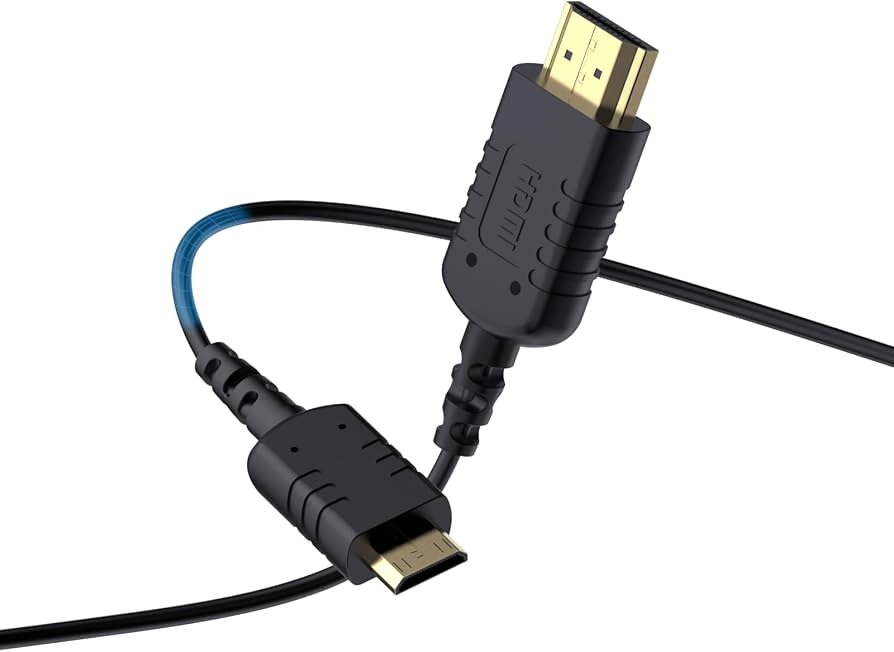
Last updated August 27, 2026 · Editorially reviewed by CanzarTV
Choosing HDMI Cables for 4K HDR at 60Hz and Beyond
Introduction
If you’re setting up a streaming box, game console, or Blu‑ray player and want reliable 4K HDR at 60Hz, the HDMI cable you choose can matter. This guide explains what to check, how HDMI versioning and cable certification relate to 4K HDR 60Hz, practical shopping tips, and troubleshooting steps. It’s written to help readers in North America and Europe make an informed purchase while encouraging verification against device documentation.
Why the cable matters (but not always for speed)
Many people assume a thicker or more expensive HDMI cable is automatically better. In reality, the right cable depends on the devices and the features you want: resolution, refresh rate, HDR format, chroma subsampling, and color depth. The term “hdmi cable for 4k hdr 60hz” is common in searches because 4K HDR at 60Hz is a baseline for modern streaming and gaming.
Two separate things influence what works together:
- The HDMI version and supported features of your source device (streaming stick, console, PC GPU, Blu‑ray).
- The HDMI input and firmware behavior of your display (TV or monitor).
A cable only needs to reliably carry the required signal. That means choosing a cable rated for the data rate and features you plan to use. Always verify the current manufacturer documentation for the exact modes and supported settings on your devices, since capabilities and firmware behavior vary by model and region.
HDMI “version” vs. cable certification: what to look for
Manufacturers often label ports and cables with version numbers (for example, “HDMI 2.0” or “HDMI 2.1”). Those labels describe standards and capabilities, but real support depends on the device implementation.
HDMI version on the device: Check the spec sheet for the source and the display for supported resolutions, refresh rates, HDR formats (HDR10, Dolby Vision, HLG), chroma subsampling (4:2:0, 4:2:2, 4:4:4), and color depth (8‑bit, 10‑bit, 12‑bit).
Cable certification: Cables are usually marketed as “High Speed”, “Premium High Speed” (for 4K60), or “Ultra High Speed” (marketed for higher bandwidth modes). These certifications indicate the cable’s tested capability to carry certain data rates; purchasing certified cables reduces the chance of compatibility problems. If a vendor makes claims that seem uncertain, check the certification details or request test documentation.
Note: Instead of relying solely on the printed version number on a cable, verify the cable’s certification (Premium or Ultra High Speed) and return options.
Quick compatibility table
| HDMI category | Suitable for 4K HDR @ 60Hz? | Typical notes |
|---|---|---|
| HDMI 1.4 (or older cable rating) | Usually not recommended | Might handle 4K24 or compressed modes, but often not stable at 4K60 with full HDR/color depth. Check device requirements. |
| HDMI 2.0 / “Premium High Speed” cable | Yes in most cases | Designed to support 4K60 with HDR; check for full color/bit depth and chroma support on both devices. |
| HDMI 2.1 / “Ultra High Speed” cable | Yes, and supports higher modes | Needed only if you plan to use higher refresh rates (e.g., 4K120), higher bandwidth HDR formats, or advanced features. For 4K60 HDR it is typically backward compatible. |
This table is descriptive. Always confirm the exact features listed in your devices’ manuals or manufacturer support pages.
Features to confirm on your devices before buying
- Supported resolutions and refresh rates — not all HDMI inputs on a TV necessarily support every mode. Look for which HDMI port supports enhanced or full bandwidth modes.
- Supported HDR formats — HDR10, Dolby Vision, or HLG support is implementation-dependent.
- Supported chroma and color depth — streaming apps may only send 4:2:0 in some cases; gaming consoles or PCs can provide 4:4:4 if both ends support it.
- Special HDMI features — things like eARC (for soundbars), VRR (variable refresh rate), or ALLM (auto low latency mode) may require higher cable capability; check if you need them.
If you only need 4K HDR at 60Hz for streaming playback, many devices and TVs manufactured in recent years will work with a properly certified Premium High Speed cable. If you plan to use gaming features or futureproof the setup, consider an Ultra High Speed cable.
How to choose a cable: step-by-step
Identify the source and display capabilities. Read the spec sheets or user manuals for “4K HDR at 60Hz” or equivalent statements. If a feature varies by firmware or region, the documentation will often note that.
Decide which features you need now and in the near future. If you only stream 4K HDR movies at 60Hz, a Premium High Speed cable is generally sufficient. If you want 4K120, advanced HDR metadata formats, or HDMI 2.1 features, look for Ultra High Speed.
Look for certification. Choose cables that are listed as certified by a recognized program (for example, Premium High Speed or Ultra High Speed certification). Avoid relying only on marketing buzzwords.
Keep length in mind. Longer passive cables are more susceptible to signal degradation; for runs over several meters, consider well-reviewed brands, active or fiber HDMI cables (verify certification), or installing an AV receiver that supports the needed HDMI mode.
Inspect connectors and warranty. Gold plating is mostly cosmetic; a solid manufacturer warranty and return policy are more meaningful indicators of quality.
Buy from reputable retailers with clear return policies. If a cable doesn’t deliver the expected behavior with your devices, you should be able to return or exchange it.
Cable types and length considerations
- Short runs (under 2–3 meters): Passive certified cables almost always work for 4K HDR 60Hz if certified.
- Medium runs (3–8 meters): High-quality certified passive cables usually work. If you have intermittent problems, trying a different certified cable or a shorter run can isolate the issue.
- Long runs (more than 8–10 meters): Consider active copper cables or fiber HDMI cables. Verify the vendor provides certification information; some active cables present themselves as equivalent but rely on electronics to maintain bandwidth.
Always verify which cable type the manufacturer recommends for your specific use case and region.
Practical troubleshooting checklist
If you don’t get 4K HDR at 60Hz after connecting everything:
- Check TV/monitor input settings: Some TVs require enabling “HDMI Enhanced”, “HDMI UHD Color”, or a similar option for the specific HDMI input to allow full bandwidth.
- Verify source output settings: Confirm the streaming device or console is set to 4K HDR and the correct refresh rate (60Hz). Some apps or consoles may default to 30Hz or SDR.
- Try a different HDMI input and cable: Swap ports or test a known‑good certified cable to isolate the issue.
- Update firmware: Both source devices and displays receive updates that can fix HDMI compatibility issues. Check manufacturer support pages and apply updates if available.
- Confirm app behavior: Some streaming apps limit bitrate or HDR behavior depending on account type, region, or DRM settings. Confirm app settings and that the content itself is available in 4K HDR.
- Use the TV’s signal info (if available): Many TVs show incoming signal details (resolution, chroma, HDR). Use that to confirm what your source is actually sending.
If problems persist, contact device support and provide the exact device models, firmware versions, and the cable type/certification.
Comparison: Premium High Speed vs. Ultra High Speed (practical view)
| Factor | Premium High Speed | Ultra High Speed |
|---|---|---|
| Typical intended use | 4K @ 60Hz with HDR | 4K @ 120Hz, 8K, advanced HDR features, and high-bandwidth gaming |
| Cost (general) | Lower | Higher |
| Future-proofing | Adequate for most current streaming needs | Better for next-generation consoles and GPUs |
| When to prefer | You mainly stream 4K HDR movies/TV at 60Hz | You own or plan to own devices requiring 4K120, VRR over HDMI, or other high‑bandwidth modes |
Remember that labels and marketing vary; check the cable’s certification and the device documentation rather than relying on packaging alone.
Buying recommendations (how to evaluate listings)
- Look for “Premium High Speed” or “Ultra High Speed” certification in product descriptions.
- Prefer listings that explicitly state compatibility with HDR and the refresh rates you want rather than vague claims.
- Check return policy and warranty — being able to return a cable if it fails in your setup is valuable.
- Read user comments carefully for issues with specific TVs or consoles, but treat them as anecdotal; compatibility can depend on firmware.
For additional related setup and device tips, see our Devices & Setup hub and relevant Streaming Guides.
FAQ
Q: Do I need an “HDMI 2.1 cable” for 4K HDR at 60Hz?
A: Typically no. Most 4K HDR at 60Hz use cases are supported by cables certified as Premium High Speed (often paired with HDMI 2.0 device support). An Ultra High Speed (2.1) cable is useful if you plan to use higher refresh rates (4K120), VRR, or other high‑bandwidth features. Always confirm with your device manuals.
Q: Will a cheaper cable work?
A: Cheap cables can work if they are properly certified and of reasonable length. The risk is higher with long runs or poorly made cables. Prefer certified cables from reputable sellers and a clear return policy.
Q: My TV has an “HDMI 2.1” port label — does that mean all 2.1 features will work?
A: Not necessarily. Manufacturers sometimes implement select 2.1 features or limit bandwidth on certain ports. Check your TV’s specification sheet and firmware notes to see which features and maximum modes are supported. If in doubt, contact the manufacturer.
Q: Can a cable fix audio passthrough issues (eARC) or is that a device feature?
A: eARC support requires both the TV and the connected audio device (soundbar/AV receiver) to support eARC. The cable must be of appropriate capability (Ultra High Speed is recommended for full eARC functionality), but device support and settings are equally important.
Q: Should I buy active or fiber HDMI cables for long runs?
A: Active copper cables and fiber HDMI cables can maintain signal integrity over long distances, but verify certification and vendor reputation. Active cables contain electronics that may introduce firmware compatibility issues in rare cases, so test before committing.
Conclusion
For most people who primarily stream 4K HDR content at 60Hz, a certified Premium High Speed HDMI cable paired with devices that explicitly support 4K60 HDR will be sufficient. If you want to future‑proof for higher frame rates or advanced gaming features, an Ultra High Speed cable is a reasonable investment. Always verify device documentation, enable the correct HDMI/input settings on your TV, and buy from sellers with good return policies.
Disclosure: Settings and compatibility can differ by TV, source device, operating system, region, and firmware version. Confirm current manufacturer documentation for exact capabilities before purchasing.
Further reading and related articles: see Blog and our Devices & Setup.

Canzar
Ready to stream? Pick your plan
Live TV, movies, sports and 10,000+ channels on any device — Firestick, Android TV, Smart TV, phone.
View Subscription Plans Compare Pricing
Moderation: Comments are reviewed before publishing. Be respectful and on-topic.
Guidelines: Share streaming tips, device help, or content recommendations. No spam, no promotions, no off-topic links.