
Last updated August 27, 2026 · Editorially reviewed by CanzarTV
Why HDR Metadata Changes How Brightness and Color Are Rendered
High dynamic range (HDR) video promises brighter highlights, deeper shadows, and richer color than standard dynamic range. But delivering that improved picture depends not only on the image file or stream, and not only on your TV’s panel — it also depends on metadata that travels with the video. HDR metadata tells displays how the source creator intended brightness and color to be mapped. When that metadata is missing, incomplete, or handled incorrectly, the same HDR file can look very different from one TV or streaming device to another.
This guide explains HDR metadata in plain language, compares static and dynamic approaches, shows how metadata affects tone mapping and color volume, and gives practical steps to get the best HDR playback. It is aimed at viewers who want to understand why HDR sometimes looks inconsistent and what they can check on their equipment.
What is HDR metadata?
Metadata is extra information about the picture that helps a TV or streaming device interpret the video signal. For HDR, metadata provides details about:
- Brightness targets (for example, the peak brightness of highlights)
- Color primaries and white point
- How the content should be mapped to a display with different capabilities
Without any HDR metadata, a display must guess how to render the image. With metadata, it can tone-map the content more accurately so highlights and color gradations look like the creator intended.
Two broad metadata strategies: static vs dynamic
- Static metadata is a single set of values applied to an entire program or title. It describes overall characteristics such as maximum content light level (MaxCLL) and color volume, but it does not change from scene to scene.
- Dynamic metadata can change on a scene-by-scene or frame-by-frame basis. It lets the source signal tell the display how to handle each moment, enabling much finer control over highlights and color transitions.
These strategies map to different HDR systems you may see in the marketplace. Static metadata is used by HDR10 and some broadcast workflows; dynamic metadata appears in systems such as Dolby Vision and HDR10+.
How metadata affects tone mapping and color volume
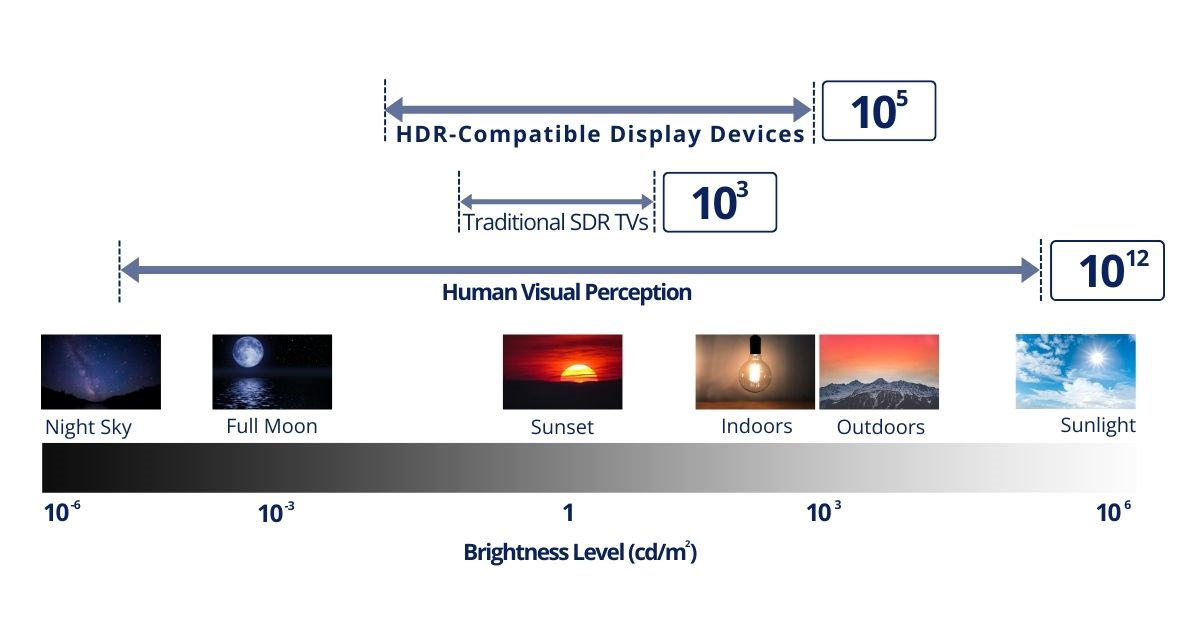
Modern HDR displays have widely varying capabilities. A flagship LCD with local dimming and 1000+ nits peak brightness behaves very differently from a dimmer OLED that peaks at a few hundred nits. Metadata helps bridge that gap.
Key concepts:
- Tone mapping: the process of translating source brightness values into what the display can actually show. Metadata informs the tone-mapper where important details and highlights are so they are preserved rather than clipped or crushed.
- Color volume: the combination of color gamut and luminance range. Content encoded for a wide color gamut and high brightness must be mapped into the display’s color volume to avoid color shifts or saturation loss.
When done well, metadata-driven tone mapping preserves highlight detail and gives natural-looking color across scenes. When poorly handled, it can cause blown-out highlights, flattened midtones, or oversaturated colors.
Static metadata (how it works and its limits)
Static metadata sets fixed parameters for an entire title. Typical items include:
- Mastering display color primaries and white point
- Maximum and average light levels (MaxCLL and MaxFALL)
Advantages:
- Simple to implement and widely supported
- Provides a baseline for tone mapping on a variety of displays
Limitations:
- Cannot adapt to scene-by-scene variation in brightness or creative intent
- Can lead to compromises: a single set of numbers may be too conservative for bright scenes or too aggressive for darker material
Common formats that use static metadata include HDR10 and some professional mastering standards.
Dynamic metadata (how it works and why it matters)
Dynamic metadata is encoded alongside the video and updates regularly to reflect the properties of the current scene or frame. It can include information such as scene peak brightness and mapping hints for preserving creative intent.
Advantages:
- Allows displays to apply more accurate tone mapping for each scene or frame
- Better preserves highlight detail and subtle color gradations across diverse footage
Considerations:
- Requires both source and display to support the same dynamic metadata standard
- Implementations vary: manufacturers may still differ in tone-mapping algorithms
Dynamic metadata is used by formats such as Dolby Vision and HDR10+. These systems aim to reduce visible compromises that occur with single static values.
Comparison table: Static vs Dynamic HDR metadata
| Feature | Static Metadata (e.g., HDR10) | Dynamic Metadata (e.g., Dolby Vision, HDR10+) |
|---|---|---|
| Updates per title | One set for entire title | Scene-by-scene or frame-by-frame |
| Typical fields | MaxCLL, MaxFALL, mastering display info | Scene peak information, per-shot tone mapping hints |
| Pros | Broad compatibility, simple | More accurate mapping, preserves intent |
| Cons | Less precise, potential compromises | Needs compatible display and player, variable manufacturer handling |
Note: Example formats are representative. Support and behavior vary by device and region.
How to check what metadata a file or stream carries
Practical steps you can use at home:
- Check the streaming service or disc packaging. Many streaming apps label content as HDR10, Dolby Vision, HDR10+, or HLG. Physical media (Blu-ray) and digital storefronts typically list the HDR format.
- Use on-screen playback information. Some streaming devices and TVs show an information overlay that lists the active HDR format while content is playing. Look for labels like HDR10, Dolby Vision, or HDR10+.
- Consult device documentation. Manufacturer pages often list supported HDR formats for a TV, player, or streaming stick.
- Use third-party utilities for local files. On a computer, media players like VLC or specialized tools can report container metadata and HDR flags for a file. (Tool availability varies.)
If metadata isn’t present or your device does not support it, the display will either treat the stream as HDR without guidance or fall back to SDR conversion — both can produce unpredictable results.
Practical steps to optimize HDR playback
Follow these steps to improve how HDR content appears on your setup:
- Confirm format compatibility
– Verify both the source (streaming app, player, or disc) and your display support the same HDR format. If the source uses dynamic metadata but your TV only supports static HDR, you may not see the benefits of per-scene mapping. - Use the device that provides the best tone mapping
– Some external players or streaming devices do better tone mapping than others. If you suspect poor handling, try the streaming app on a different device or use the TV’s built-in app where available. - Keep firmware and app software updated
– Manufacturers improve HDR handling over time. Install updates for your TV and streaming devices and update the streaming apps. - Choose the correct HDMI path and settings
– Ensure HDMI ports are set to the correct color and HDR modes according to the manufacturer guide. Some TVs require enabling ‘HDMI enhanced’ or equivalent to accept full HDR signals. - Disable double tone mapping
– If both a player and the TV apply tone mapping, highlights can be clipped. Check your player and TV settings for options such as ‘pass-through’ or ‘HDR tone mapping’ and experiment to see which yields a more balanced picture. - Use high-quality source material
– Not all HDR streams are created equal. Higher-bitrate HDR sources and properly authored discs will generally deliver more consistent results. - Test with known HDR content
– Watch well-mastered HDR demos or certified titles to evaluate your display’s tone mapping. Streaming catalogs and disc reviewers often call out exemplary HDR masters.
If you want device-specific setup recommendations, check our device and setup guides at Devices & Setup and broader context in Streaming Guides.
Common HDR playback problems and how metadata plays a role
- Blown-out highlights: If metadata indicates extremely high peak brightness but the display cannot reach it, poor tone mapping may clip details. Dynamic metadata helps by signaling lower mapping targets for those scenes.
- Crushed shadows or lost midtones: Incorrect mapping from source to display black level can hide detail. Verify black-level and HDR picture modes on the display.
- Washed or oversaturated colors: Incorrect color primaries or gamut mapping errors can shift color. Metadata that accurately describes mastering display primaries helps mitigate this, but differences in displays remain.
- Double tone mapping: When both a player and a TV apply tone mapping, subtle information can be lost. Using pass-through or disabling secondary tone mapping may help; consult both device settings.
If problems persist, check manufacturer support pages and privacy/security considerations for firmware updates at Tech & Security.
Why two HDR TVs can look different even with the same metadata
Even when the same metadata accompanies the video, displays may differ because:
- Panel technology (OLED vs LCD vs mini-LED) affects native contrast and brightness
- Manufacturer tone-mapping choices prioritize different looks: reference accuracy, punchy highlights, or viewer-friendly warmth
- Variations in local dimming, color calibration, and processing pipelines
Metadata narrows differences and guides displays toward the creator’s intent, but it does not fully eliminate variability between models.
FAQ
Q: What happens if there is no HDR metadata?
A: The display must guess how to map brightness and color. Some TVs will still display an HDR signal using their default tone mapping; others may treat the stream as SDR. Results can be unpredictable.
Q: Can I trust dynamic metadata to always look better?
A: Dynamic metadata provides more information and usually enables better scene-specific mapping, but the final result depends on the display’s tone-mapping implementation. Dynamic metadata is not a guarantee of perfect playback on every screen.
Q: Will updating my TV firmware improve HDR metadata handling?
A: It can. Manufacturers periodically refine tone mapping and metadata handling in firmware updates. Always check release notes and support pages; improvements vary by model.
Q: Is HDR metadata the same as color calibration?
A: No. Metadata guides how content should be mapped, while calibration is the process of adjusting a display to accurately reproduce color and luminance. Good calibration can help a TV realize the benefits of correct metadata.
Q: Do streaming apps always pass dynamic metadata to my TV?
A: Not necessarily. Some apps, devices, or OS versions may strip or re-encode metadata. If you suspect that is happening, try a different app or device and check for updates.
Q: Should I prefer Dolby Vision or HDR10+ over HDR10?
A: Neither format is universally superior in every situation. Dolby Vision and HDR10+ add dynamic metadata capabilities that can preserve more creative intent on compatible displays. However, support, licensing, and implementation details vary. Verify compatibility for your devices and preferred content.
Conclusion
HDR metadata is a small bundle of information with an outsized influence on how brightness and color are rendered. Static metadata provides a baseline for the whole title, while dynamic metadata enables scene-by-scene guidance that can preserve highlight detail and color intent. However, metadata is only one piece of the puzzle: display hardware, tone-mapping algorithms, streaming bitrate, and correct device settings all play crucial roles.
If HDR content looks inconsistent on your system, start by confirming the HDR format, checking device compatibility, updating firmware and apps, and experimenting with tone-mapping or pass-through options. For further help with specific displays or players, consult manufacturer documentation and our setup resources at Devices & Setup and Streaming Guides. For security or privacy concerns related to firmware and streaming apps, see Tech & Security.
Disclosure: Settings and compatibility can differ by TV model, streaming device, operating system, region, and firmware version. Verify details with the current manufacturer documentation and streaming service support pages.

Canzar
Ready to stream? Pick your plan
Live TV, movies, sports and 10,000+ channels on any device — Firestick, Android TV, Smart TV, phone.
View Subscription Plans Compare Pricing
Moderation: Comments are reviewed before publishing. Be respectful and on-topic.
Guidelines: Share streaming tips, device help, or content recommendations. No spam, no promotions, no off-topic links.