
Last updated August 26, 2026 · Editorially reviewed by CanzarTV
Optimize Router Channel Selection to Prevent Buffering
Streaming video that pauses, stutters, or drops in quality is frustrating. Often the issue isn’t your internet plan or streaming service — it’s wireless congestion on the channel your router is using. This guide explains why channel choice matters for streaming, how channels differ across bands, practical steps to pick the best channel for your environment, and tools and troubleshooting tips you can use today.
Why Wi‑Fi channel selection affects streaming
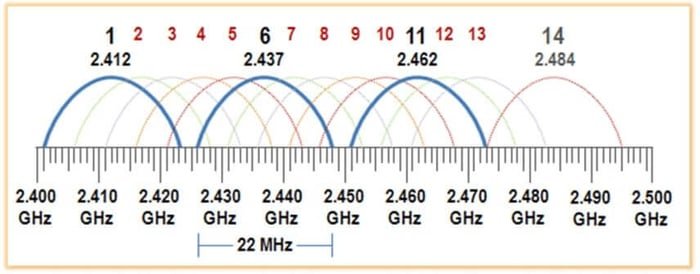
Wi‑Fi radios share airspace. When multiple access points (APs) and devices transmit on the same or overlapping channels, packets collide, retransmit, and latency rises — exactly what causes buffering during live or high‑bitrate streams. The effect is more pronounced in dense living situations (apartments, condos) and when many IoT or neighbor networks are active.
Key points:
- 2.4 GHz band has fewer non‑overlapping channels and is crowded with Wi‑Fi, Bluetooth and other devices.
- 5 GHz offers more clean channels and typically less interference, but range is shorter and some channels have regulatory restrictions (DFS) in some countries.
- 6 GHz (Wi‑Fi 6E) is even less crowded where available, but regional availability and device support vary.
Because channel availability, labeling and regulatory rules can differ by country and router model, always verify your manufacturer documentation and local regulator guidance before changing advanced settings.
2.4 GHz vs 5 GHz vs 6 GHz: Which band for streaming?
| Band | Typical channel behavior | Pros for streaming | Cons / caveats |
|---|---|---|---|
| 2.4 GHz | Few non‑overlapping channels (commonly 1, 6, 11 recommended in many regions) | Better range and wall penetration — useful if device is far from router | Crowded, slower top throughput, overlapping channels cause interference |
| 5 GHz | Many non‑overlapping channels, higher throughput | Better throughput and lower co‑channel interference — ideal for HD/4K streams when in range | Shorter range; some channels use DFS and may be temporarily unavailable; device support varies |
| 6 GHz (Wi‑Fi 6E) | Large number of clean channels where supported | Lowest congestion and highest potential throughput | Limited device/router/regional support; check local rules and firmware |
In most streaming setups, 5 GHz is the sweet spot if you have adequate signal strength. If your streaming device is far from the router or behind several walls, 2.4 GHz might be more reliable despite lower speeds.
Quick checklist: Audit your environment first
- Run a Wi‑Fi scan to identify nearby networks and their channels (tools below).
- Note congestion: how many APs are on the same channel or overlapping channels.
- Check signal strength (RSSI) from your streaming device’s location.
- Determine device capabilities: does your TV or streaming box support 5 GHz or 6 GHz?
- Verify router firmware is up to date; some routers improve auto‑selection with updates.
Use local tools or router admin pages to make these observations before you change settings.
Tools to find the best channel
- NetSpot (macOS/Windows) — full surveys and channel heatmaps.
- WiFi Analyzer (Android) — quick channel graphs and recommendations.
- AirPort Utility (iOS) or Wireless Diagnostics on macOS — built‑in scanning options (macOS: hold Option and click Wi‑Fi menu for channel info).
- Router admin interface — many routers show connected networks and suggested channels.
- Built‑in command line: Windows
netsh wlan show networks mode=Bssidlists visible SSIDs and channels; Linux/Unix tools vary (iwlist,nmcli, etc.).
Note: app availability and capabilities vary by operating system and region. See Apps & Tools for more suggestions and comparisons.
Step‑by‑step: Pick the best channel for streaming
Choose the right band first
– If your streaming device supports 5 GHz and is within range, prefer 5 GHz.
– Use 2.4 GHz only if range from the router is the limiting factor.
– If both router and device support 6 GHz and it’s allowed in your region, consider testing it.Scan and identify low‑use channels
– Run a scan from the streaming device location. Look for channels with the fewest APs and the lowest overlapping signal strength.
– On 2.4 GHz, prioritize channels 1, 6 or 11 (these are non‑overlapping in many regions) and pick the least congested of the three.Set channel width appropriately
– 2.4 GHz: use 20 MHz width to reduce overlap and interference.
– 5 GHz: 40/80 MHz can increase throughput but will use more spectrum — if neighbors are busy, a narrower width (40 MHz) may be more stable.
– 6 GHz: wider widths are available but only use them when the channel is clean.Change router channel (and disable aggressive ‘auto’ if needed)
– Log into your router’s admin page and set the channel manually.
– Some routers offer an “Auto” channel function that scans and picks channels; this can work well on modern mesh systems but can also trigger frequent changes that temporarily disrupt streaming. If you see frequent automatic changes, pick a stable manual channel.Test real‑world streaming
– After changing the channel, stream the same content that previously buffered. Measure improvements in startup time, buffering frequency, and resolution stability.
– If no improvement, try the next best channel or adjust channel width.Repeat after environmental changes
– Neighboring networks change over time (new routers, updated firmware). Re‑scan every few months or if buffering returns.
Mesh networks and multiple APs
If you have multiple APs or a mesh system, consider these points:
- Let the mesh controller manage channel allocation in a single‑vendor mesh system — it will coordinate channels and backhaul automatically.
- For mixed systems or manually configured APs, assign non‑overlapping channels and avoid letting multiple APs on the same channel serve overlapping areas.
- When using wired backhaul, Wi‑Fi channels for backhaul are less critical; for wireless backhaul, prioritize a dedicated band/channel.
If you’re unsure how your mesh system chooses channels, consult the vendor’s documentation or Devices & Setup.
When automatic channel selection is useful — and when it isn’t
- Useful: Modern routers with good firmware can evaluate spectrum and switch channels during low‑impact times to avoid intermittent interference.
- Not useful: Cheap or old routers that switch channels frequently during peak usage can cause momentary disconnects and worsen streaming.
If you notice that the router changes channels automatically and streaming drops, switch to a stable manual channel until you can test the auto behavior during off‑hours.
Practical tips to reduce non‑channel interference
- Move the router to a more central, elevated location — walls and appliances reduce signal.
- Avoid placing routers near microwaves, cordless phones, Bluetooth hubs, baby monitors or large metal objects.
- Use wired Ethernet for critical streaming devices (smart TVs, consoles, set‑top boxes) when possible — nothing beats a direct LAN connection for stability.
- Limit background downloads or cloud backups during streaming sessions.
Troubleshooting checklist if buffering continues
- Verify ISP speed and latency with a wired test — use a laptop/PC connected via Ethernet.
- Confirm streaming service bitrate caps (some services adjust quality based on available bandwidth).
- Test with a known‑good wired connection to isolate Wi‑Fi from ISP issues.
- Try changing channel width or switching bands.
- Power‑cycle modem and router after setting changes.
- Update router and device firmware/OS; check manufacturer knowledge base for known issues.
If steps above don’t solve the problem, consult the streaming platform’s support and your ISP. For device setup and streaming device best practices, see our Streaming Guides and Tech & Security resources.
Quick comparison table: Manual vs Auto channel selection
| Setting | Pros | Cons | When to use |
|---|---|---|---|
| Auto channel selection | Can adapt to changing interference; convenient | Some routers switch too often; may cause transient disconnects | Modern mesh or high‑end routers with proven firmware |
| Manual fixed channel | Stable, predictable performance | May become suboptimal as neighbors change | Small networks, older routers, when auto causes streaming drops |
FAQ
Q: Is 5 GHz always better for streaming than 2.4 GHz?
A: Not always. 5 GHz provides higher throughput and less interference but shorter range. If your device is far from the router or obstacles limit the 5 GHz signal, 2.4 GHz may stream more reliably. Test both bands from the device’s usual location.
Q: Should I lock my router to a specific channel?
A: If you find a channel with consistent, low congestion from your streaming location, locking it can reduce buffering. Re‑scan periodically because neighbor networks and new devices can change the interference landscape.
Q: How often should I re‑scan for the best channel?
A: Re-scan when you notice new buffering or at least every 2–3 months in dense living areas. Also re-scan after firmware updates or when neighbors change equipment.
Q: Can channel width affect buffering?
A: Yes. Wider channel widths (e.g., 80 MHz) increase throughput but also use more spectrum and are more likely to overlap other networks. If you experience instability, try reducing width (e.g., to 40 or 20 MHz).
Q: Are Wi‑Fi analyzer apps safe to use?
A: Most popular analyzer apps are safe and useful. Use apps from reputable developers and the official app store for your device. Be aware that some permissions are required to scan networks.
Q: My router has a 6 GHz option — should I use it?
A: Use 6 GHz only if your devices support it, it’s permitted in your country, and the channel appears clean. Availability and rules vary by region and device; check manufacturer and regulator documentation.
Recommended quick fixes you can try in 15 minutes
- Scan with a Wi‑Fi analyzer app from your streaming location.
- Switch to a less crowded channel in the same band and set channel width to 20/40 MHz for stability.
- Move the router a little higher or away from metal appliances.
- If possible, connect the streaming device by Ethernet.
These quick changes often reduce buffering without complex troubleshooting.
Conclusion
Router channel selection is an often‑overlooked lever to improve streaming reliability. By scanning your environment, selecting the appropriate band and channel width, and choosing a stable manual channel (or a well‑behaved auto system), you can avoid much of the buffering caused by wireless congestion. For best results, pair channel optimization with good placement, firmware updates, and wired connections for critical devices when possible.
Disclosure: Settings and compatibility can differ by TV, streaming device, operating system, router model, region, and firmware version. Always verify the current manufacturer documentation and local regulations before making advanced changes to your network.
For device setup tips and deeper configuration guides, see Devices & Setup, our Streaming Guides, and tool recommendations on Apps & Tools. For more context on Wi‑Fi and network security, visit our Tech & Security section.

Canzar
Ready to stream? Pick your plan
Live TV, movies, sports and 10,000+ channels on any device — Firestick, Android TV, Smart TV, phone.
View Subscription Plans Compare Pricing
Moderation: Comments are reviewed before publishing. Be respectful and on-topic.
Guidelines: Share streaming tips, device help, or content recommendations. No spam, no promotions, no off-topic links.