
Last updated August 25, 2026 · Editorially reviewed by CanzarTV
Subtitle accuracy testers and sync tools: apps and workflows to fix timing
A subtitle that appears too early, too late, or slowly drifts out of sync turns a good video into a frustrating watch. Whether you’re a fan translator, an editor preparing captions for upload, or a viewer trying to enjoy a foreign show, a small set of tools and a consistent workflow will help you find and fix timing problems quickly.
This guide explains common causes of subtitle timing errors, how to test and measure offsets, the best tools for desktop and mobile, and step‑by‑step workflows for fixing global delays and progressive drift. It also includes a comparison table, practical tips for testing on devices and TVs, an FAQ, and a short disclosure about compatibility.
Why subtitles go out of sync
Before changing files, it helps to understand the usual causes:
- Global offset: all captions are shifted forward or back by the same amount (often due to a simple timecode mismatch or player offset).
- Progressive drift: subtitles gradually drift relative to audio (commonly caused by frame rate mismatches between the video and the subtitle timebase or when the subtitles were timed to a slightly different video length).
- Segment timing errors: individual lines were mistimed during creation or when splitting/rejoining video segments.
- Frame rate conversions: conversions between 23.976, 24, 25, and 29.97 FPS can change how subtitle timecodes map to video frames, producing drift.
- Container or muxing changes: re‑muxing or trimming video without updating subtitle timecodes can cause misalignment.
Understanding which of the above is happening will guide the fix: a simple offset fix is different from a resampling/retiming fix.
Quick testing and measurement (how to diagnose)
- Reproduce the issue in a reliable player: use VLC or another player that supports manual subtitle offsets.
- Identify a clear audio reference: pick a line where the spoken dialogue and subtitle are expected to align perfectly (short, unambiguous phrases work best).
- Note the timecode difference: measure how many seconds the subtitle leads or lags that audio reference.
- Check for drift: test two points far apart (e.g., near the start and near the end). If the offset changes, you have drift.
- Check file types and metadata: SRT, VTT and ASS have different timing granularity, and some subtitle files include header info that indicates the target frame rate.
If the offset is consistent across the video, a global shift is the right solution. If the offset changes over time, you’ll likely need a linear resync or a per‑segment adjustment.
Tools: editors, players and online testers
Below are common tools people use to test and fix subtitle timing. Most are evergreen; check current documentation for platform compatibility.
- Subtitle Edit (desktop): a popular editor for finding and fixing offsets, waveform alignment and converting frame rates.
- Aegisub (desktop): strong for detailed timing, waveform/audio visualization and ASS style subtitles.
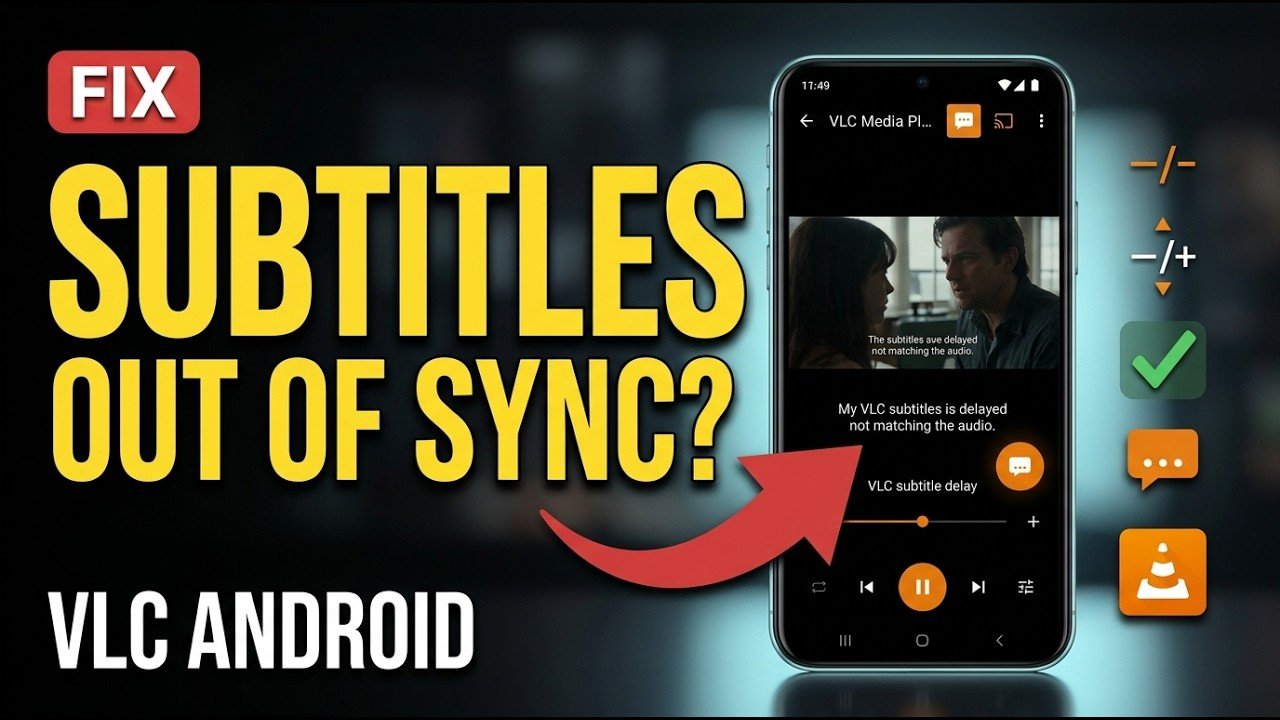
- VLC Media Player (desktop/mobile): quick testing and temporary playback offset adjustments.
- Amara and web editors: browser‑based subtitle editing and basic timing tools (handy for online collaborations).
- FFmpeg (command line): re‑muxing subtitles, converting container formats and applying timebase changes programmatically.
- HandBrake (desktop): re‑encoding and soft‑muxing subtitles with video (useful after fixing timings).
Mobile apps exist for on‑the‑go edits and tests, but desktop tools provide finer control for accurate resync work. Use online editors when you need a quick lightweight fix or to work collaboratively.
Comparison at a glance
| Tool | Platform | Best for | Notes |
|---|---|---|---|
| Subtitle Edit | Windows (workarounds on Linux/macOS via Mono) | Fast global offset, waveform-based retiming, frame rate conversion | Strong feature set for most sync tasks; check modern install instructions for your OS. |
| Aegisub | Windows/macOS/Linux | Detailed timing, visual waveform and ASS typesetting | Good for frame‑accurate subtitling and karaoke timing. |
| VLC | Cross-platform | Quick playback testing and temporary offset adjustments | Not for permanent edits but essential for diagnosis. |
| Amara / Web editors | Browser | Collaborative edits and quick retiming | Convenient online; may be limited for complex resyncs. |
| FFmpeg | Cross-platform (CLI) | Batch processing, re‑timing when combined with scripts | Powerful but requires care; check documentation for options. |
Step‑by‑step workflows
Below are practical workflows for the most common problems. Always work from a copy of the original subtitle file and keep backups.
Fixing a global offset (simple shift)
- Open the subtitle file in a dedicated subtitle editor (e.g., Subtitle Edit or Aegisub).
- Play the video alongside the editor or use the editor’s waveform to find a clear reference line.
- Calculate the offset (subtitle time − audio time). Use a positive value if subtitles are late, negative if early.
- In the editor, use the “shift times” or “synchronize” tool to add/subtract the calculated offset to all lines.
- Save as a new file and test in a player. Try several points across the video to confirm the offset is fixed.
This is the fastest, lowest‑risk approach when the entire subtitle file is uniformly early or late.
Fixing progressive drift (linear resync)
- Identify two anchor points: one early in the video and one late. For each anchor, note the timecode difference.
- Calculate the slope: how much the offset changes between the two points.
- Use a subtitle editor that supports “time stretching” or “tempo/retiming” (Subtitle Edit and Aegisub can do this).
- Apply a linear resync so the start anchor is moved by the start offset and the end anchor is moved by the end offset; intermediate lines are interpolated.
- Export and test thoroughly at multiple points.
If drift results from frame rate mismatch, consider re‑timing while converting subtitle frame references to match the video’s frame rate.
Fixing isolated line errors (per‑segment edits)
- If only a few lines are wrong, edit those timestamps directly in the editor while playing the video.
- Use waveform zoom to align the subtitle start with the speech onset and the end with natural pauses.
- For subtitles that overlap too much with next lines, shorten or split long entries and adjust timings for readability.
Batch or automated approaches
- When you have many files with the same consistent offset, use a batch shift function in a desktop editor or script the change with FFmpeg or a scripting wrapper.
- For libraries of fan translations, maintain a reference video and a standard timing source to avoid introducing drift when multiple people edit segments.
Testing on devices and TVs
Playback behavior can differ between desktop players and smart TVs. Use the following checks before publication:
- Test on the target device if possible (TV, set‑top box, streaming stick) because some devices apply a player offset or subtitle rendering delay.
- Try both embedded (in‑container) and external subtitle files; some TVs prefer one over the other and may change timing behavior.
- If subtitles are fine on a PC but wrong on a TV, check the TV’s subtitle or closed‑caption settings and any smart‑player settings that adjust audio/video sync.
For step‑by‑step device setup guides, see our Devices & Setup and Streaming Guides.
Accessibility and readability checks
Accurate timing matters for accessibility. When you fix timing, also verify:
- Reading speed: lines should be displayed long enough for comfortable reading.
- Line breaks: keep phrases intact and avoid awkward splits.
- Overlap and stacking: avoid lines overlapping; ensure two lines don’t appear too quickly in sequence.
Use tools that show character‑per‑second metrics or enforce maximum characters per line if you’re preparing subtitles for distribution.
Practical tips and troubleshooting
- Always save a copy of the original subtitle file before editing.
- If subtitles were created for a different edition of the video (e.g., director’s cut vs TV edit), timing mismatches may be structural — compare runtimes first.
- If you suspect an FPS mismatch, double‑check the video’s frame rate in a reliable media inspector app and convert the subtitle timebase accordingly.
- For teams, establish a canonical video file (master timing source) so contributors sync to the same reference.
Tools and workflows evolve; when exact behavior depends on a model or firmware, verify with the manufacturer or the app’s documentation.
FAQ
Q: Can I make subtitle timing permanent on a device?
A: Yes. You can save a permanently adjusted subtitle file (e.g., SRT or ASS) and either load it externally or soft‑embed it into the video container. Some TVs or players allow only temporary playback offsets; in those cases, re‑timing the file and saving a new copy is the reliable solution.
Q: Why do my subtitles drift after 10–20 minutes?
A: That usually indicates a timebase mismatch or frame rate conversion problem. Check the video frame rate and whether the subtitle was timed to a different edition of the video.
Q: Can I fix subtitles on my phone?
A: There are mobile subtitle editors that allow simple shifts, but for precise waveform‑based timing and batch fixes, desktop editors are recommended.
Q: Will converting a video change subtitle timing?
A: Converting video (changing FPS or trimming) can change timing if the subtitles weren’t updated. When re‑encoding, re‑check subtitle sync and retime if necessary.
Q: Are there accessibility considerations when retiming?
A: Always ensure subtitles remain readable — don’t shorten display duration below comfortable reading speed to force sync. Also confirm that speaker labels and sound descriptions remain accurate.
Conclusion
Subtitle timing issues frustrate viewers and undermine accessibility, but they are usually solvable with a diagnostic approach and the right tools. Start by determining whether you have a global offset or progressive drift, use trusted desktop editors for precise retiming, and test on the final playback devices. For collaborative or lightweight work, browser editors are convenient, and playback tools like VLC are invaluable for quick checks.
For more tools, tips, and device checks, visit our Apps & Tools hub or explore practical setup advice in Devices & Setup. You can also read deeper technical posts in our Blog and broader streaming best practices in Streaming Guides.
Disclosure: settings and compatibility for subtitle files and editing tools can differ by TV model, device, operating system, region, and firmware version. Verify behavior with current manufacturer or app documentation before publishing widely.

Canzar
Ready to stream? Pick your plan
Live TV, movies, sports and 10,000+ channels on any device — Firestick, Android TV, Smart TV, phone.
View Subscription Plans Compare Pricing
Moderation: Comments are reviewed before publishing. Be respectful and on-topic.
Guidelines: Share streaming tips, device help, or content recommendations. No spam, no promotions, no off-topic links.