
Last updated August 24, 2026 · Editorially reviewed by CanzarTV
Guide to Using Infrared (IR) Extenders and HDMI-CEC Together
Putting your set-top boxes, consoles, and AV receiver inside a cabinet keeps living rooms tidy — but it also creates a familiar problem: how do you control those devices reliably? Two common solutions are IR extenders (IR repeaters/IR blasters) and HDMI-CEC (a wired control channel over HDMI). They can coexist, but you need to understand how each works and how to prevent conflicts.
This guide explains the differences, shows practical setup strategies (IR-only, CEC-only, and hybrid), walks through configuration steps and troubleshooting, and gives placement and wiring tips for using an IR blaster with an AV receiver. Wherever behavior can vary by model or firmware, we explain what to check and how to verify with manufacturer documentation.
Devices & Setup | Tech & Security | Blog
How IR extenders and HDMI-CEC work (brief)
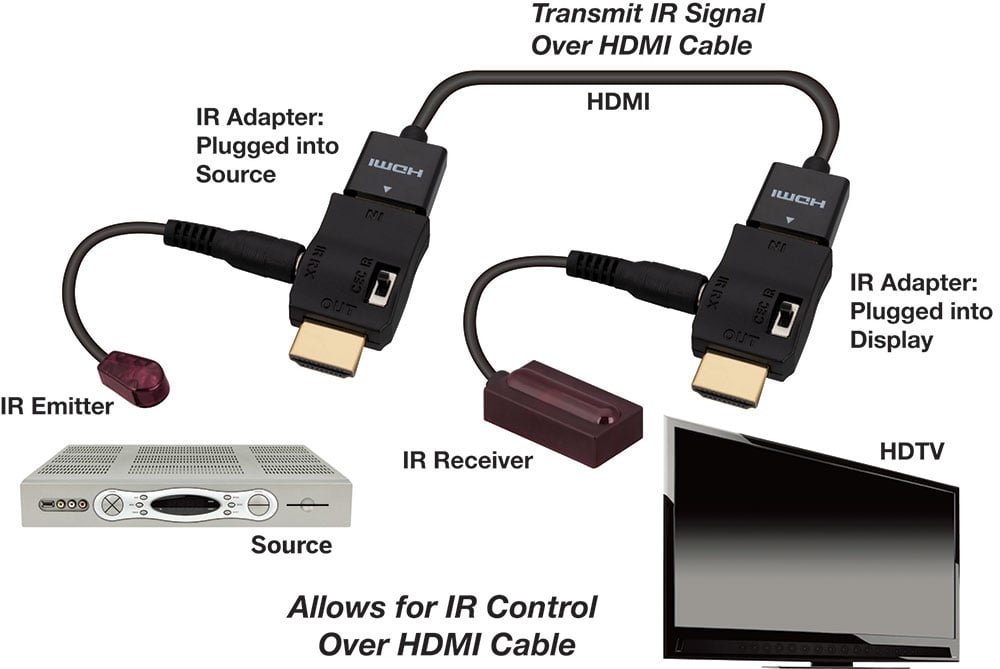
IR extenders: These systems capture IR commands from a remote (receiver/eye) and relay them as IR light to the infrared sensor on the target device using one or more emitter bulbs. Typical setups: a small IR receiver placed in the room front, a distribution box, and emitters physically placed over the IR windows of devices inside a cabinet. Some systems use IR-over-Ethernet, RF remote relays, or Bluetooth.
HDMI-CEC (Consumer Electronics Control): CEC is a control protocol that runs over the HDMI cable so connected devices can send control messages (power, play/pause, volume, input switching) to one another. Implementation and feature set vary by TV and device manufacturer; manufacturers sometimes give their own names to CEC (e.g., Anynet+, Bravia Sync, SimpLink).
Key point: IR is optical and device-specific; CEC is a digital control channel that requires HDMI connectivity. They do not use the same signal path, so an IR extender does not “block” CEC physically — but interactions can still cause confusing behavior.
Typical scenarios and why conflicts happen
Common scenarios where people try to use both:
- Devices are hidden in a cabinet and you want to use a handheld remote (IR) to control them.
- You want automatic power-on/power-off sync using CEC but also need manual control of hidden devices via IR.
- You use an AV receiver (sometimes with an IR input) and want TV remote volume control through CEC while sending device-specific IR commands to equipment in the cabinet.
Why conflicts occur:
- Duplicate commands: A TV may forward a user action as a CEC command to a receiver, while your IR command also triggers the same device, creating loops or unexpected secondary actions.
- Different command sets: Some features you expect (like app launch or menu navigation) may not be available over CEC for certain devices; you end up switching between IR and CEC controls.
- Auto-power sync: If both TV and AVR attempt to control each other’s power state via CEC, and the AVR receives an IR command that also causes a power change, you may get on/off loops.
- Broken CEC due to hardware in the chain: Some HDMI splitters, older switchers, or HDMI extenders can disrupt CEC, forcing you to rely on IR.
Note: CEC behavior and the available commands vary by model and firmware. Always verify how a particular TV, receiver, or set-top box implements CEC by checking the manufacturer documentation.
Three practical control strategies (comparison)
| Strategy | How it works | Pros | Cons | Best when… |
|---|---|---|---|---|
| CEC-only | Use TV and HDMI-connected devices with CEC enabled. No IR extenders. | Simple remote use; power/volume auto-sync for many setups. | Requires reliable HDMI CEC chain; limited control scope per device/vendor. | All devices support full CEC features and cables/switches pass CEC. |
| IR-only | Turn off CEC features; use an IR extender to reach hidden devices. | Consistent device-level control; works with older gear and non-CEC devices. | No automatic sync; manual input switching needed. | You need precise control or CEC causes problems. |
| Hybrid (CEC + IR) | Use CEC for global commands (power/volume) and IR extenders for device-specific actions. Configure to avoid overlap. | Combines convenience and complete control. | Requires careful configuration to avoid loops or conflicts. | You want best of both worlds and don’t mind setup work. |
Step-by-step: Setting up a hybrid system (recommended for many cabinets)
Inventory and plan
– List devices hidden in the cabinet (AV receiver, Blu-ray, game console, streaming box).
– Note which devices are connected by HDMI and which are IR-only (e.g., older tuners).
– Identify which functions you want via CEC (power, volume, input) vs IR (menu navigation, device-specific buttons).Choose your control master(s)
– Decide if the TV remote will be the primary controller or a universal remote. If using a universal remote, consider direct product codes and whether it will send IR to the device or emulate CEC via a hub.Prepare the IR extender and IR emitter placement
– Use separate emitters for each device’s IR window. Place emitters as close as possible to the device IR window without obstructing ventilation.
– Avoid stacking emitters over one IR window or placing them too close to each other to prevent cross-triggering.
– If using an IR input on an AV receiver, consider routing the IR emitter to the receiver’s IR window — some receivers expose an IR-in jack intended for an external IR blaster.Plug and connect HDMI devices first
– Connect devices to the TV or AVR using HDMI. If you have an AV receiver, connect source devices to the receiver and connect the receiver’s HDMI output to the TV.
– Note: If you use an HDMI switch or splitter, verify that it supports CEC passthrough. If not, plan to rely on IR for those devices.Enable or configure CEC carefully
– On each device, enable CEC but review sub-settings: auto power sync (allow TV to turn AVR on/off), TV audio control (let TV remote adjust AVR volume), and device control options.
– If your TV or receiver allows fine-grained settings (e.g., disable TV power control but keep volume control), use them to reduce overlap.Set up the IR extender
– Place the IR receiver/eye in a location with clear line-of-sight to where you normally point your remote.
– Place emitters over the devices’ IR windows and test each function that you plan to control via IR.
– Use the extender’s configuration (if any) to assign emitters to specific commands or devices.Test for conflicts and refine
– Try basic sequences: power on TV (remote), play/pause a source, change volume, power off TV. Watch for unintended power toggles or double commands.
– If an IR command causes a loop (device powers on, CEC power signal triggers another device, which sends a signal back), disable the offending CEC sub-feature or switch that device to IR-only for power.Finalize: macros and universal remote programming
– If you use a universal remote or smart hub, program macros so a single press runs a reliable sequence (turn on TV, set AVR to HDMI input, turn on source). Prefer delays between commands to avoid race conditions.
Tips for using an IR blaster with an AV receiver
Many AV receivers have an IR IN jack or a remote sensor location. If your receiver exposes an IR input, connecting the IR extender to that input lets the receiver see the IR commands as if its frontal sensor received them. Check your receiver manual for the proper jack and polarity.
Place the AVR emitter directly over its IR window, not on nearby gear. Some AVR front panels have tinted glass; remove protective film or position carefully to ensure the emitter transmits.
If the AVR is your audio path, and you want TV remote volume to work via CEC, enable TV audio control or HDMI ARC/eARC as appropriate and test volume commands to ensure the receiver is responding to CEC volume messages.
If the AVR and TV both try to control each other’s power, look for CEC settings named something like “Auto Power Sync”, “Power Control”, or manufacturer-specific terms and disable the one causing the loop. Your receiver manual will describe how its CEC implementation behaves.
Troubleshooting common issues
- Problem: TV remote volume control changes TV volume instead of AVR volume.
Check CEC settings on TV and AVR and enable TV remote volume passthrough to the AVR. If not possible, consider programming the TV remote to send discrete IR volume commands to the AVR.
Problem: Devices turn on/off repeatedly or in a loop.
Identify which device is initiating the loop. Temporarily disable CEC on one device (often the TV or AVR) and test. Re-enable only the CEC sub-features you need.
Problem: IR commands sometimes trigger the wrong device.
Reposition emitters, use individual emitters per device, or add masking tape to narrow the emitter’s output cone. Verify the IR extender’s distribution box isn’t assigning commands to multiple emitters.
Problem: CEC appears broken (no control over HDMI devices).
Confirm HDMI cables and any HDMI switch/splitter support CEC. Some budget switches remove CEC signals. Connect the source directly to the TV/AVR to test.
Problem: Remote control feels sluggish or commands get dropped when using macros.
- Add short delays between commands in macros (0.5–1 second) to ensure devices have time to respond.
When to prefer IR-only or a full CEC-only setup
Prefer IR-only when you need exact device-level control, use older gear, or when CEC adds unpredictable behavior and offers little benefit.
Prefer CEC-only when all devices support the features you want (power/volume/input switching) and your HDMI chain reliably passes CEC — this reduces the number of remotes you need.
FAQ
Q: Will an IR extender stop HDMI-CEC from working?
A: No — IR extenders and HDMI-CEC operate on different channels. An IR extender does not physically block the CEC signal carried on the HDMI cable. However, using IR and CEC together can create control conflicts if both paths try to manage the same function. Verify settings and device behavior per manufacturer documentation.
Q: Can I use an IR blaster with an AV receiver that has no IR input jack?
A: Yes. If the receiver has no dedicated IR-in, place an IR emitter directly over the receiver’s front-panel IR window. Many extenders provide adhesive-tipped emitters for this purpose. Always avoid covering ventilation openings.
Q: Why does my HDMI switcher break CEC control?
A: Some HDMI switches and splitters do not pass through the CEC line or alter wiring, so CEC commands are lost. If CEC is crucial, use cables and switchers that explicitly advertise CEC passthrough, or connect directly to devices during testing.
Q: Can I mix a smart home hub (IR via Wi‑Fi) and CEC?
A: Yes, but treat the hub like an additional control source. Smart hubs that translate app commands into IR may cause the same class of conflicts as a handheld remote. Use hub macros and delays carefully and disable redundant CEC features if necessary.
Q: Are there alternatives to IR extenders for hidden equipment?
A: Alternatives include RF remotes, Bluetooth-forwarding remotes, or network-based control (e.g., devices with network APIs). These can avoid line-of-sight issues and sometimes integrate cleanly with automation systems, but compatibility varies by device.
Conclusion
IR extenders and HDMI-CEC can be complementary tools for controlling hidden AV equipment, but a little planning prevents the most common frustrations. Decide which commands you want over CEC and which you’ll keep on IR, place IR emitters carefully, and use device settings to avoid duplicate or looping commands. When in doubt, test by disabling one control path at a time and consult the device manuals for manufacturer-specific CEC options.
If you need step-by-step configuration tailored to a particular TV, AVR, or IR extender model, consult the manuals or support pages from the device manufacturers and consider posting the model details to community forums for model-specific tips.
Disclosure: Settings and compatibility can differ by TV, AV receiver, streaming device, operating system, region, and firmware version — always verify current behavior with manufacturer support documents.
Further reading and resources: Blog, Devices & Setup, Tech & Security

Canzar
Ready to stream? Pick your plan
Live TV, movies, sports and 10,000+ channels on any device — Firestick, Android TV, Smart TV, phone.
View Subscription Plans Compare Pricing
Moderation: Comments are reviewed before publishing. Be respectful and on-topic.
Guidelines: Share streaming tips, device help, or content recommendations. No spam, no promotions, no off-topic links.