
Last updated August 27, 2026 · Editorially reviewed by CanzarTV
Which HDMI Ports to Use on Your TV for Full HDR and Bandwidth Support
Short answer: use the HDMI input(s) that your TV manufacturer explicitly labels as supporting the highest bandwidth or HDMI version (often marked with badges like “HDMI 2.1”, “4K120”, “eARC”, or “Game”). Because TV models sometimes mix port capabilities, always confirm with your TV manual or spec page and, if needed, enable the enhanced HDMI/input mode in settings.
This guide explains why some HDMI ports behave differently, how to identify the ones you should use for full HDR and bandwidth, practical connection steps for consoles, streaming boxes, and AV setups, and step-by-step troubleshooting if HDR or high-frame-rate content doesn’t appear correctly.
Note: manufacturers and models vary. Where behavior can differ, this article tells you how to verify your specific TV rather than assuming a single universal layout.
Why HDMI port choice matters
HDMI handles video, audio, and control signals between devices. Over the years the HDMI specification has evolved to carry more data (higher resolutions, higher frame rates, deeper color, HDR metadata, variable refresh rates, etc.). In practice:
- Bandwidth determines the maximum uncompressed resolution, color depth, and frame rate a port can carry. Higher bandwidth lets you run 4K at 60 Hz with full color or 4K at 120 Hz when supported.
- HDR (High Dynamic Range) needs the TV and source to exchange metadata and support the same HDR format (HDR10, Dolby Vision, HLG, etc.). That exchange generally works across HDMI, but some TVs limit HDR metadata passthrough or the maximum color/chroma settings on certain ports.
- Features like VRR (variable refresh rate), ALLM (auto low-latency mode), and eARC (enhanced audio return channel) also rely on port capability and may be present only on specific inputs.
Because most manufacturers may not enable every feature on every HDMI jack — especially on mid-range models — choosing the “right” port is often the difference between seeing true HDR at the intended color depth and running a lower-quality signal.
HDMI versions, labeling and what they usually mean
Manufacturers label HDMI ports in different ways. Common labels include “HDMI 2.1”, “HDMI 2.0”, “eARC”, “ARC”, “HDMI (VRR)”, “Game”, or simply numbers (HDMI 1, HDMI 2…). Labels often indicate capabilities, but naming is inconsistent across brands and models. A few general pointers:
- HDMI 2.1: A newer spec that introduces higher maximum bandwidth and features like 4K120, 8K support, VRR, and eARC. HDMI 2.1 ports are often used for next-gen consoles and high-end PCs.
- HDMI 2.0 / 2.0b: Supports common HDR and 4K60 content. Many streaming devices and older consoles work fine on HDMI 2.0 ports for HDR at 4K60.
- ARC vs eARC: ARC (Audio Return Channel) sends TV audio back to a soundbar/AV receiver. eARC is the improved version with higher channel/bitrate support and better compatibility for object-based audio formats. eARC may be present on only one port.
- “Enhanced”, “HDMI UHD Color”, “Deep Color”, or “Enhanced Format”: These are manufacturer setting names that must sometimes be enabled to allow full chroma and bit depth on a particular input.
Important: exact capabilities and labelling differ by model and region. Some TVs have a single HDMI 2.1-capable port while others may have two or more. Always check your TV’s spec sheet.
How to identify the ports that support full HDR & bandwidth (practical steps)
Follow these steps to find the best HDMI input(s) on your TV for HDR and maximum bandwidth:
Check the physical labels on the TV
– Examine the HDMI connectors carefully. Labels near each port can include numbers and capability badges (e.g., “eARC”, “HDMI 4K@120”, “VRR”). These badges are a quick clue but aren’t definitive.Read your TV’s user manual and official product page
– The manual or online spec sheet usually lists exactly which port supports which features. Search the model number on the manufacturer site and look for “HDMI” or “specifications”.Look in the TV’s on‑screen settings for input options
– Many TVs provide per‑input settings (often in Picture or General settings). Look for toggles named things like “HDMI Enhanced Mode”, “HDMI UHD Color”, “Input Format”, or “Deep Color” and enable them for the input you’ll use.Update firmware on TV and source devices
– Manufacturers occasionally expand port behavior or fix HDMI bugs via firmware updates. Keep TV and source firmware current.Use a capable HDMI cable
– For highest bandwidth needs (e.g., 4K120, RGB 4:4:4 at high bit depth), use an Ultra High Speed HDMI cable (rated for the HDMI 2.1 feature set). Cables labeled “High Speed” work for many HDR 4K60 scenarios but may be insufficient for 4K120 or maximum chroma/bit-depth combos.Test with a known source configured for the target output
– Set your console, streaming box, or PC to output the desired resolution, HDR mode, and frame rate. If the TV shows an on-screen HDR indicator (many TVs show “HDR” when receiving an HDR signal), confirm the status. If not, adjust settings.If using an AV receiver or soundbar, verify passthrough behavior
– If you route sources through an AV receiver/soundbar, confirm that it supports the HDMI features you need (VRR, 4K120, passthrough of HDR metadata). Some receivers only support certain features on specific HDMI ports.
Quick reference table: common labels and what they likely indicate
| Typical label on TV | What it usually means | What to check/test |
|---|---|---|
| HDMI 2.1 / 4K@120 / 8K | Higher bandwidth port with features like 4K120, VRR, ALLM, often eARC capable | Verify in manual; use Ultra High Speed HDMI cable; test with PS5/Xbox Series X/PC |
| eARC | Enhanced Audio Return Channel (better audio passthrough from TV to AVR/soundbar) | Confirm receiver/soundbar supports eARC and appropriate HDMI mode on TV |
| ARC | Standard audio return; lower bandwidth vs eARC | Good for basic multichannel audio but may not support advanced formats or high-bitrate passthrough |
| “Game” or “Game Mode” labeled port | Port optimized for low latency and may support gaming features (VRR, ALLM) | Enable Game mode in TV settings for lowest input lag |
| Unlabeled / numbered ports | May be lower‑capability ports (HDMI 2.0 or 1.4 level) | Check manual; use for older devices where high bandwidth isn’t needed |
Remember: table entries are general. Confirm specifics for your model.
Connection scenarios and best practices
Below are typical setups and recommended port choices.
- Consoles (PS5, Xbox Series X):
Connect to the HDMI port your TV or AVR lists as supporting HDMI 2.1 or 4K120/VRR/ALLM. Enable any “Enhanced” or “Game” settings for that input and select the console’s HDR and frame-rate options.
Streaming devices (Apple TV 4K, Roku Ultra, Chromecast with Google TV):
These devices often output 4K60 HDR. Any HDMI port supporting 4K60 HDR will work, but if you want HDR passthrough plus advanced audio or if you use an AV receiver, confirm passthrough capability.
PC / GPU outputs:
Use the port that supports the highest bandwidth if you plan on high refresh rates or deep color/chroma settings. For laptops that rely on a dock or receiver, test the full signal chain.
AV receiver + TV setup:
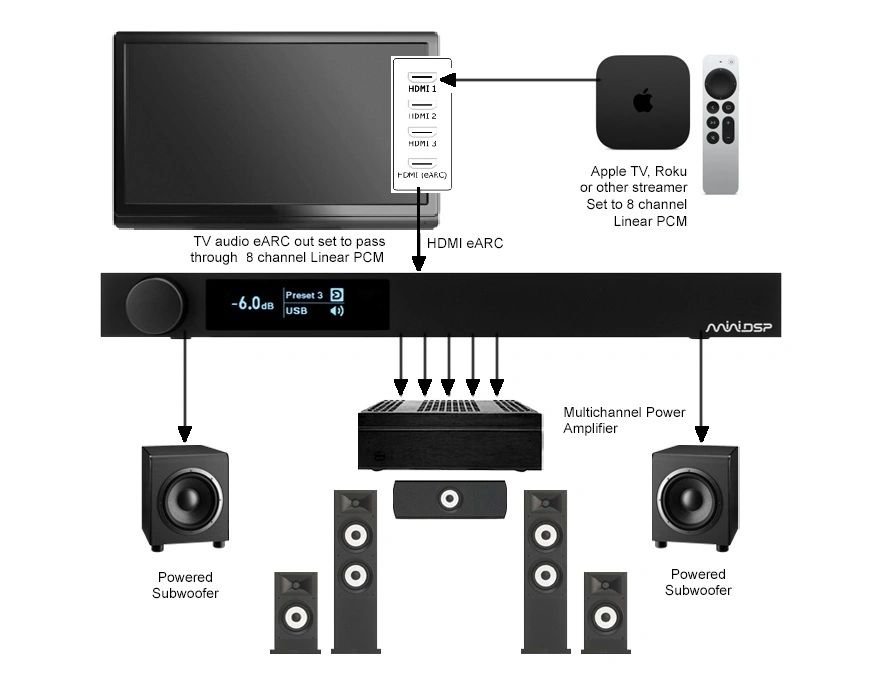
- Option A (recommended in many cases): Connect high-bandwidth sources directly to the TV’s full-capability HDMI port and send audio to the receiver via eARC if the TV supports it.
- Option B: Connect all sources to the AVR if it supports the features you need (VRR, 4K120 passthrough, HDR metadata). If the AVR cannot pass through certain newer features, route the problematic source directly to the TV and use eARC/optical for audio.
Practical troubleshooting checklist: HDR looks washed/black levels wrong or HDR not detected
- Confirm the TV input is set to the enhanced mode for that HDMI port (often toggled off by default).
- Use a cable rated for the bandwidth you need (Ultra High Speed HDMI for HDMI 2.1 features).
- Update firmware for TV and source device.
- On the source device (console, streaming stick, PC), ensure HDR output and correct resolution/frame-rate are enabled.
- If using an AVR/soundbar in the chain, temporarily connect the source directly to the TV to isolate whether the receiver is blocking a feature.
- Try a different HDMI input that the manual shows as capable.
- Consult the TV’s picture info overlay (if available) to see what signal mode it’s receiving (colorspace, HDR type, frame rate).
Short checklist for buying or setting up new gear
- If you care about 4K120 or next-gen console features, confirm which HDMI inputs on the TV are explicitly HDMI 2.1-capable.
- Buy at least one Ultra High Speed HDMI cable if you plan to use 4K120 or maximum chroma/depth combos.
- If you plan to pass high-quality audio from TV to soundbar, check for eARC and ensure the AVR/soundbar supports it.
- Keep firmware updated on TV, consoles, streamers, and AVR.
FAQ
Q: Do manufacturers always label the HDMI ports clearly?
A: Not always. Some brands place capability labels near the jack or in the manual; others only document port capabilities in online specifications. If labels are absent, consult the manual or the product page.
Q: If a TV has only one HDMI 2.1-capable port, where should I plug things in?
A: Prioritize a device that needs the feature most (e.g., a next-gen console or a gaming PC). Other devices can use remaining ports. If you need multiple devices to use the highest bandwidth, consider an HDMI 2.1-capable AVR or an HDMI 2.1 switch that is verified to pass through the features you need.
Q: Will HDR work on an HDMI 2.0 port?
A: Yes — many HDR formats at 4K60 work fine over HDMI 2.0. The limitation is higher frame-rate / color-depth / chroma combinations. For example, 4K at 60 Hz with HDR is commonly supported on HDMI 2.0, but very high bit-depth or 4K120 requires higher bandwidth.
Q: How can I tell if the cable is the problem?
A: Swap in a known-good Ultra High Speed HDMI cable and retest. If the signal improves, the original cable was likely the bottleneck. Also inspect for bent pins, tight bends, or loose connectors.
Q: My AVR is between the TV and source — will that block HDR or 4K120?
A: Possibly. Older receivers may not support HDMI 2.1 features or high-bandwidth passthrough. Check the AVR’s spec sheet. If it doesn’t support the feature, either connect the source directly to the TV or upgrade the AVR.
Q: My TV shows “HDR” but colors look off — what’s happening?
A: The TV might be receiving HDR metadata but is using a different color space or chroma subsampling. Check TV picture modes, color settings, and ensure the source is outputting the expected color format (e.g., RGB vs YCbCr) and bit depth.
Conclusion
Not all HDMI ports on a TV are created equal. Because manufacturers sometimes mix port capabilities, verifying which input supports full HDR and the highest bandwidth — and enabling the matching input settings — is essential for getting the picture and audio you expect. Start by checking the physical labels, your TV’s manual/spec page, and the input‑specific settings in the TV menu. Use an Ultra High Speed HDMI cable for highest-bandwidth needs, keep firmware updated, and isolate the TV or AVR as needed to troubleshoot passthrough problems.
If you want a deeper walk-through on specific device setups (streaming boxes, game consoles, or AVR routing), check our guides in Devices & Setup and Streaming Guides. For general tips and background on HDMI and connectivity, see our Blog.
Disclosure: Settings, labels, and compatibility can differ by TV model, source device, operating system, region, and firmware version. Always verify capabilities with your manufacturer’s documentation for your exact model.

Canzar
Ready to stream? Pick your plan
Live TV, movies, sports and 10,000+ channels on any device — Firestick, Android TV, Smart TV, phone.
View Subscription Plans Compare Pricing
Moderation: Comments are reviewed before publishing. Be respectful and on-topic.
Guidelines: Share streaming tips, device help, or content recommendations. No spam, no promotions, no off-topic links.