
Last updated August 26, 2026 · Editorially reviewed by CanzarTV
Using Powerline Adapters for Stable Streaming: Pros and Cons
Streaming video reliably often depends on your home network. If running long Ethernet cables is impractical but your Wi‑Fi is spotty, powerline adapters can be an attractive middle ground. This guide explains what powerline adapters are, where they make sense for streaming, practical setup steps, troubleshooting tips, and how they compare to Wi‑Fi and direct Ethernet.
What are powerline adapters and how do they work?
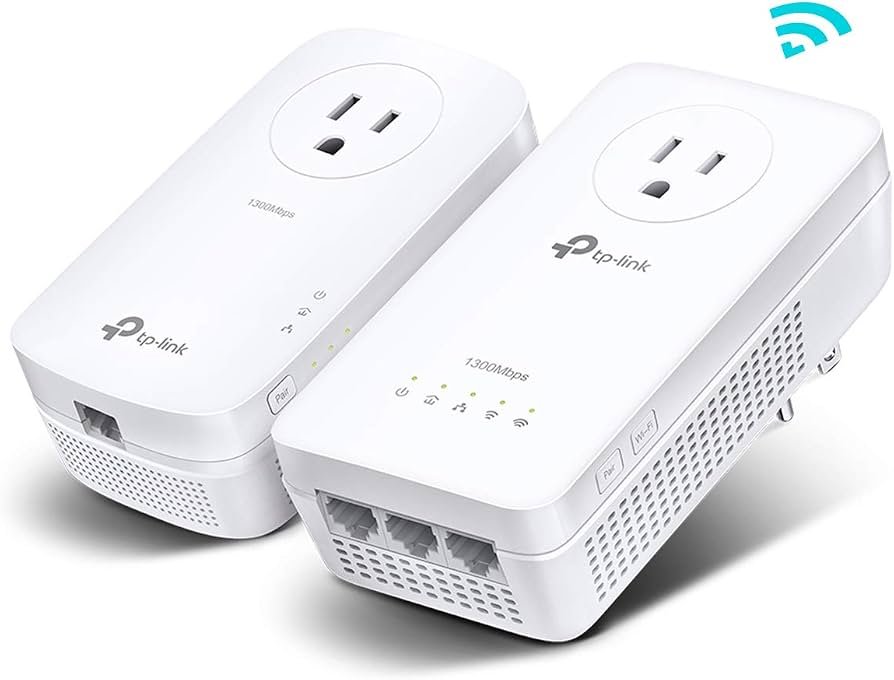
Powerline adapters (sometimes called HomePlug or powerline Ethernet adapters) use the electrical wiring in your home to carry network traffic. You plug one adapter into a wall socket near your router and connect it to the router with an Ethernet cable. You plug another adapter into a socket near your TV, streaming device, or game console and connect it with Ethernet. The adapters communicate over the building’s electrical circuits, creating a wired link without new cabling.
Key points:
– The adapters create a point‑to‑point or mesh link over existing mains wiring.
– Performance depends on the quality of the wiring, electrical noise, distance, circuit layout, and the adapter models used.
– Many adapters support passthrough outlets, built‑in Wi‑Fi extenders, or multiple Ethernet ports, but features vary by model.
Note: Different manufacturers support different standards and features; always check current documentation for your model.
Pros: Why powerline adapters are useful for streaming
- Simpler than running Ethernet: No need to fish cables through walls or across rooms.
- More stable than weak Wi‑Fi: Powerline usually offers more consistent latency and fewer dropouts than a distant or congested Wi‑Fi connection, which helps with buffering and live streaming.
- Easy to set up: Basic setups typically consist of plugging in two adapters and pairing them.
- Works across floors in many homes: Adapters often span rooms and floors as long as wiring is on the same electrical meter and is in reasonable condition.
- Good option for fixed devices: Ideal for devices that don’t move (smart TVs, set‑top boxes, consoles) where a wired connection is preferred.
Cons and limitations to be aware of
- Performance varies widely: Throughput depends heavily on your home’s wiring age, circuit layout, and electrical interference from appliances. Real‑world speeds are often lower than manufacturers’ headline figures; verify with the vendor and independent reviews.
- May not work across separate circuits/meters: If parts of a building are on different electrical phases or meters, adapters may not pass traffic or may need additional bridging devices.
- Electrical noise can reduce speeds: Microwave ovens, vacuum cleaners, chargers, and some LED lighting can introduce noise that lowers performance.
- Security considerations: Modern adapters support encryption, but pairing and firmware updates matter—follow vendor guidance to secure them.
- Not a substitute for gigabit Ethernet: For the fastest possible, low‑latency connections (e.g., for some competitive gaming or high‑bit‑rate multi‑camera production), running Ethernet remains superior.
Typical use cases where powerline adapters make sense
- Bedrooms, basements, or living rooms where Wi‑Fi is weak but running cable is impractical.
- Smart TVs, streaming boxes, or single‑room media hubs that benefit from a more reliable wired link.
- Apartments and rental units where drilling or long cables aren’t allowed.
- Temporary setups for events or short‑term streaming where fast cabling isn’t available.
Powerline vs Wi‑Fi vs Ethernet: Quick comparison
| Characteristic | Ethernet (CAT5e/CAT6) | Powerline Adapter | Wi‑Fi (2.4/5/6) |
|---|---|---|---|
| Typical reliability | Highest | Medium | Variable |
| Latency | Lowest | Low–Medium | Medium–High |
| Ease of installation | Harder (cabling) | Easy | Easiest |
| Affected by wiring | No | Yes | Not directly (affected by interference/obstacles) |
| Best for | High‑performance & latency‑sensitive | Fixed devices where cabling is impractical | Mobile devices & convenience |
Remember: real performance depends on the specific environment and product model. If maximum throughput and lowest latency are essential, use Ethernet where possible.
Buying tips: what to look for
- Match your needs: If you only need one extra port for a TV, a basic 2‑adapter kit may be enough. If you plan to connect multiple devices, look for adapters with multiple Ethernet ports.
- Passthrough outlet: If wall space is limited, choose models with a passthrough power socket so you don’t lose the outlet.
- Latest standards: Vendors reference different standards (HomePlug AV/AV2 or proprietary tech). Newer models often handle multiple input/output phases and use MIMO for better performance, but features differ by model—check manufacturer docs.
- Built‑in Wi‑Fi options: Some powerline adapters include a Wi‑Fi access point—useful if you need to extend wireless coverage as well as provide a wired port.
- Security features: Look for AES encryption or simple pairing buttons; ensure firmware updates are available.
- Reviews and local availability: Read recent independent reviews and verify availability and support in your country.
Step‑by‑step setup for streaming devices
- Choose locations: Plug the primary adapter near your router and the secondary near the TV or streaming box. Avoid power strips or surge protectors for initial testing—plug directly into a wall outlet if possible.
- Connect to the router: Use an Ethernet cable to connect the adapter labeled “LAN” or “Router” to your router’s LAN port.
- Connect the streaming device: Use Ethernet from the secondary adapter to the TV, set‑top box, or streaming stick (if the stick supports Ethernet via an adapter).
- Power on and pair: Most kits auto‑pair when plugged in, or have a pairing button. Follow the manufacturer’s pairing instructions included with your model.
- Test the link: Run a speed test on the streaming device (or a laptop connected to the secondary adapter) and try streaming content at your typical resolution to check for bufferless playback.
- Move to permanent placement: If performance is good, relocate to the final sockets and secure any cables.
- Add more adapters: Many brands let you add extra adapters to the same network for additional rooms—pair them as instructed.
Tip: If performance is poor when plugged into a surge protector or power strip, try directly into the wall. If that helps, consider a powerline adapter with a built‑in passthrough socket.
Troubleshooting common problems
- No connection or intermittent drops
- Ensure both adapters are on the same electrical breaker or meter. Try different wall outlets on the same circuit.
- Avoid surge protectors and power strips for a test. If performance improves, use an adapter with passthrough or try a filtered surge protector recommended by the vendor.
Re‑pair the adapters using the manufacturer pairing procedure.
Low speeds
- Electrical noise from appliances can reduce throughput; move the adapter or avoid using heavy‑draw devices on the same circuit while streaming.
Older or degraded wiring reduces performance—if you suspect wiring issues, test with another adapter kit or consult an electrician.
Multiple adapters not seeing each other
- Confirm all adapters use the same security key or pairing process. Some manufacturers place limits on how many devices can join a network.
Check firmware and compatibility—mixing brands or old models can cause issues.
Security concerns
- Use the built‑in encryption/pairing process. If supported, change default settings and keep firmware updated.
Advanced tips for heavier users
- Use adapters that support MIMO or multiple streams: These models often perform better on complex wiring, but results vary by home.
- Combine with Wi‑Fi strategically: Use powerline for fixed, latency‑sensitive devices (TV, console) and Wi‑Fi for phones and tablets.
- VLANs and QoS: Some higher‑end powerline devices or bridge setups support QoS or VLAN tagging—check vendor docs if you need traffic prioritization for streaming.
- Mesh hybrid setups: A powerline backhaul can be an effective complement to mesh Wi‑Fi systems in homes where wireless backhaul is unreliable.
FAQ
Q: Are powerline adapters safe and legal to use?
A: Yes. Powerline networking is a standard technology used in homes and businesses. Use certified devices and follow local electrical codes. Do not attempt to modify internal wiring or use adapters in ways not recommended by the manufacturer.
Q: Will a powerline adapter work in apartments or condos?
A: Often yes, if the apartment’s circuits are on the same electrical service. Performance can vary, and some buildings have shared infrastructure that affects connectivity. Test a kit before depending on it for critical streaming.
Q: Can I mix adapters from different brands?
A: Mixing brands can work if they follow the same HomePlug standard, but compatibility is not guaranteed. For best results, use adapters from the same vendor and series.
Q: Do powerline adapters reduce my Wi‑Fi speed?
A: Powerline adapters don’t directly affect Wi‑Fi speed. However, if you use a powerline adapter with a Wi‑Fi access point, overall traffic patterns may change. Electrical noise introduced by other devices can affect powerline performance but typically won’t affect wireless radio signals.
Q: Is powerline suitable for 4K streaming and live TV?
A: Many powerline setups can handle 4K streaming, but this depends on the real‑world throughput in your home. If you have a high‑bitrate multi‑stream use case (multiple 4K streams simultaneously), test before committing.
Q: Will a surge protector block powerline adapters?
A: Some surge protectors and filters can block or degrade powerline signals. If you must use a protector, look for models compatible with powerline or use a passthrough adapter.
When to choose a different solution
- Choose Ethernet if you need the lowest latency and maximum, predictable throughput for professional production or competitive gaming.
- Choose upgraded Wi‑Fi (Wi‑6/6E, mesh placements) if you primarily need wireless convenience and multiple mobile devices.
- Consider a professional wired solution if your home has very old or complex wiring; an electrician can sometimes provide hidden conduit or clean cable runs.
Conclusion
Powerline adapters for streaming provide a practical compromise between Ethernet and Wi‑Fi: easier to deploy than new cabling, and often more stable than a weak wireless signal. They are especially useful for fixed devices such as smart TVs and streaming boxes. However, results vary with home wiring, electrical noise, adapter models, and installation choices. If you rely on streaming for work, live events, or multiple simultaneous high‑bit‑rate streams, test a kit before buying or prefer direct Ethernet where possible.
For more device setup tips and streaming optimization, see our guides in Devices & Setup and Streaming Guides. For security considerations and firmware advice, check Tech & Security and our general tips on the Blog.
Disclosure: Settings and compatibility can differ by TV, streaming device, operating system, region, and firmware version. Verify details with the manufacturer’s documentation for your specific model before purchasing or deploying.
References
- “Power-line communication” — Wikipedia: https://en.wikipedia.org/wiki/Power-line_communication
- HomePlug / industry resources — check manufacturer documentation and standards bodies for current specs
- FCC and consumer guidance on home networking: https://www.fcc.gov/
- OpenWrt or router documentation for advanced networking configurations (if applicable to combining powerline with router features)

Canzar
Ready to stream? Pick your plan
Live TV, movies, sports and 10,000+ channels on any device — Firestick, Android TV, Smart TV, phone.
View Subscription Plans Compare Pricing
Moderation: Comments are reviewed before publishing. Be respectful and on-topic.
Guidelines: Share streaming tips, device help, or content recommendations. No spam, no promotions, no off-topic links.