
Last updated August 27, 2026 · Editorially reviewed by CanzarTV
Configure Parental QoS Throttles Without Ruining Movie Night
Introduction
Parents often want to limit how much bandwidth kids use at certain times — for homework hours, evening routines, or to prevent endless downloads — while keeping high-quality streaming for the whole family intact. Quality of Service (QoS) and parental throttles can do this, but poorly chosen rules can slow a Prime-time movie, stall a classroom video call, or break device updates.
This guide explains how to plan, configure, and test parental QoS throttles so you reduce unwanted traffic without wrecking movie night. It covers the pros and cons of different approaches, step-by-step setup guidance you can adapt to most home routers, a simple comparison table, and answers to common questions.
Why this matters
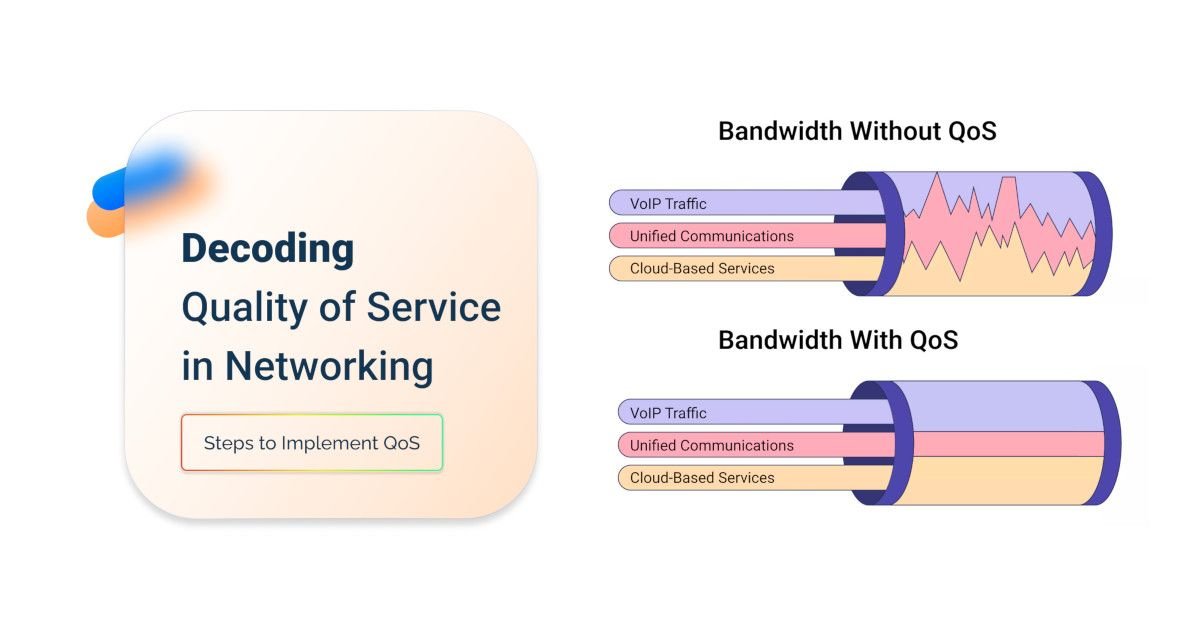
A family home is a shared network. Modern streaming services use adaptive bitrates and buffering to survive some congestion, but severe or misapplied throttles can cause rebuffering or lower picture quality. The goal is to set limits that influence non-essential usage (large downloads, background updates, some gaming traffic) while preserving the bandwidth or priority streaming and real-time apps need.
H2: Plan before you change anything
H3: Inventory devices and usage patterns
- List the devices your kids use: tablets, consoles, phones, smart speakers, laptops, and any IoT devices that may be downloading updates. Group them logically (e.g., “Kids Tablets,” “Living Room Devices”).
- Note the typical activities per device: streaming video, gaming, homework video calls, app updates.
- Decide which activities should never be throttled (e.g., parents’ streaming device during family viewing, or school video calls) and which can be limited.
H3: Measure baseline performance
Before applying limits, test your baseline: run an internet speed test from the location where streaming usually happens (wired and Wi‑Fi) and measure latency and stability. Also check for bufferbloat — high latency under load indicates you may need traffic shaping rather than blunt limits. Useful tools: Ookla Speedtest and bufferbloat measurement pages (see references).
H2: Choose an approach: prioritization, capping, or shaping
There are multiple ways to control bandwidth; each has trade-offs.
| Approach | What it does | Pros | Cons |
|---|---|---|---|
| Priority-based QoS | Gives priority to selected devices/apps but doesn’t strictly limit others | Keeps streaming smooth while allowing background use | Low-priority users can still consume all leftover bandwidth if not combined with caps |
| Bandwidth caps (static limits) | Sets a maximum speed for a device or group | Predictable; easy to enforce | Can harm adaptive streaming if cap is too low; less flexible across varying household needs |
| Traffic shaping (smart QoS) | Dynamically manages flows, reduces bufferbloat, and enforces fairness | Best overall user experience under congestion | More complex; depends on router firmware and CPU capability |
Quick guidance: prefer priority-based QoS combined with conservative caps or scheduling for the heaviest background devices. When bufferbloat is present, favor shaping (bufferbloat control) over blunt caps.
H2: Practical step-by-step setup (generic)
These steps are generic and meant to apply to most home routers. Exact labels and menus vary by vendor and firmware; check your router’s documentation.
H3: 1) Create device groups
- Use MAC addresses or device names to group children’s devices and family streaming devices separately.
- If your router supports profiles or tags, create “Kids” and “Family Streaming” groups.
H3: 2) Reserve or prioritize for streaming devices
- Mark the main TV, streaming box, or media center as High Priority or place it in a “Streaming” QoS class.
- If the router supports application-based rules, prioritize streaming apps or ports used by major streaming services (note: apps and ports may change; consult vendor docs).
H3: 3) Apply caps for background-heavy devices
- For devices that primarily download updates or large files, consider a modest cap (for example, a percentage-based rule). Instead of a single absolute number, many households find it useful to cap kids’ devices at 20–40% of typical download capacity during specified hours.
- Example: if your typical evening download capacity is 100 Mbps, a cap of 20–40 Mbps per child device or group can prevent them from saturating the uplink while still allowing HD video in many cases. Adjust upward or downward based on observed streaming quality.
H3: 4) Schedule throttles
- Apply stricter caps or lower priority during homework hours or bedtime, and relax them during family viewing periods.
- Scheduling reduces the chance that a permanent cap interferes with legitimate family use later in the day.
H3: 5) Consider the upload and latency
- Real-time apps (video calls, cloud gaming) are sensitive to upload speed and latency. Ensure your rules don’t completely block upload on kids’ devices during school hours.
- If you see high latency under load, enable bufferbloat mitigation or traffic shaping if available.
H3: 6) Use guest networks or VLANs for isolation
- Put kids’ devices on a guest SSID or separate VLAN so rules are easier to apply and don’t interfere with family devices.
- A separate network also simplifies parental content filtering and device-level time limits.
H3: 7) Monitor and iterate
- Apply the rules, watch what happens during a typical evening, and tweak. Look for rebuffering events, long initial load times, or stalled downloads that keep the link saturated.
- Many routers provide traffic graphs — use them to see whether caps and priorities are working as intended.
H2: Example scenarios (templates you can adapt)
Scenario A — “Conservative evening limits”
- Goal: keep evening streaming (family TV) clear, limit downloads on kids’ tablets during 7–10 pm.
- Setup: mark TV and streaming box as “High” priority; cap kids’ group to 25–35% of total downstream during 7–10 pm; enable scheduling.
Scenario B — “Homework window with fair share”
- Goal: keep video calls for school stable while limiting entertainment streaming during homework.
- Setup: prioritize video conferencing ports/apps (if supported); limit streaming app traffic on kids’ devices or set a lower priority for entertainment apps; ensure upload is not capped for school devices.
Scenario C — “Weekend movie night”
- Goal: give family streaming top priority for 2–3 hours while still allowing minimal background access for kids’ devices.
- Setup: create a schedule to boost the streaming device’s priority and temporarily raise caps for family devices only.
H2: When to avoid heavy-handed caps
- If most devices use adaptive streaming and you experience bufferbloat, a hard cap can worsen latency-sensitive apps. Prefer shaping or priority.
- Cheap routers with weak CPUs can struggle with per-flow shaping. If your router’s QoS options are limited, consider simpler schedules or upgrading firmware (OpenWrt, router vendor updates) — verify compatibility and read documentation.
H2: Tools and diagnostics
- Speed tests: Ookla Speedtest or similar to confirm baseline speeds.
- Bufferbloat tests: look for latency spikes under load; bufferbloat.net and related tools can help.
- Router logs and traffic graphs: use built-in monitoring to see which devices are hogging bandwidth.
Include the right internal resources: for device setup and router choices see Devices & Setup and for security implications see Tech & Security. For practical articles, check our posts on network tweaks in the Blog.
H2: Compatibility and common pitfalls
- Many consumer routers provide simple QoS options (priority by device or application) but not deep traffic shaping. Manufacturer features vary — consult your router’s user manual and support pages.
- VPNs and encrypted traffic can mask application types and reduce the effectiveness of app-based QoS.
- Some ISPs perform traffic management upstream; local QoS can’t override provider-side shaping.
H2: Quick checklist before movie night
- Confirm streaming device is wired where possible (Ethernet reduces interference).
- Temporarily prioritize the streaming device or enable “movie night” schedule 5–10 minutes before playback.
- Pause large downloads and updates on other devices, or rely on your scheduled caps.
- Run a quick test stream 10–15 minutes before family time to catch problems early.
H2: FAQ
Q: Will QoS make streaming worse for kids?
A: Not if configured sensibly. The goal is to deprioritize non-essential traffic while preserving bandwidth or priority for streaming and real-time apps. Avoid caps so low that they can’t support the minimum bitrate your streaming service uses (typical adaptive bitrates vary by resolution — see the service’s documentation).
Q: Can kids bypass the limits?
A: It depends. A tech-savvy child could switch to a VPN or use mobile data. Use supervised accounts, parental controls built into devices, and a combination of network-level rules plus device-level restrictions to reduce the chance of bypass.
Q: Will a VPN affect QoS?
A: Yes. A VPN encrypts traffic and can prevent application-level QoS from recognizing streams, which may reduce the effectiveness of app-based rules. Device- or IP-based rules remain workable.
Q: Does Wi‑Fi band steering and roaming affect QoS?
A: Band steering and roaming influence which radio and frequency a device uses; QoS typically acts at the network layer, so rules still apply. However, poor Wi‑Fi performance (interference, weak signal) will undermine QoS outcomes — prioritize good Wi‑Fi planning and Ethernet for key devices.
Q: Should I upgrade firmware or buy a better router?
A: If your router doesn’t offer the QoS features you need or shows poor performance when enforcing rules, upgrading firmware (where supported) or choosing a router with stronger QoS and CPU capacity can help. Verify compatibility and read vendor documentation before changing firmware.
H2: Conclusion
Parental QoS throttles are a powerful way to balance family needs: limit unwanted bandwidth use while keeping movie night and school calls smooth. The best setups combine sensible priorities for streaming devices, thoughtful caps or schedules for background-heavy devices, and active testing and adjustment. Start with an inventory and baseline tests, use priority plus modest caps rather than draconian limits, and iterate based on what you observe.
Disclosure: Router interfaces, QoS features, and parental controls vary by TV, device, operating system, region, and firmware version. Verify current manufacturer documentation and test changes before relying on them for critical events.
References
- Netflix Help Center — Internet connection speed recommendations: https://help.netflix.com/en/node/306
- Ookla Speedtest: https://www.ookla.com/speedtest
- Quality of service — Wikipedia: https://en.wikipedia.org/wiki/Quality_of_service
- Bufferbloat project: https://www.bufferbloat.net/projects/bloat/
- OpenWrt QoS documentation: https://openwrt.org/docs/guide-user/network/qos/start
- Example router support (check your vendor for current instructions): https://kb.netgear.com/ (search your model)

Canzar
Ready to stream? Pick your plan
Live TV, movies, sports and 10,000+ channels on any device — Firestick, Android TV, Smart TV, phone.
View Subscription Plans Compare Pricing
Moderation: Comments are reviewed before publishing. Be respectful and on-topic.
Guidelines: Share streaming tips, device help, or content recommendations. No spam, no promotions, no off-topic links.