
Last updated August 24, 2026 · Editorially reviewed by CanzarTV
Setting Up Multiple User Profiles on Devices to Respect Accessibility Preferences
Many households share one TV or streaming device, but each person may prefer different accessibility settings: captions on for one user, audio descriptions for another, larger text or high-contrast menus for someone else. Creating separate user profiles or accounts and saving accessibility preferences per profile makes the viewing experience faster and more comfortable for everyone.
This guide explains which settings you can commonly save per profile, practical steps for popular device types, troubleshooting tips, and best practices for families and shared households. Because manufacturers and apps differ, check your device or service documentation when necessary.
Why per-user accessibility settings matter
- Respect and independence: Profiles let each person set their own captions, audio description (AD), language and visual preferences without changing the TV for others.
- Faster access: Instead of reconfiguring menus every time someone watches, saved profiles apply preferences at sign-in or profile switch.
- Better viewing continuity: Apps that remember playback position, favorites and accessibility preferences make shared devices behave more like personal ones.
Profiles are especially useful in multi-generation homes, shared apartments, or any situation where one device serves people with different visual, hearing, or cognitive needs.
Common accessibility settings you might want to save per user
Not every device or app will support saving every preference per profile. Typical settings to consider:
- Captions / subtitles: on/off, text size, background/opacity, style
- Audio description / descriptive audio: enabled/disabled and preferred language when available
- Default audio language and secondary audio settings
- Menu and UI text size or zoom level
- High contrast, color inversion, or reduced motion
- Remote or input accessibility features (e.g., voice control, accessibility shortcuts)
- Preferred playback speed or subtitle delay (in some apps)
Many streaming apps remember caption and language settings per account or profile; device-level settings may be global unless the platform supports multiple device users.
How to create device profiles and link accessibility settings
General approach: create separate user profiles/accounts where supported, then configure accessibility options while signed into each profile. Below are practical steps and considerations for common device categories.
Smart TVs (Samsung, LG, Sony, others)
- Check if your TV supports multiple user profiles. Some smart TV platforms have distinct user profiles or at least allow signing into different streaming accounts; others only provide device-level settings.
- If your TV supports profiles:
– Create a new user profile from the TV settings or the home screen (look for “Add user,” “Profiles,” or similar).
– Sign in with the intended streaming service accounts where applicable.
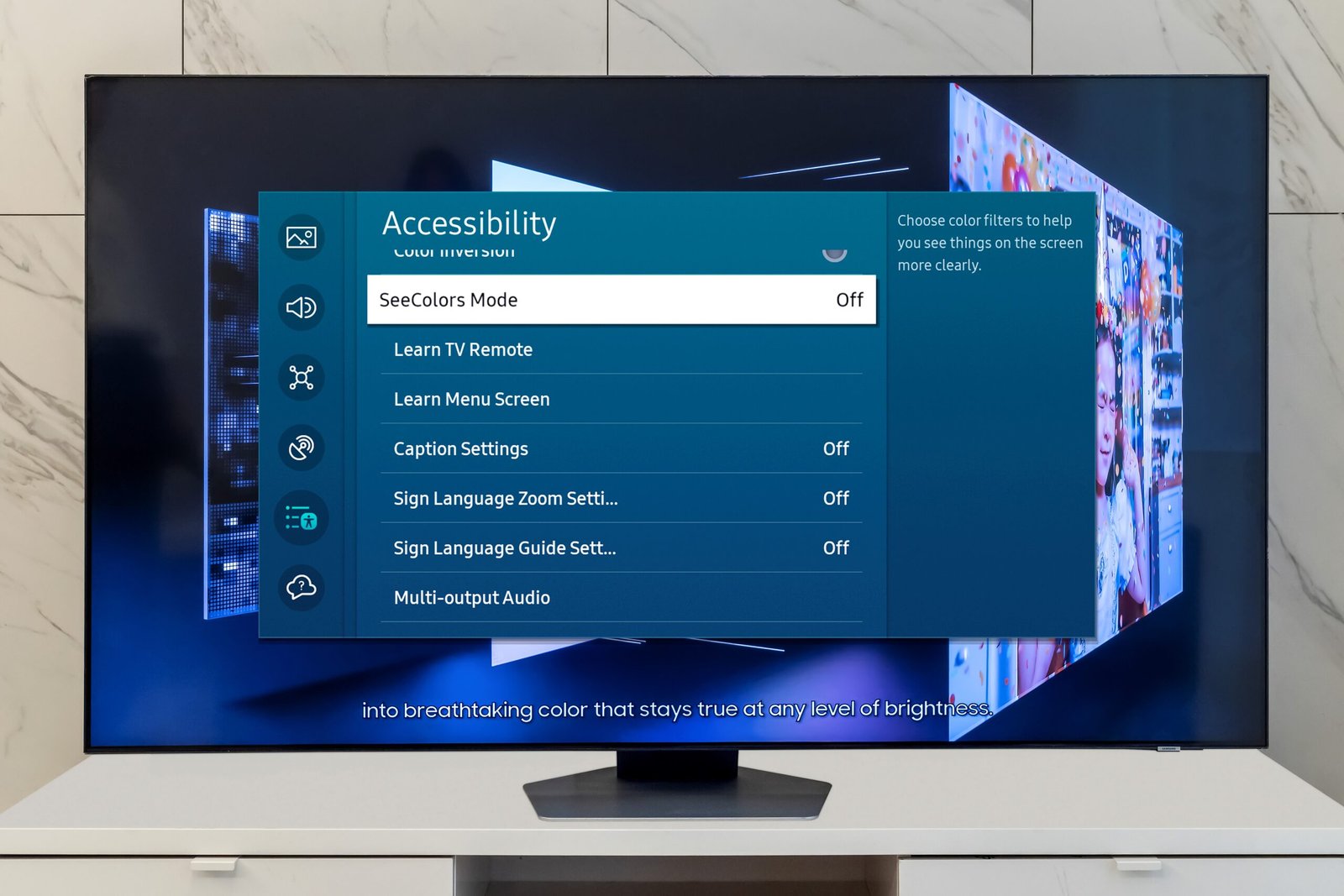
– While signed into that profile, open Accessibility or Accessibility & Ease of Use in Settings and toggle captions, audio description, text size, and other preferences. - If your TV does not support profiles, use profiles in individual streaming apps (next section) and consider using accessibility shortcuts (e.g., dedicated button sequences or accessibility widgets) to make switching quicker.
Note: Terminology and menu paths vary by manufacturer and model. Refer to your TV’s support pages for exact steps.
Streaming boxes and sticks (Roku, Apple TV, Amazon Fire TV, Google TV / Android TV)
- Roku devices
- Roku supports multiple Roku accounts and user profiles in some streaming apps. Create a Roku account and set up user profiles in apps that offer them (e.g., Netflix, Disney+). Roku’s system-wide Closed Captions settings can be adjusted in Accessibility, but whether app-level settings override system settings may vary by app and device model.
- Apple TV
- Apple TV supports multiple Apple ID users on tvOS and has system accessibility settings (VoiceOver, Closed Captions, Larger Text). Many apps on Apple TV remember caption and AD preferences per app account. Sign in to different Apple IDs or app profiles to maintain separate preferences where supported.
- Amazon Fire TV
- Fire TV supports profiles for Amazon content and some apps; accessibility settings (captions, audio) exist at the system level as well. Configure preferences while using a given profile to help apps that respect profile-level settings.
- Android TV / Google TV
- Google TV supports multiple users on many devices. Accessibility options are available in Settings. Apps typically remember their own caption and audio preferences per signed-in profile.
Always configure accessibility settings while signed into the profile you want to personalize. For best results, set app-level caption and audio preferences inside each streaming service’s settings after signing in.
Game consoles (PlayStation, Xbox, Nintendo)
Modern consoles support multiple user accounts and have robust accessibility features. Steps are similar:
- Create or switch to the user account on the console.
- Open the console’s Accessibility or System settings and apply preferences (captions, high contrast, text size, narrator, controller remapping).
- Sign into streaming apps on that account and verify app-level settings for captions and audio description.
Console menus and feature names vary; consult your console’s support pages.
Mobile devices and tablets (iOS, Android)
On phones and tablets, multiple users are less common (Android supports multiple users on some tablets; iPadOS has user features for education). For shared tablets:
- Create separate tablet users where that option exists, then set accessibility preferences per user.
- On single-user devices, create separate app profiles (where supported) and adjust app-level caption and audio options.
- Use Accessibility shortcuts and voice control to make switching faster for the person who needs them.
Streaming apps (Netflix, Prime Video, Disney+, BBC iPlayer, etc.)
Many streaming services offer user profiles inside the app or account. These often remember subtitle and audio preferences per profile. Steps:
- Sign in to the service and create profiles for different household members.
- In the profile, open the language/subtitle settings while playing content or from the account preferences and select preferred subtitle language and audio description.
- Test by switching to another profile to confirm that preferences differ.
Because services update behavior frequently, verify the app’s help pages if you don’t see per-profile accessibility settings.
Quick comparison: common platforms (model- and app-dependent)
| Platform | Profile support (general) | Save captions/audio per user? | Notes |
|---|---|---|---|
| Smart TVs (manufacturer OS) | Some models/platforms | Varies — often app-level | Check manufacturer docs for profile support |
| Apple TV (tvOS) | Yes | Often (app-level) | System accessibility present; apps may override |
| Roku | Yes (device & app profiles vary) | Partial | System CC + app settings; behavior depends on app |
| Fire TV | Yes (Amazon profiles) | Partial | Configure system and in-app preferences |
| Google TV / Android TV | Multiple users on many devices | Often (app-level) | Google TV supports profiles on many devices |
| Game consoles | Yes | Yes (system + app) | Consoles have strong accessibility controls |
This table is intentionally general. Support and behavior can change with firmware and app updates—verify for your specific device.
Best practices for households
- Create a clear naming convention for profiles (e.g., first name + “Captions”) so users know which profile to choose quickly.
- Set accessibility preferences while actively signed in to the profile you want to adjust—some settings only persist for the current profile or app account.
- Use app-level settings whenever possible for more consistent captions and audio description behavior across devices.
- Train household members to switch profiles before starting content. For children’s profiles, pair accessibility preferences with parental controls when needed.
- Keep firmware, OS and apps updated—improvements to user profiles and accessibility features are released periodically.
Troubleshooting tips
- Captions not sticking? Check both system-level Closed Caption settings and the in-app subtitle settings. One may be overriding the other.
- Audio description missing? Not all content offers AD tracks. Verify the program offers AD and that the app or device has AD enabled for the profile.
- Profile switch doesn’t change settings? Some devices remember accessibility settings at the device level only. In that case, rely on app profile settings or use accessibility shortcuts.
- Profiles not available? Some older TVs and devices don’t support multiple users; creating separate app profiles on services and using account sign-ins is a common workaround.
If problems persist, consult the device or service help pages and community forums for model-specific guidance.
FAQ
Q: Can I save captions and audio settings per user on every TV and streaming device?
A: No. Whether you can save captions and audio settings per user depends on the device, operating system, and the streaming app. Many modern platforms and apps support per-profile settings, but older devices or some TV platforms may keep accessibility settings global. Always verify with your device and app documentation.
Q: If the TV has system captions set to on, will that override an app’s caption preference?
A: It depends. Some apps prefer their own subtitle settings and will override system-level captions, while others defer to the device’s closed-caption setting. Check both system and in-app subtitle settings for each profile.
Q: Will audio descriptions be available in multiple languages?
A: Availability of audio description tracks varies by content and provider. When an AD track is provided, many apps allow selecting the AD language in audio settings; this is content- and service-dependent.
Q: Are there quick ways for someone with low vision or limited mobility to switch profiles and settings?
A: Yes. Use built-in accessibility shortcuts (e.g., triple-click the remote or assign a voice command) where the device supports them. On some platforms you can also create quick-access user tiles or shortcuts to jump straight to a preferred profile.
Q: Can parental controls and accessibility settings coexist on a single profile for a child?
A: Yes. Many services let you configure both parental restrictions and accessibility features on the same profile. Set the profile restrictions and then configure captions and audio preferences while signed into that profile.
Q: What if my household uses a single streaming account across devices without profiles?
A: When there’s a single shared account, app-level preferences may be shared across everyone. You can create separate profiles within the streaming service (if supported) or consider separate device users, depending on the platform.
Conclusion
Creating and using separate device or app profiles is one of the best ways to make shared TVs and streaming devices respect each user’s accessibility preferences. Start by identifying which devices and apps in your household already support profiles, then configure captions, audio descriptions, and UI settings while signed into each profile. Where device-level profile support is limited, rely on in-app profiles and accessibility shortcuts.
Remember: platforms and apps change over time. If you don’t see expected behavior, consult your device manufacturer’s support pages or the streaming app’s help center for the most current guidance.
Disclosure: Settings and compatibility can differ by TV, device model, operating system, region, and firmware version. Verify steps and availability with your device or service documentation.
For more setup tips and device walkthroughs, see our guides in Streaming Guides, device troubleshooting in Devices & Setup, and accessibility-focused articles on our Blog. You may also find app-specific recommendations in Apps & Tools.

Canzar
Ready to stream? Pick your plan
Live TV, movies, sports and 10,000+ channels on any device — Firestick, Android TV, Smart TV, phone.
View Subscription Plans Compare Pricing
Moderation: Comments are reviewed before publishing. Be respectful and on-topic.
Guidelines: Share streaming tips, device help, or content recommendations. No spam, no promotions, no off-topic links.