
Last updated August 27, 2026 · Editorially reviewed by CanzarTV
Reduce Streaming Data Use on Limited Mobile Plans: Settings Guide
Streaming video and audio on mobile is convenient but can quickly chew through a limited data allowance. This guide explains practical, safe ways to reduce streaming data on mobile plans: app settings, operating system controls, and habits that help you avoid overages and roaming shocks. Advice is evergreen and cautious — settings and options vary by app, device, carrier, and region, so verify details in your current device or app documentation.
Quick overview: where data is used and how to cut it
Streaming data consumption depends mainly on bitrate. Higher resolution and higher bitrate streams use more data. You can reduce usage by:
- lowering playback quality (bitrate/resolution),
- forcing apps to use data‑saving modes,
- disabling background streaming, preloads, and auto‑plays,
- downloading content over Wi‑Fi for offline use,
- using system data saver settings and app permissions.
The rest of this article walks through steps for popular mobile apps, Android and iOS settings, browser streaming tips, and monitoring. Use the sections most relevant to your phone and favorite apps.
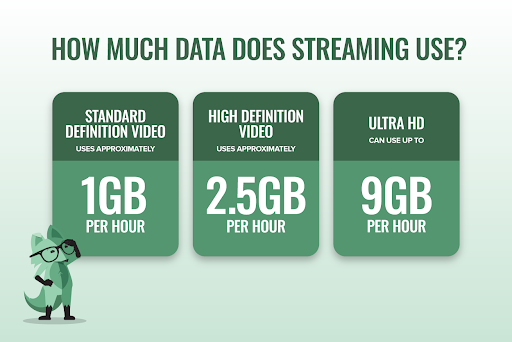
How much data does streaming typically use?
These ranges are general estimates and vary by codec, frame rate, and content type. Use them to set expectations, not as hard rules:
- Audio (standard): ~40–150 MB per hour
- Standard definition (480p): ~0.5–0.8 GB per hour
- HD (720p): ~0.8–1.5 GB per hour
- Full HD (1080p): ~1.5–3 GB per hour
- 4K/UHD: 5–10+ GB per hour
Because actual usage varies, check your carrier or app usage counters after trying settings to confirm real-world savings.
App-level settings: what to change in popular streaming apps
Many streaming apps let you pick playback quality or enable a “data saver.” Below are general locations and tips; exact menus differ by app and version.
Netflix, Disney+, Prime Video, and similar video apps
- Look for Settings > Playback or Video Quality inside each app.
- Common options: Auto (app chooses), Low, Medium, High, or specific resolution choices (e.g., SD/HD/4K).
- Choose Low or SD for the biggest data savings when on cellular.
- Some apps let you set download quality separately — set downloads to lower quality for mobile-only usage and download over Wi‑Fi.
Practical step (example): Open the app > Profile/Account > App Settings or Playback Settings > Cellular Data Usage > select Low/Save Data.
YouTube
- Tap your profile > Settings > Video quality preferences or Playback.
- YouTube typically lets you set separate defaults for mobile networks and Wi‑Fi.
- Choose “Data saver” or limit to 480p on mobile. When playing in the player, you can also tap the three dots and choose Quality to lower it mid‑stream.
Twitch
- In the video player, tap the settings (gear) icon and reduce Quality to 480p or lower.
- In the app settings, enable Auto‑quality on mobile so the player downgrades when your connection is slow or when you want to save data.
Music and podcasts (Spotify, Apple Music, podcast apps)
- Set streaming quality to Low or Normal in app settings.
- Disable automatic downloads and playlist pre‑download features when on cellular.
- Prefer offline downloads over streaming when you expect to listen repeatedly.
Device-level controls: Android and iOS settings
Controlling streaming at the OS level helps when you can’t change every app.
Android
- Data Saver: Settings > Network & internet > Data Saver. Turn it on to restrict background data and signal apps to use less data. You can allow specific apps unrestricted access.
- App data usage: Settings > Apps > [App name] > Mobile data & Wi‑Fi. Disable Background data if you want the app only to use data when in the foreground.
- Disable automatic updates over mobile: Google Play Store > Settings > Auto‑update apps > Over Wi‑Fi only.
- Turn off Wi‑Fi Assist / Smart Network Switch (some Android skins call it Adaptive Wi‑Fi) if your phone switches to mobile automatically and causes unexpected data use.
iOS (iPhone/iPad)
- Low Data Mode: Settings > Cellular > Cellular Data Options > Low Data Mode. Also available per Wi‑Fi network (Settings > Wi‑Fi > [network] > Low Data Mode). This reduces background tasks and signals apps to lower data usage.
- App-specific cell data: Settings > Cellular > scroll to apps and toggle off cellular access for any app you want Wi‑Fi only.
- Disable Wi‑Fi Assist: Settings > Cellular > scroll to the bottom and turn off Wi‑Fi Assist so your phone doesn’t switch to cellular when Wi‑Fi is weak.
Browser streaming tips
- Many browser-based players have a quality menu—click the settings icon in the player and pick a lower quality.
- Use mobile versions of websites, which often default to lower resolution.
- Consider blocking autoplay in the browser to avoid preloading videos.
Carrier features and limits
- Some carriers offer their own data‑saving tools or “video optimization” that compresses streams. Check your carrier app or account portal.
- Be careful with zero‑rating: some plans exempt certain services from caps; others may throttle speeds. Verify terms with your carrier.
Offline downloads and smart caching
- Use offline downloads for TV shows, movies, or playlists when you have Wi‑Fi. Downloads usually have separate quality settings.
- Limit how many downloads you keep and clear them when not needed.
- Some apps (podcast players, music apps) can automatically download new episodes only over Wi‑Fi — enable that.
Automatic and background features to turn off
- Preloading and prefetching: Many apps prepare content ahead of playback; disable these in app settings if available.
- Autoplay: Turn off autoplay of next episodes or recommended videos so you don’t unintentionally stream extra content.
- Background play: Some apps let audio continue in the background — disable if you don’t need it.
Comparison: system vs app vs carrier controls
| Method | Control level | Ease | Best for |
|---|---|---|---|
| App settings (quality/data saver) | Fine-grained for that service | Easy to medium | Reducing consumption in specific apps you use most |
| Device OS settings (Data Saver/Low Data Mode) | Broad, affects many apps | Easy | Quick global savings when you don’t want to tweak each app |
| Carrier features (video optimization, plan rules) | Network-level | Depends on carrier | Lower data use without changing every app; check carrier terms |
| Offline downloads | Local control | Medium | Frequent replays and travel situations with limited or no mobile data |
Monitoring usage and setting limits
- Use your carrier’s app or web portal to monitor real usage and set alarms or limits if available.
- Android: Settings > Network & internet > Data usage shows app breakdowns and lets you set a data warning or limit.
- iOS: Settings > Cellular shows per‑app cellular usage since the last reset. Reset counters monthly on the bill day.
- Third‑party apps for monitoring exist, but review permissions and privacy before installing.
Practical checklist you can follow now
- Enable OS data saver (Android) or Low Data Mode (iOS) when on cellular.
- Open top streaming apps (YouTube, Netflix, Spotify) and set mobile quality to a lower default (e.g., 480p video, Normal/Low audio).
- Disable autoplay and preloads in app settings.
- Turn off app background data for apps you don’t want using cellular in the background.
- Set app downloads to Wi‑Fi only and download content for offline use when possible.
- Monitor data usage for a week and adjust settings based on real numbers.
FAQ
Q: Will lowering quality actually save a lot of data?
A: Yes. Lowering resolution or bitrate is the most effective single measure. The amount saved varies by app codec and content, so test and monitor usage for your apps.
Q: If I enable Low Data Mode on iPhone, will it affect Wi‑Fi?
A: Low Data Mode is available both for cellular and individual Wi‑Fi networks. When enabled, it reduces background activity and may prompt apps to use lower quality streams.
Q: Are there trade‑offs when using data saver modes?
A: Expect lower visual fidelity or audio quality. Some features (preloading, real‑time high‑res streams) may be disabled. For many users the trade is worthwhile to avoid overage fees.
Q: Can I set streaming to low quality only when roaming?
A: Some apps and devices detect roaming and allow different behaviors, but this varies by device and carrier. Manually set lower quality or turn on global data saver when you expect roaming.
Q: What if my carrier offers “optimized video” — should I use it?
A: These services can reduce data use but may also reduce quality. Review your carrier’s documentation and terms; don’t assume all providers use the same approach.
Conclusion
Reducing streaming data on a limited mobile plan is mostly about choosing lower playback quality, using OS data‑saving features, disabling background/preload behavior, and preferring offline downloads when possible. Start with OS-level data saver for quick wins, then tune your most-used apps. Monitor actual usage for a billing cycle and adjust settings as needed.
For more app and device-specific walkthroughs, see our guides on Apps & Tools and Devices & Setup. For broader streaming tips and how subscription plans affect data, visit /subscriptions/ and our Blog.
Disclosure: Settings and compatibility can differ by TV, device, operating system, region, and firmware version. Verify current options in your device or app documentation and your carrier’s support resources.

Canzar
Ready to stream? Pick your plan
Live TV, movies, sports and 10,000+ channels on any device — Firestick, Android TV, Smart TV, phone.
View Subscription Plans Compare Pricing
Moderation: Comments are reviewed before publishing. Be respectful and on-topic.
Guidelines: Share streaming tips, device help, or content recommendations. No spam, no promotions, no off-topic links.