
Last updated August 25, 2026 · Editorially reviewed by CanzarTV
Selecting a TV with Built-In Accessibility: Key Features to Check Before Buying
Buying a new TV is about picture quality and smart features, but accessibility should be part of the shopping checklist too. Whether you or someone in your household relies on captions, needs audio description, prefers spoken menus, or requires high-contrast UI elements, modern televisions offer a variety of accessibility options — and support varies a lot by manufacturer, model, region, and firmware.
This guide explains the key TV accessibility features to look for, how to test them before you buy, and practical trade-offs to consider so you can choose a TV that fits your needs today and remains useful as software evolves.
Why accessibility matters when choosing a TV
Accessibility features make television usable for people with hearing, vision, mobility, or cognitive differences. They also benefit many users beyond those groups: captions help in loud rooms, audio description benefits multitaskers, and clear high-contrast menus make setup easier for everyone.
From a buying perspective, accessibility affects everyday use and long-term value. A TV with strong built-in accessibility can reduce the need for external devices or workarounds, and can make streaming apps, live broadcasts, and connected devices easier to operate independently.
Core accessibility features to check
Below are the most important accessibility features to verify when evaluating TVs. For each feature I explain what it does, why it matters, and how to check it in-store or before purchase.
1. Captions and subtitles (closed captions)
- What it is: Text that displays spoken dialogue and important non-speech audio (e.g., [door closes], [music]).
- Why it matters: Essential for people who are deaf or hard of hearing and useful for viewers in noisy environments.
- What to check:
- Are closed captions available for broadcast, HDMI sources, and popular apps (Netflix, Prime Video, etc.)? App caption support may depend on the TV’s built-in apps versus an attached streaming player.
- Can captions be turned on and off quickly with the remote (hardware button or menu shortcut)?
- Is caption customization supported (font size, color, background/window opacity, position)? Customizable captions improve readability for many users.
2. Caption customization and readability
- What it is: Options to change size, font, color contrast, and background for captions.
- Why it matters: Standard captions may be too small or blend into busy scenes.
- What to check:
- Try changing caption size and colors in Settings and note whether changes apply across apps and inputs.
- Confirm whether the TV offers adjustable background opacity or a windowed caption style to avoid overlapping on-screen graphics.
3. Audio description (descriptive audio)
- What it is: An alternate audio track that narrates visual elements (scene changes, facial expressions, on-screen text) for people with low or no vision.
- Why it matters: Allows blind or visually impaired viewers to follow visual storytelling independently.
- What to check:
- Does the TV and its built-in apps support selecting audio description tracks when available? Some streaming services include separate descriptive audio tracks that must be selectable in the app’s audio/subtitle menu.
- Check if the TV’s settings include a global toggle to prefer audio description where offered.
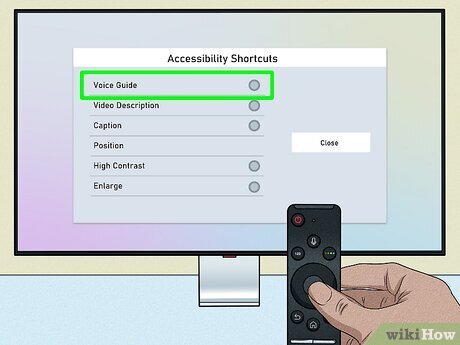
4. Voice guidance and screen reader functionality
- What it is: Spoken feedback for on-screen menus, inputs, and navigation elements (menubar, app lists, settings).
- Why it matters: Helps people with vision impairment independently set up and use a TV.
- What to check:
- Can you enable a screen reader or voice guidance feature that reads menu text aloud? Try navigating the settings with the feature on to see how complete and natural the speech is.
- Is voice guidance available in your language and does it read dynamic content (e.g., program guides and app text) as well as static menu labels?
5. Remote control accessibility and voice assistants
- What it is: Remote ergonomics and dedicated accessible controls plus voice assistant integration (microphone on remote).
- Why it matters: Physical remotes with simple layouts, tactile cues, and dedicated caption or accessibility buttons make daily use easier. Voice control can enable hands-free navigation.
- What to check:
- Does the remote include a button for captions or an accessibility menu? Are buttons clearly labeled and tactilely distinct?
- Test the voice assistant for basic commands like “turn on captions” or “open Netflix” and confirm latency and accuracy in your language/accent.
6. High-contrast and scalable user interface
- What it is: UI themes with higher contrast, larger fonts, or the ability to scale menus and program guides.
- Why it matters: Improves legibility for users with low vision or cognitive needs.
- What to check:
- Try turning on high-contrast modes or increasing UI scale in settings. Observe how much of the interface respects the change (apps, inputs, OSD).
7. Hearing aid and personal audio support
- What it is: Compatibility with hearing aids, Bluetooth headphone streaming, or support for assistive listening devices.
- Why it matters: Direct audio streaming or low-latency headphone output keeps audio in sync with video for viewers who use hearing devices.
- What to check:
- Does the TV support Bluetooth audio streaming to headphones? If possible, test pairing and watch for lip-sync delay.
- For specialized hearing aid compatibility, check manufacturer support pages and local standards — features and certifications may vary by model and region.
8. Multiple audio track support and easy language switching
- What it is: The ability to switch between audio tracks (original language, dubbed tracks, and audio description) without navigating deep menus.
- Why it matters: Quick switching saves time and makes content accessible for multilingual households or those relying on descriptive tracks.
- What to check:
- Test audio track switching in apps or with a USB media file where multiple tracks are available.
9. App and streaming accessibility
- What it is: Accessibility of the TV’s built-in apps (captions, accessible navigation, audio description within apps).
- Why it matters: Even if the TV’s OS has accessibility features, app-level support varies and often dictates whether you can use the features for streaming content.
- What to check:
- Open popular streaming apps on the TV and verify captions, audio track selection, and responsiveness of voice commands within the app.
- If an app lacks accessibility on the TV, consider whether you can use an external streaming player that provides better support.
Practical steps: how to test accessibility in-store or before buying online
Prepare a short checklist (use this as a starting point): captions on/off, caption customization, audio description selection, voice guidance on/off, remote accessibility, Bluetooth headphone pairing, UI scaling.
In-store demo:
– Ask store staff to help enable captions and audio description on a live broadcast or demo content.
– Use the remote to toggle voice guidance and navigate menus with it enabled.
– Pair a Bluetooth headset (if permitted) and play a short clip to check lip-sync.Online shopping:
– Check the manufacturer’s accessibility documentation and user manual PDFs for the model you’re considering.
– Watch manufacturer or third-party walkthrough videos showing accessibility settings.
– Read user reviews that specifically mention accessibility — real-world experiences can reveal gaps between specs and practice.Post-purchase verification:
– During the unboxing and initial setup, test the same items on your checklist right away while return or exchange windows are still open.
Quick comparison: features vs typical needs
| User need | Most important features to check |
|---|---|
| Hearing loss | Captions, caption customization, ability to switch captions quickly, Bluetooth headphone support |
| Vision loss | Audio description, voice guidance/screen reader, high-contrast UI, tactile remote |
| Limited mobility | Voice control, simple remote, programmable shortcuts, HDMI-CEC for connected devices |
| Language needs | Multiple audio track support, easy language switching, subtitle language options |
This simple matrix helps prioritize which features to test first depending on the primary accessibility need.
Choosing between a smart TV and an external player
Smart TVs integrate apps and accessibility into the TV OS, but app support and accessibility can vary. An external streaming device (set-top box, dedicated media player) may offer better or more consistent accessibility support, and can be updated independently of the TV. When deciding:
- If the TV’s built-in apps provide the accessibility you need and the OS receives regular updates, a smart TV can be a clean all-in-one solution.
- If an external player is known to offer stronger accessibility for your preferred apps, plan to use that device and check how it connects and how the TV handles captions and audio from the HDMI input.
Buying tips and negotiation points
- Ask for an accessibility demo in the store: many retailers will demo menu navigation, captions, and voice features if you request it.
- Ask about firmware update policy: accessibility can improve with software updates, so a manufacturer that updates devices regularly is preferable.
- Confirm return policies: if accessibility features don’t meet your needs after testing at home, a flexible return or exchange window is important.
FAQ
Q: What is audio description and how do I enable it?
A: Audio description is a secondary audio track that narrates key visual elements. Where available, you usually enable it through the audio or accessibility settings within a streaming app or the TV’s audio settings. Availability varies by content, app, and region — check the service and the TV’s audio track options.
Q: Will captions work for every app on my TV?
A: Not always. Captions depend on both the app and the TV OS. Many major streaming apps support captions on smart TVs, but support quality and customization options can vary. If an app lacks support, an external streaming device may offer better captioning.
Q: Are voice-guided menus accurate for people with vision loss?
A: Voice guidance quality varies by OS and language. Test the feature in-store or consult the user manual and videos. Some screen readers read most on-screen content, while others offer more limited guidance.
Q: Can I use my hearing aids with a TV?
A: Many TVs support Bluetooth audio to stream directly to headphones, and some devices support dedicated hearing-aid streaming standards. Compatibility and latency differ, so test pairing and playback to check synchronization.
Q: Do accessibility features differ by region?
A: Yes. Feature availability and default behavior can vary by model, region, and firmware. Always verify the manufacturer documentation and local app behavior.
Conclusion
When selecting a TV, accessibility should be as much a part of your checklist as screen size and HDR. Prioritize the accessibility features that match real needs — caption customization for hearing accessibility, audio description and voice guidance for visual accessibility, and responsive remote/voice controls for mobility or dexterity needs. Test features in-store where possible, verify manufacturer and app support online, and factor in update policies and return flexibility.
A well-chosen TV can provide independence and better day-to-day experiences for people with diverse needs. If you also use external devices in your setup, confirm how those devices interact with the TV’s accessibility settings before you finalize your purchase.
Disclosure: Settings and compatibility can differ by TV model, connected device, operating system, region, and firmware version. Always verify the current manufacturer documentation and test features before you buy.
For related how-tos and device setup advice, see our Devices & Setup hub and practical tools at Apps & Tools. For more background on accessibility in media, check our posts on the Blog.

Canzar
Ready to stream? Pick your plan
Live TV, movies, sports and 10,000+ channels on any device — Firestick, Android TV, Smart TV, phone.
View Subscription Plans Compare Pricing
Moderation: Comments are reviewed before publishing. Be respectful and on-topic.
Guidelines: Share streaming tips, device help, or content recommendations. No spam, no promotions, no off-topic links.