
Last updated August 25, 2026 · Editorially reviewed by CanzarTV
Best Practices for Firmware Updates on TVs and Streaming Devices Without Losing Custom Settings
Keeping your TV and streaming devices up to date is important for security, compatibility, and new features. But the dread of losing carefully tuned picture profiles, audio tweaks, app logins and channel lists makes many users delay updates. This guide gives practical, model-agnostic steps to minimize the risk of losing custom settings when you update firmware. Wherever behavior may differ by manufacturer, model, or region, we call that out and point you to verification steps.
Why firmware updates can change — or erase — settings
Manufacturers push firmware updates to fix bugs, add features, and close security holes. Depending on how an update is structured, the device may:
- Preserve user settings (most benign updates).
- Reset some settings to defaults (common when a major internal change occurs).
- Perform a factory reset in rare cases (often explicitly noted in release notes).
There is no universal rule across brands and models. Always check the manufacturer’s release notes and support advice for your specific device before updating.
Quick preparation checklist (do this before any update)
- Read the update notes and support page for your exact model.
- Sign in to cloud accounts associated with the device (these often store preferences or apps).
- Ensure you have account credentials or a password manager ready for app logins.
- Backup configuration where supported, or capture settings manually (screenshots or photos).
- Note current network settings and any IP configurations if you use static addresses.
- Keep a charged remote and reliable internet connection; avoid interrupting the update.
Helpful links: Tech & Security, Devices & Setup, Blog
Understanding backup and restore options by device type
Different product classes offer different preservation options. Below is a side-by-side summary; treat it as a guideline rather than a guarantee for any single model.
| Device class | Common backup/preservation methods | Typical settings you can expect to keep | Notes / caveats |
|---|---|---|---|
| Smart TVs (Samsung, LG, Sony, etc.) | Manufacturer cloud accounts, user profile sync (if available), USB backup (limited) | Network, picture presets (may be overwritten), app list (may require re-sign-in) | Many TVs do not offer full setting export. Take photos of critical menus. |
| Streaming sticks/boxes (Roku, Fire TV, Apple TV, Chromecast with Google TV) | Account-based sync (Roku/Amazon/Apple/Google account stores apps and some preferences) | App library, channel list, account-linked settings | App logins may need re-authorization; custom picture/audio settings often minimal. |
| Android TV / Google TV devices | Google account sync for apps and some settings | Installed apps, some preferences | Device manufacturers may add vendor-specific settings not covered by Google sync. |
| Set-top boxes / proprietary devices | Provider-managed backups vary | Varies widely | Contact provider support for device-specific guidance. |
Concrete steps to preserve settings
Follow these steps in order. They’re intentionally conservative so they work across most devices and brands.
1) Verify update details
- Look up the update notes for your exact model on the vendor’s support site. If the notes mention “factory reset,” “settings reset,” or “data migration,” assume settings may be lost.
- If release notes are vague, check community forums and official support channels for other users’ experiences with the same update.
2) Sign into vendor and app accounts
- For TVs and streaming boxes that link to an account (Samsung, Google, Amazon, Roku, Apple), sign in before updating. These accounts often restore apps and subscriptions after an update.
- For apps that require two-factor authentication, ensure you can receive codes (phone, authenticator app) to avoid being locked out.
3) Back up what you can
- Use any built-in backup or cloud sync option in Settings > System > Backup (naming varies). Not all devices have this.
- Export channel lists or tuners if your device supports that feature.
- If no export exists, take clear photos or screenshots of: picture settings (brightness, contrast, color temperature), advanced audio config, network name and password (or note whether DHCP/static), app-specific settings you rely on.
Tip: Keep a single file or note (local or in your password manager) with key settings so you can reapply quickly.
4) Record app and account info
- Use a password manager to ensure you have usernames and passwords ready for any apps that might require re-login.
- Make sure subscriptions are active and accessible through account portals rather than relying on saved credentials on the device.
5) Avoid unnecessary factory resets
- If an update prompts a factory reset, read the support notes carefully. Sometimes a reset is part of a major migration, and the vendor may offer an automated restore route—other times you must accept loss of local settings.
- If you don’t need the new feature immediately, and the update looks risky, consider delaying the update until vendor guidance is clearer.
6) Update using the recommended method
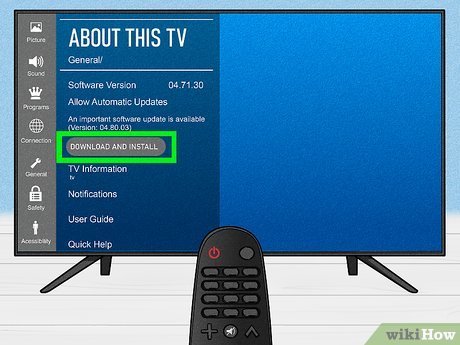
- Use the device’s official update path (Settings > Support > Software Update or similar) or the vendor’s desktop/mobile update tool when provided.
- Prefer using a stable wired network or reliable Wi‑Fi; avoid power loss during the process.
7) After update: restore and verify
- Sign into your vendor account and app accounts first. Many devices will repopulate apps and buy history automatically when you log in.
- Reapply picture and audio settings from your photos/screenshots. If the update supports importing a profile, use that.
- Check network and advanced settings, and reconnect any USB or NAS media shares you had configured.
Platform-specific pointers (model behavior varies)
- Samsung and LG: Some newer models offer cloud profile sync for Samsung accounts or LG accounts; others do not. Custom picture modes may be renamed or reset after major updates—capture settings first.
- Sony / Android TV / Google TV: Google account sync preserves apps and some preferences; vendor-specific picture and audio options might still reset.
- Roku: App/channel libraries restore when you sign back into your Roku account. Device-specific settings like custom display calibration typically must be reapplied manually.
- Amazon Fire TV: Signing into your Amazon account restores your app library. App logins often require reauthorization.
- Apple TV: Apple ID and iCloud can restore app purchases and some settings. tvOS updates rarely remove app data, but account re-logins can be required.
Always verify the current documentation for your exact model before proceeding.
Troubleshooting common problems after an update
- Apps require re-login: Use your password manager, and ensure two-factor method is available. If an app won’t accept credentials, check the app developer’s support site.
- Picture looks wrong: Reapply your saved picture settings. Reset to a known baseline (e.g., ‘Movie’ or ‘Cinema’ mode) and then reapply custom tweaks.
- Missing channels or tuner settings: If you used over-the-air tuners or custom channel lists, reconnect antenna/cable and run auto-scan. For saved favorites, check whether the vendor offers cloud sync.
- Device acts erratically after update: Try a soft reboot (power cycle). If problems persist, contact vendor support; they can confirm whether a rollback is possible or if a subsequent patch is planned.
When you might choose to delay or skip an update
- The update notes explicitly state settings/factory reset will occur.
- Community reports for your device show widespread issues after the update.
- You rely on a specific custom configuration that would be costly to recreate and no backup mechanism exists.
If you delay, make sure the device remains secure: enable any available automatic security patches if offered separately, and avoid exposing it to untrusted networks.
FAQ
Q: Will a firmware update erase my app purchases and subscriptions?
A: Purchases and subscriptions are generally tied to the account (Apple, Google, Amazon, Roku) and not the device. After signing back in to the same account, your purchases typically reappear. However, app-specific settings or locally cached content may not be recovered.
Q: Can I downgrade firmware if an update breaks my settings?
A: Downgrading firmware is often unsupported and can void warranties or cause additional problems. Some vendors allow rollbacks in limited cases via support; check the manufacturer’s guidance before attempting any downgrade.
Q: Is there a universal backup tool I can use for all TVs and streamers?
A: No. There is no universal backup standard across different manufacturers. Use built-in cloud or export features where available, and otherwise document settings manually (screenshots, photos, notes).
Q: Will disabling automatic updates keep my settings safe?
A: Disabling automatic updates prevents changes from happening without your consent, but it also postpones security and stability fixes. If you disable auto-updates, plan scheduled manual updates where you can prepare and back up first.
Q: My TV reset after an update — who do I contact?
A: Contact the manufacturer’s support team for your model and supply the update version and symptoms. If the device is provider-supplied (cable/satellite/IPTV box), contact your provider’s support.
Quick reapply checklist (post-update)
- Sign into vendor account and app accounts
- Restore or re-download apps
- Reapply picture and audio settings from your saved photos/screenshots
- Reconnect network shares and storage devices
- Run auto-tune for tuners if needed
- Re-authorize third-party devices (Bluetooth, game consoles, soundbars)
When to contact support and what to provide
If an update causes significant loss of configuration or device instability, provide the vendor support team with:
- Exact model number and firmware/software version
- A description of the problem and when it started
- Photos/screenshots showing settings before (if available) and after the update
- Steps you have already tried (reboot, re-sign-in, factory reset)
Good support teams can confirm whether others have reported the issue and whether a fix or manual recovery path exists.
Conclusion
Firmware updates are important for security and feature improvements, but they can sometimes change or erase custom settings. The safest strategy is preparation: read release notes, sign in to device/vendor accounts, use built-in backups when present, and capture critical settings manually. After the update, sign in first and reapply saved settings methodically. When in doubt, consult the manufacturer’s support documentation or contact vendor support before proceeding.
Disclosure: Settings behavior and backup options vary by TV and streaming device model, operating system, region, and firmware version. Always verify current manufacturer documentation for your specific device before performing firmware updates.

Canzar
Ready to stream? Pick your plan
Live TV, movies, sports and 10,000+ channels on any device — Firestick, Android TV, Smart TV, phone.
View Subscription Plans Compare Pricing
Moderation: Comments are reviewed before publishing. Be respectful and on-topic.
Guidelines: Share streaming tips, device help, or content recommendations. No spam, no promotions, no off-topic links.